
Customize a console app’s navigation menu so that the user interface suits the unique way you work. You can add and reorder items, and rename or remove items you’ve added.
Required Editions
| Available in: Lightning Experience |
| Available in: Essentials, Professional, Enterprise, Performance, and Unlimited Editions |
To personalize your navigation items, click the pencil icon on the navigation menu.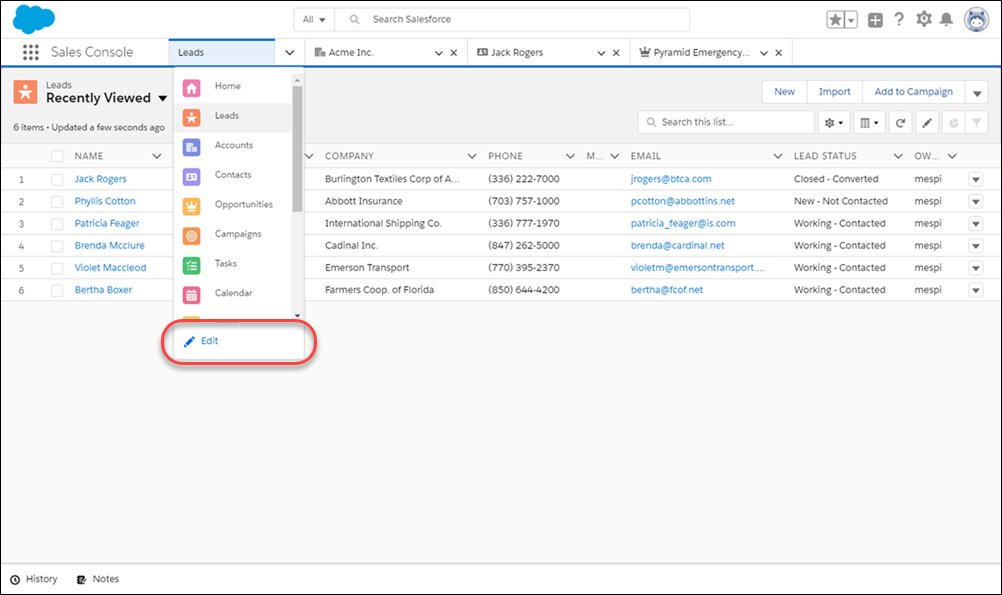

Note Admins define which default items are available in an app’s navigation menu, but you can
change certain parts of the user interface on your own. You can add items to the item menu,
and rename or remove the items you add. You can’t rename or remove default items that your
admin specified for the app, including any custom or standard objects.
- To reorder the items already in your navigation menu, drag them.
- To remove items you’ve added, click the “x” icon next to the item. You can’t remove items that your admin has specified for the app.
- Add items to your navigation menu. Click Add More Items. Search through all available items in your org, and choose what to add. After you make your selections, you can reorder or remove items before saving your changes. You can’t rename or remove items that your admin has specified for the app.