
The History utility lets your Lightning console users see their recently visited primary tabs and subtabs from a console utility bar.

Note You can use the History utility only in Lightning console apps, not in Lightning apps
with standard navigation. You can’t change the History properties, such as the label and
icon.
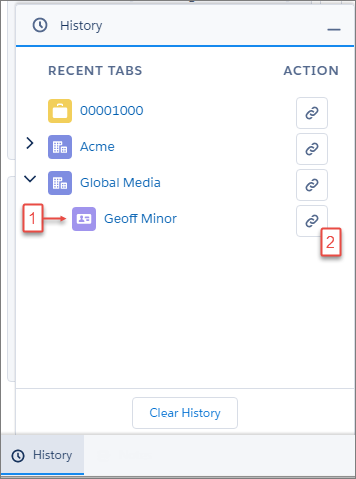
With the History utility, console users can see their subtabs in context of the workspace tabs they’ve visited (1) and copy links in one click (2). If a tab name is updated, like when a user updates a contact’s name, the history list is updated, too.
Keep these things in mind when working with the utility.
- The list can display up to 10 workspace tabs at a time, with 10 subtabs under each workspace tab.
- Workspace tabs are listed in the order last visited, with the most recent at the top. Subtabs are listed under their primary tabs in the order first opened.
- If you copy a subtab link, the record opens as a workspace tab.
- If you copy a link and want to share it with other users, make sure that they are logged in to Salesforce before opening the link. Otherwise, the link directs them to the home page instead of the specific record.
- This utility supports pop-out.

Tip The standard Lightning console apps, Service Console and Sales Console,
include the History utility by default.
Did your console use the History component in Salesforce Classic? Well, the History utility provides the same functionality for Lightning console apps.