---
schema_version: "1"
id: 37a59b8c935a75e129591fd7da3d4eb182bef67a70a99d5b660fa73597f59557
title: Create a Flow to Link Voice Callers to Records
collection: admin
version: current
locale: en-us
portal_url: https://docs.salesforce.com/admin/current/en-us/service/264-0-0/channel_object_linking_flow_template.md
canonical_url: https://help.salesforce.com/s/articleView?id=service.channel_object_linking_flow_template.htm&release=264.0.0&type=5
source_site: help.salesforce.com
content_type: documentation
content_hash: 92683d557c0b82520059afd12595a61ba69f310f4761bc32415b84f100974f26
description: To improve service and data quality, add a screen flow that guides support reps to find and link callers to leads, contacts, or employees.
products:
- Service Cloud
release: "264"
---
# Create a Flow to Link Voice Callers to Records
To improve service and data quality, add a screen flow that guides support reps to find and link callers to leads, contacts, or employees.
### Required Editions
| User Permissions
Needed |
| To run flows |
Run Flows
OR
Manage Flow
|
The Find Contact Associated with Voice Call flow template lets support reps easily find and link contacts to active voice calls. Use the template to customize search criteria, record creation, creation screens, record match screens, and output parameters for other flows.
1. In your telephony setup, turn on **Match Callers to End User Records**.
2. If you don’t use Channel-Object Linking, skip to step 4. If you do use it, turn it off before adding Individual-Object Linking. From Setup, in the Quick Find box, enter Channel-Object Linking, and then select **Channel-Object Linking**.
3. Turn off **Channel-Object Linking**.
4. From Setup, in the Quick Find box, enter Flows, and then select **Flows** under Process Automation.
5. Click **New Flow**.
6. Click **All + Templates**.
7. Click **Individual-Object Linking Flow**.
8. Select the **Find Contact Associated with Voice Call** flow template.
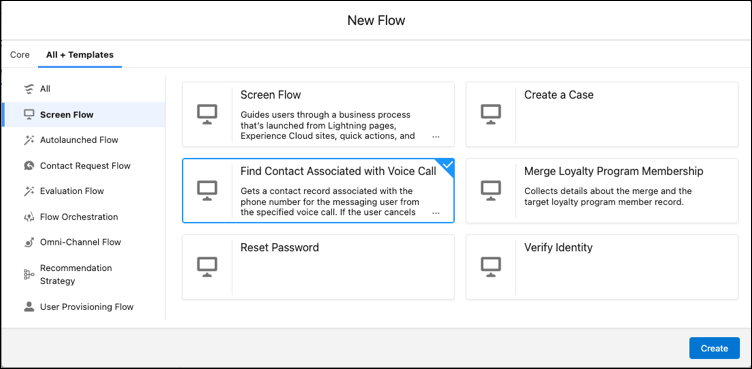
9. Click **Create**.
10. To search for a lead, employee, or person account instead of contacts, click the **Search for Matching Contact** flow action, and then select **Edit Action**. Make a selection in the Search Object dropdown menu.
11. Click **Save**.
12. Test and update the flow to meet your business needs, and then activate it.
#### See Also
- [_Salesforce Help_: Configure Caller ID for Your Contact Center](https://help.salesforce.com/articleView?id=voice_setup_identify_callers.htm&language=en_US)
- [_Salesforce Help_: About Flow Variables](https://help.salesforce.com/articleView?id=about_flow_variables.htm&language=en_US)
- [_Salesforce Help_: Add Screen Pops to Give Agents More Context about Conversations](https://help.salesforce.com/articleView?id=omnichannel_add_screen_pop_action.htm&language=en_US)
- [_Salesforce Help_: Create an Omni-Channel Flow](https://help.salesforce.com/articleView?id=omnichannel_create_a_flow.htm&language=en_US)