
After your Einstein classification model is built, it’s time to decide how much prediction automation you’re comfortable with. For Case Classification and Case Wrap-Up, Einstein recommends the top three field values for each field in your model, or you can have Einstein select the best value. For Einstein Case Classification, Einstein can also save the best value automatically.
Required Editions
| View supported editions. |
| User Permissions Needed | |
|---|---|
| To build and manage Einstein Case Classification and Einstein Case Wrap-Up: |
View Setup AND Customize Application AND Manage Profiles and Permission Sets AND Edit on cases OR Modify All Data |
Before you get started, check out these resources.
After your model is built, choose your field prediction confidence settings. Update these settings at any time. Changes take effect immediately.
- From Setup, in the Quick Find box, enter Einstein Classification, and then click Einstein Classification.
- Click a model name, and then click its Setup tab.
-
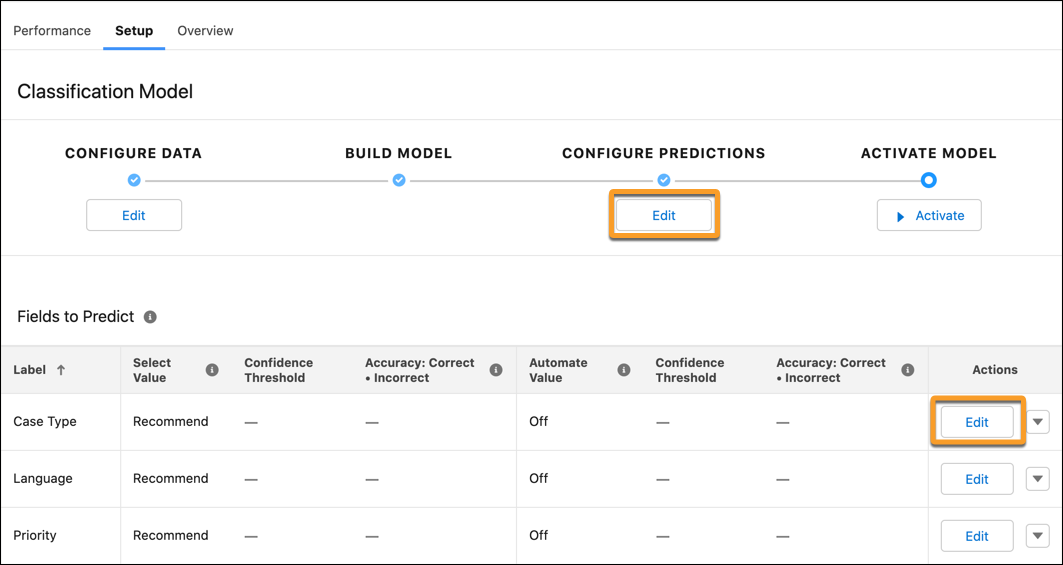
If the model isn’t active, click Edit under Configure Predictions
and select a field. Alternatively, click Edit next to a field in the
list.
-
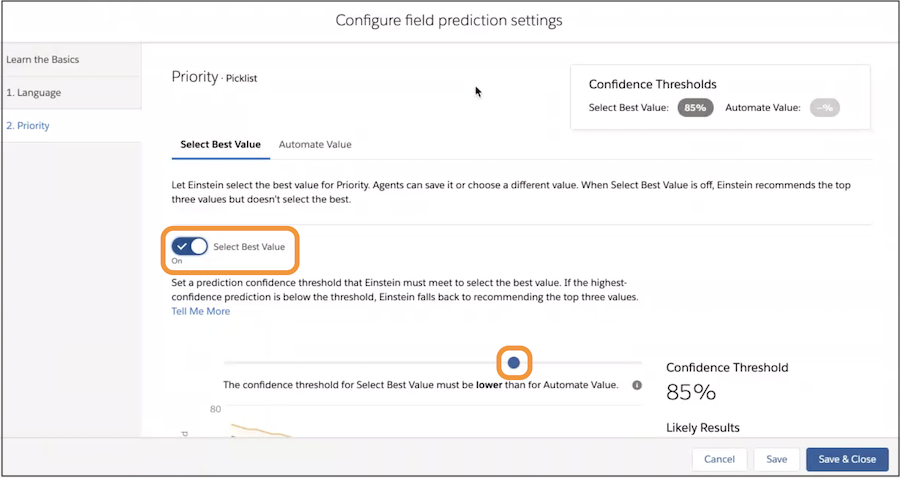
To show the field with the best value selected, turn on Select Best
Value. Drag the slider to choose the prediction confidence threshold.
Service reps see BEST next to the value. Then confirm and save it.
-
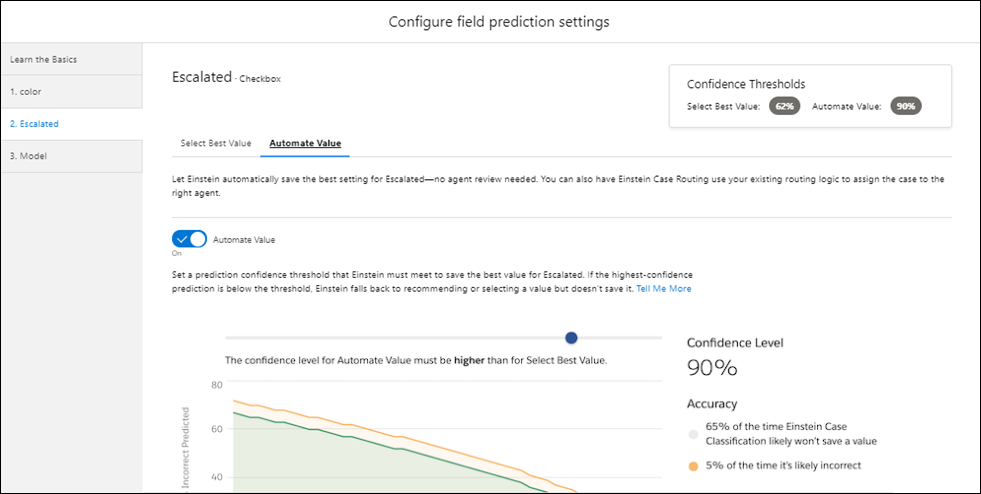
If you have the paid version of Einstein Case Classification, you can also tell
Einstein to update and save the field without service rep review. Turn on
Automate Value. Drag the slider to choose a prediction confidence
threshold for auto-updating the field. Because the case field update happens
automatically, the Automate Value threshold must be higher than the Select Best Value
threshold.
 With Einstein Case Wrap-Up, you can set the Select Best Value threshold only. Automate Value isn’t an option.
 -
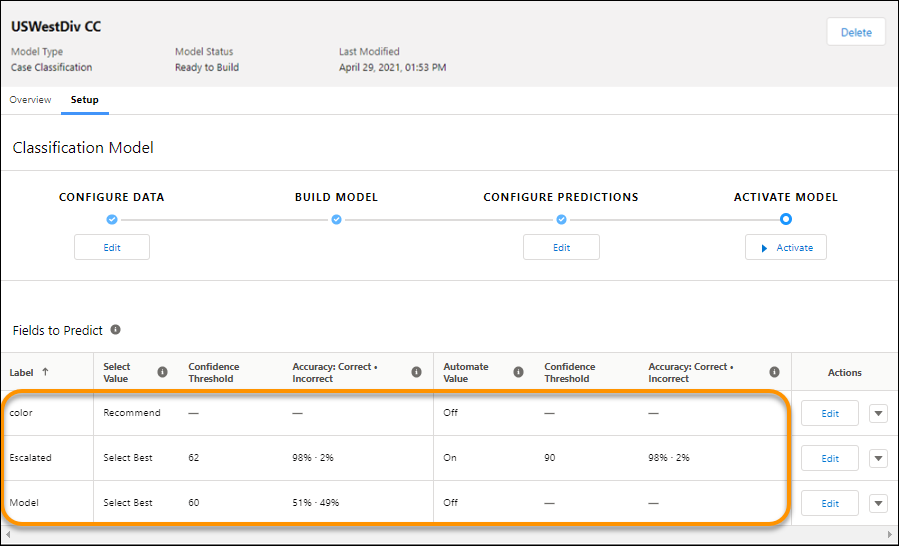
Save your changes. They take effect immediately, and you can see your prediction settings
in the field list.
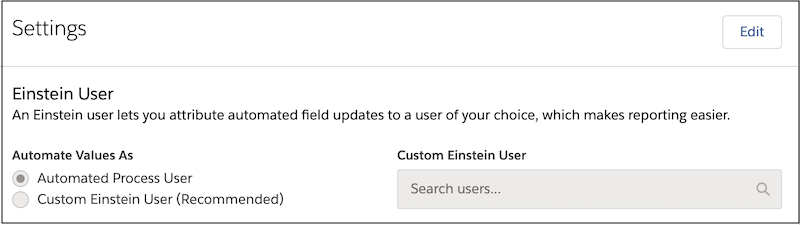
- To make reporting easier, we recommend that you create a user to distinguish Einstein’s actions from other users. Attribute the updates to the Einstein user, or use the default automated process user. From Settings, under Automate Values As, select Custom Einstein User (Recommended).
-
Under Custom Einstein User, select or create a user. The user must have edit permission on
cases and on the fields included in your classification model.

Example You add the Priority field to your Einstein Case Classification model and use these
prediction settings for the field.
- Select Best Value is turned on with a 70% confidence threshold.
- Automate Value is turned on with a 90% confidence threshold.
| If Einstein predicts the priority with a confidence level: | Then, Einstein: |
| Lower than 70% | Shows the top three recommended values for the Priority field but doesn’t select one. The service rep selects and saves a value. |
| Between 70%–89% | Shows the field with the priority selected. The service rep confirms and saves the value. |
| Higher than 90% | Updates the Priority field and saves the case. The service rep doesn’t need to confirm or save the value. |