
Add the Einstein ApplyCaseClassificationRecommendations action to your flow to apply case classification to predict field values for a case. It takes a Case ID as input and outputs a case SObject with recommendations applied.
Required Editions
| View supported editions. |
| User Permissions Needed | |
|---|---|
| To build and manage Einstein Case Classification and Einstein Case Wrap-Up: |
View Setup AND Customize Application AND Manage Profiles and Permission Sets AND Edit on cases OR Modify All Data |
In addition to recommendations made on case creation, use a flow to get Einstein field predictions after a case is updated with new details to the Subject or Description. Or use flows to set custom confidence threshholds for Einstein to populate the case with predicted values.
To add Case Classification to a flow requires:
- An active Einstein Case Classification model. Visit Salesforce Help to learn how to build and activate a model.
- Automate Value is enabled for any field you want to predict in a flow.
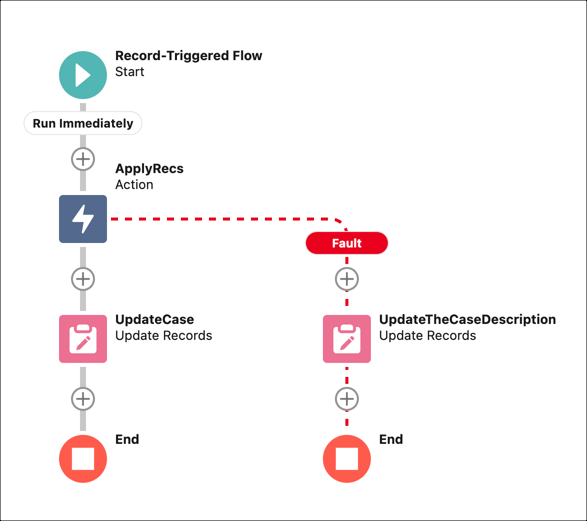
This record-triggered flow uses the ApplyCaseClassificationRecommendations action, then uses an Update Case action to populate the case with the highest confidence predicted values from the SObject. A fault branch guarantees that you keep your case if the action fails and can help you troubleshoot errors. While this example shows a record-triggered flow, you can also use the same process to add case classification to a screen flow.
To add the ApplyCaseClassificationRecommendations action to your flow:
-
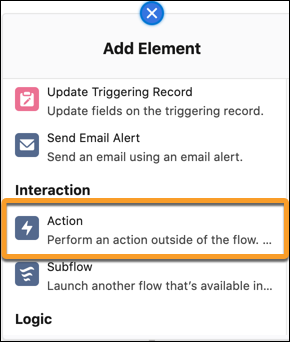
To add an Action element, click
 .
.
-
Select Einstein, then
ApplyCaseClassificationRecommendations.
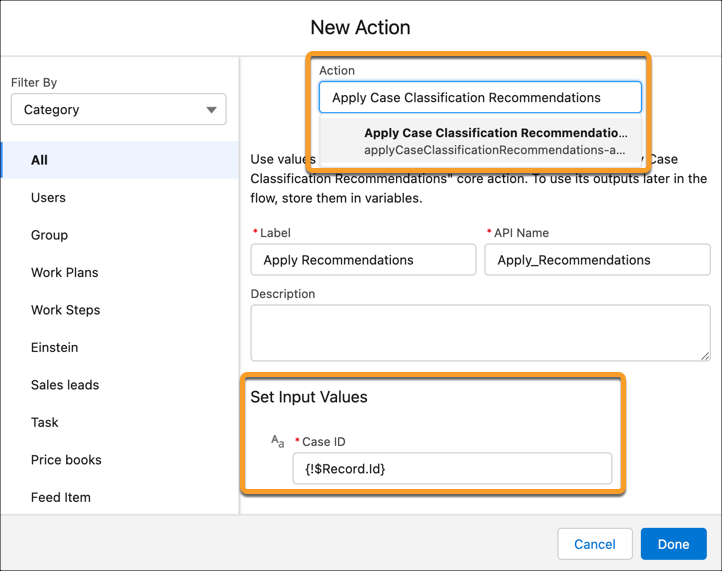
- Enter a label and optionally a description. The API name automatically populates.
-
Under Set Input Values, for Case ID, select the case ID to generate predictions for. The
case ID can be the output from a previous step in your flow. This example uses the Record
object that triggered the flow and its ID field.
To route cases based on the predicted values, add the ApplyCaseClassificationRecommendations action before the Route Work action in the flow.
- Click Done.
-
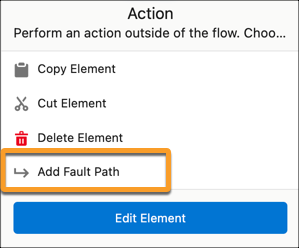
Optionally, to add a fault path, select the
ApplyCaseClassificationRecommendations action that you created, and
then select Add fault path.
- Add the action for the flow to take if the action fails in the fault path. To help identify why the fault path was triggered, include information about the case in the fault path message. In the example flow, the case description is updated with the error information.
The ApplyCaseClassificationRecommendations action returns a case SObject with the Einstein recommendations applied, but they still need to be saved. Add an Update Records action to save the updated case to your database. In a screen flow, instead of adding an Update Records action, service reps must review and save Einstein’s recommendations manually.