---
schema_version: "1"
id: a1aa77d189af30ffc09485fa95c17bfa271076e294ddbd6392f2217e863b07c7
title: Map Outputs to Summary Fields
collection: admin
version: current
locale: en-us
portal_url: https://docs.salesforce.com/admin/current/en-us/service/264-0-0/cc_generative_ai_map_summary_fields.md
canonical_url: https://help.salesforce.com/s/articleView?id=service.cc_generative_ai_map_summary_fields.htm&release=264.0.0&type=5
source_site: help.salesforce.com
content_type: documentation
content_hash: 6c3597d78e9f16ecfee48e8dc6dbdce44d5b405545322164909aba0457913982
description: Select the fields you want to map Einstein generative AI outputs to in the case.
products:
  - Service Cloud
  - Service Intelligence
release: "264"
---
# Map Outputs to Summary Fields

Select the fields you want to map Einstein generative AI outputs to in the case.

### Required Editions

<table class="slds-table slds-table_bordered slds-max-medium-table_stacked slds-m-bottom_small edition"><colgroup><col></colgroup><tbody><tr class=""><td class="slds-cell-wrap" style="vertical-align:top;"><a href="https://help.salesforce.com/s/articleView?id=service.einstein_service_intro.htm&amp;language=en_US" target="_blank">View supported editions</a>.</td></tr></tbody></table>

<table class="slds-table slds-table_bordered slds-max-medium-table_stacked slds-m-bottom_small permission">
        <colgroup>
          <col style="width:50%">
          <col style="width:50%">
        </colgroup>
        <thead class="slds-text-title_caps ">
          <tr class="">
            <th scope="colgroup" class="slds-cell-wrap" colspan="2" style="text-align:center;vertical-align:top;" id="d89660e55">User Permissions
              Needed</th>
          </tr>
        </thead>
        <tbody>
          <tr class="">
            <td data-label="User Permissions Needed" class="slds-cell-wrap" style="vertical-align:top;" headers="d89660e55 ">To build and manage for Service: Work Summaries:</td>

            <td class="slds-cell-wrap" style="vertical-align:top;" headers="d89660e55 ">
              <p>Customize Application</p>
              <p>AND</p>
              <p style="margin-bottom:0;">Edit on records OR Modify All Data</p>
            </td>

          </tr>
        </tbody>
      </table>

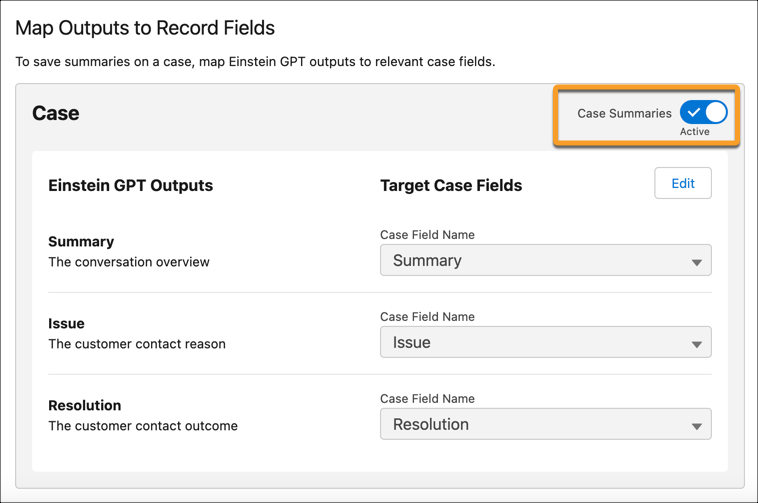
1. From Map Outputs to Record Fields, in the Work Summaries Setup page, select **Edit**.
2. For the Summary, Issue, and Resolution, select the Case field where you want to map each output.
    
    ![Einstein GPT outputs mapped to fields and activated](https://sf-zdocs-cdn-prod.zoominsoftware.com/tdta-service-support_intelligence-264-0-0-production-enus/dcd06a7b-b5ab-448b-a767-4e2e90481508/support_intelligence/images/work_summaries/work_summaries_map_outputs.png)
    
    To ensure fields can hold the entire summary, we recommend mapping summaries to fields with a long text format.
3. Click **Save**.
    
    We don't recommend changing the field mappings after you set them up. If a field mapping is updated, new summaries are stored in the new field you specify, while the content from the previous field isn't shown on the summaries page.
4. To turn on Work Summaries and show Einstein generative AI outputs to service reps in the console, turn on Case Summaries.