---
schema_version: "1"
id: f064ab13adc6f68b9f2762580dff4427dc4a945073aa714c64b28f48384886aa
title: Show Service Reps and Supervisors Midconversation Summaries
collection: admin
version: current
locale: en-us
portal_url: https://docs.salesforce.com/admin/current/en-us/service/264-0-0/cc_generative_ai_ccu.md
canonical_url: https://help.salesforce.com/s/articleView?id=service.cc_generative_ai_ccu.htm&release=264.0.0&type=5
source_site: help.salesforce.com
content_type: documentation
content_hash: 64b9f090c523ce9fcbcff3a6dadf53c18b1b9aecec973c806ad83c7d6ea6cbcc
description: When a service rep or supervisor joins an active voice call or messaging session and has to gain context quickly, catch them up with a real-time AI-generated summary of the conversation.
products:
- Service Cloud
- Service Intelligence
release: "264"
---
# Show Service Reps and Supervisors Midconversation Summaries
When a service rep or supervisor joins an active voice call or messaging session and has to gain context quickly, catch them up with a real-time AI-generated summary of the conversation.
### Required Editions
With Conversation Catch-Up, real-time summaries appear at several key moments.
- When a service rep accepts a transferred voice call or messaging session
- When a service rep accepts a messaging session from a bot
- When a supervisor clicks **Monitor** from the Omni Supervisor dashboard to respond to an escalation or service rep flag raise
To use Conversation Catch-Up, first [enable Einstein Generative AI in Setup](https://help.salesforce.com/s/articleView?id=service.cc_service_enable.htm&release=264.0.0&type=5 "To get started, enable Einstein Classification Apps in Setup.").
Conversation Catch-Up uses the GPT 4 Omni model. The serving provider depends on your org’s region. In the United States East-1, United States East-2, and United States West-2 regions, GPT 4 Omni is served by Open AI. In all other regions, including the United Kingdom and Europe, GPT 4 Omni is served by Azure Open AI, which is the default provider. For more information, see [Geo-Aware Routing for OpenAI and Azure OpenAI](https://help.salesforce.com/s/articleView?id=ai.generative_ai_platform_geo_aware_routing_openai.htm&type=5&language=en_US).
If your org is in a region served by Azure Open AI, make sure that the Azure Open AI provider is enabled for your org. See [Manage Model Provider Access](https://help.salesforce.com/s/articleView?id=ai.generative_ai_model_provider.htm&type=5&language=en_US).

Note If your org is served by Azure Open AI and that provider is disabled, Conversation Catch-Up fails with the error E30064, “The requested provider is disabled for this org: AzureOpenAI,” and no summary is generated.
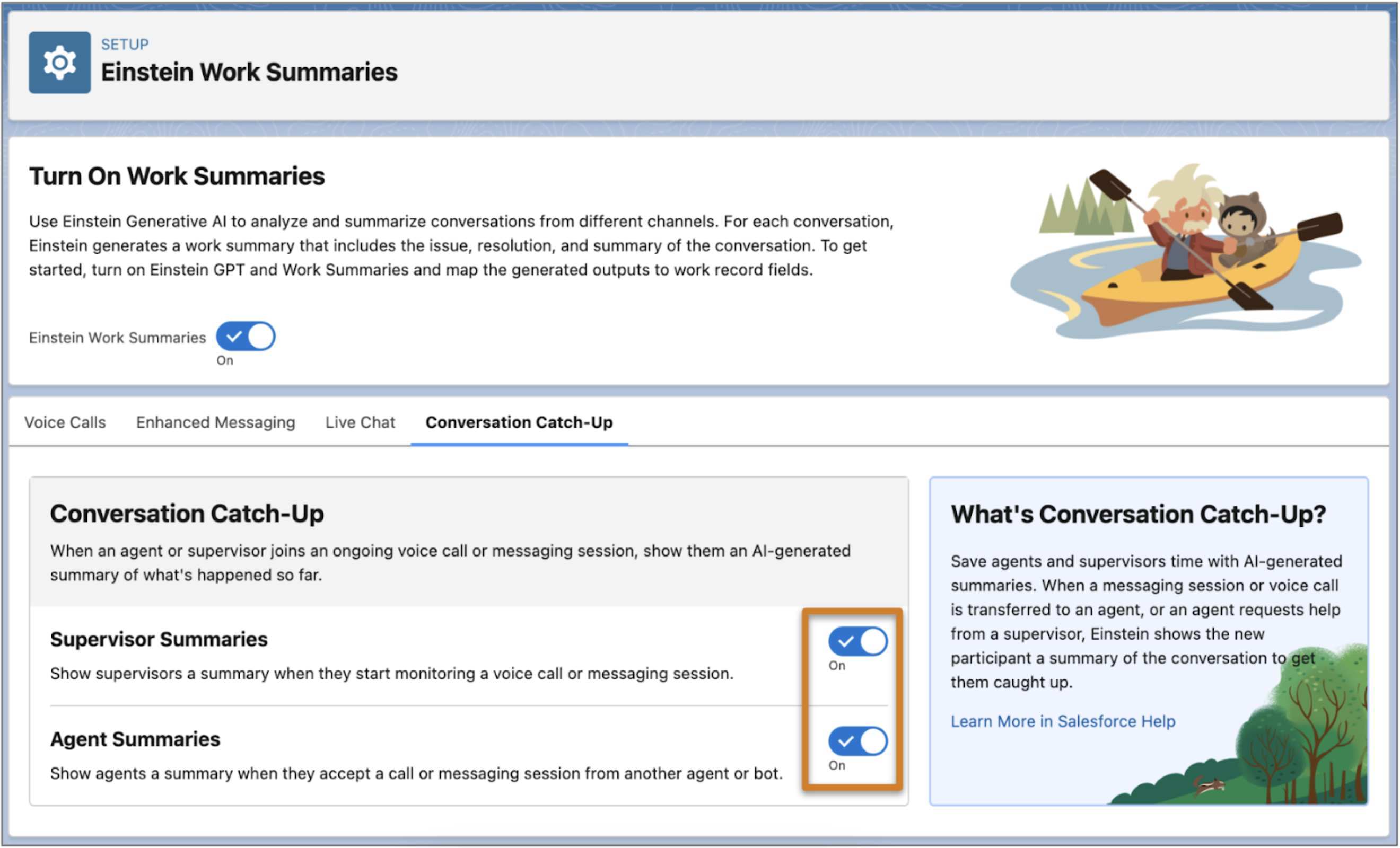
1. From Setup, in the Quick Find box, enter Work Summaries, and then select **Einstein Work Summaries**.
2. If it’s not already on, turn on **Einstein Work Summaries**.
3. Click the **Conversation Catch-Up** tab.
4. To show conversation summaries to supervisors when they start monitoring a voice call or messaging session, turn on **Supervisor Summaries**.
5. To show conversation summaries to service reps when a voice call or messaging session is transferred to them from another service rep or bot, turn on **Agent Summaries**.
A conversation must have at least 10 text-based entries before a summary can be generated. These entries don’t include menus from bots, menu selections from the customer, auto-responses, or other rich content that might be sent as part of the conversation.
Conversation Catch-Up summaries can be translated if Agent Translation is enabled. When Agent Translation is enabled, the Conversation Catch-Up summary is generated in the transcript language, not in the configured language. Conversation Catch-Up is available in ten languages: Brazilian Portugese, Dutch, English, French, German, Italian, Japanese, Mexican Spanish, Portuguese, Spanish, and Swedish.