---
schema_version: "1"
id: 21bed225c60336c6ea235adfeed81eff24322696ce34ae94b688539bf5b76099
title: Modify and Arrange Data Categories
collection: admin
version: current
locale: en-us
portal_url: https://docs.salesforce.com/admin/current/en-us/service/264-0-0/category_modify.md
canonical_url: https://help.salesforce.com/s/articleView?id=service.category_modify.htm&release=264.0.0&type=5
source_site: help.salesforce.com
content_type: documentation
content_hash: 13820f83824a249e8b85750b6c130e1f7b9f0fdcabff44e8c528c774d449d2c9
description: Modifying and arranging categories can result in long processing times, changes to the visibility and categorization of articles, and other significant consequences. Read this entire topic carefully before modifying categories.
products:
- Service Cloud
release: "264"
---
# Modify and Arrange Data Categories
Modifying and arranging categories can result in long processing times, changes to the visibility and categorization of articles, and other significant consequences. Read this entire topic carefully before modifying categories.
### Required Editions

Important Modify the category hierarchy when user activity is low. Because the save process involves potentially large and complex recalculations, it can take a long time to complete. During processing, support reps can experience performance issues when searching for articles or questions or using category dropdown lists.
1. From Setup, enter Data Category in the Quick Find box, then select **Data Category Setup**.
2. Click a category group name.
3. Optionally, click **Expand All** to display the full category hierarchy, or **Collapse All** to display only the top-level categories.
4. To edit a category’s name or its unique API name, double-click it.
5. Use drag-and-drop editing to reposition a category in the hierarchy. As you drag, a red icon indicates an invalid destination, while a green icon indicates a valid destination.
- Drag a category on top of another category to reposition it as a child of the destination category. For example, drag USA on top of North America to make USA one level below North America. After dragging, the category displays below the other child categories at that level.
- Drag a category to a line that borders another category to reposition it as a sibling of that category. For example, to position USA between Canada and Mexico, drag it to the line between Canada and Mexico.
6. To reorder a category's children in alphabetical order, hover your cursor over its name, then choose **Order Child Categories Alphabetically** from the Actions dropdown list. This reorder only affects the first-level children, not grandchildren or deeper levels.
7. As you modify the category hierarchy, click **Undo** to cancel your last actions. Similarly, click **Redo** to step forward through your flow of performed actions.
8. Click **Save**. You receive an email when the save process completes.
The save process recalculates these visibility and category settings:
- The contents of the category dropdown menu
- The articles and questions visible to each user
- The articles and questions associated with categories.

Note Save your changes frequently. The more actions you perform before clicking Save, the longer it takes to save.

Example
How Changing the Hierarchy Affects Article Visibility
Changing the category hierarchy potentially changes which articles readers can see. In the example shown in the following graphic, the category PDAs moves from the original parent category Computers to the new parent category Consumer Electronics.

Note When a category moves to a new parent category, users that have no visibility on the new parent category lose their visibility to the repositioned category.
**Move the Category “PDAs”**
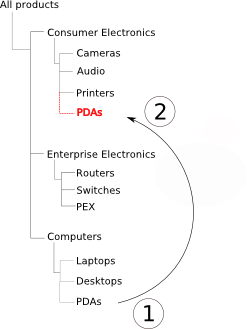
To understand how this change affects which readers can see articles classified with the PDAs category, review the following table.
| When my role, permission set, or profile is mapped to: | Could I see PDA articles in their old location under Computers? | Can I see PDA articles in their new location under Consumer Electronics? | Why? |
| --- | --- | --- | --- |
| All products | Yes | Yes | When your role, permission set, or profile is mapped to the top-level “All products” category, you can see everything in the category hierarchy. |
| Computers | Yes | No | You don't have access to the branch of the category hierarchy where PDAs is now located. |
| Consumer Electronics | No | Yes | PDAs has moved to the branch of the category hierarchy where you have been granted access. |
How Changing the Hierarchy Affects Article Classification
Classifying an article with a parent category implicitly grants access to that category's children. You cannot explicitly apply both a parent category and one of its children to an article. From the article edit page, selecting a parent category grays out its child categories—you cannot select them in addition to the parent category. Salesforce respects this fact when you move a category to a new parent. It prevents explicitly adding a child category to an article when the new parent category is already present.
In the example depicted above, the category PDAs moves from the original parent category Computers to the new parent category Consumer Electronics. As a result, the classification for each article can change.
- Articles formerly classified with both Consumer Electronics and PDAs lose PDAs, because having Consumer Electronics now implies having PDAs.
- Articles formerly classified with only Consumer Electronics but not PDAs do not change. Access to PDAs is now implied.
- Articles formerly classified with only PDAs, but not Consumer Electronics, retain PDAs.