---
schema_version: "1"
id: d1e717bd88936a57e7368971d754fb07e7ee73ff8978a8fe94ed794bed4e119a
title: Create a Case Comment Quick Action
collection: admin
version: current
locale: en-us
portal_url: https://docs.salesforce.com/admin/current/en-us/service/264-0-0/cases_set_up_lex_case_comment.md
canonical_url: https://help.salesforce.com/s/articleView?id=service.cases_set_up_lex_case_comment.htm&release=264.0.0&type=5
source_site: help.salesforce.com
content_type: documentation
content_hash: b8a647880256b9757e4252570985658c7b86378bc174f0c9974ba82ef6335719
description: To let your support reps create case comments from the case feed publisher in Lightning Experience, create a Case Comments quick action and add it to the case page layout.
products:
- Service Cloud
release: "264"
---
# Create a Case Comment Quick Action
To let your support reps create case comments from the case feed publisher in Lightning Experience, create a Case Comments quick action and add it to the case page layout.
### Required Editions
In Salesforce Classic, you can add the Internal Comments field, which created Case Comments, to the Close Case button. Your support reps can then close a case and add a case comment at the same time.
In Lightning Experience, the Internal Comments field isn’t available, so you must create a separate quick action for closing a case and one for creating a case comment.
1. From Setup, click the **Object Manager** tab. Select **Cases**, and open the **Buttons, Links, and Actions** setup page.
2. Click **New Action**.
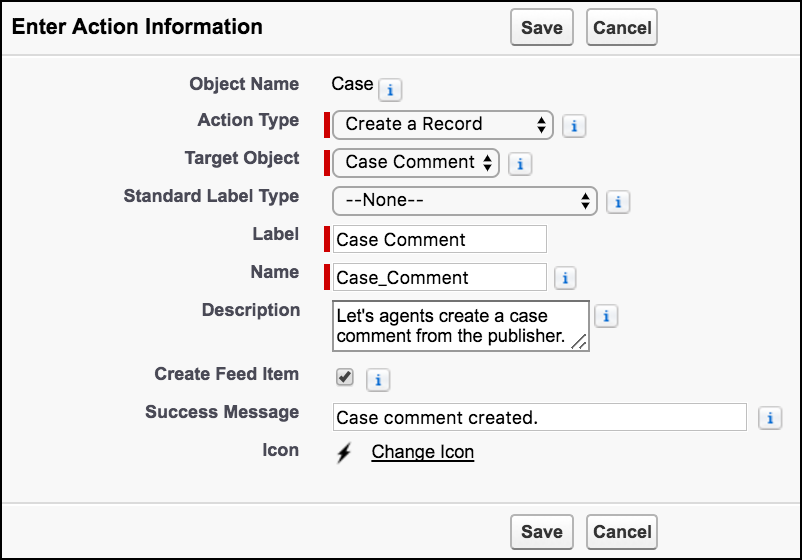
3. For Action Type, select **Create a Record**.
4. For Target Object, select **Case Comment**.
5. For Standard Label Type, select **None**. For Label, enter Case Comment. The Name field is auto-filled. Optionally, enter a description and success message.
6. Click **Save**.
7. To choose the fields users see, customize the action’s layout, and click **Save**.
Keep these things in mind.
- The Body field is always required, even if Required isn’t selected in its Field Properties dialog (invoked when you double-click the field).
- The Public field is available only if you have Experience Cloud sites enabled.
- The Public field is labeled “Published” in the quick action layout editor.
8. Go to the Case Page Layouts setup page, and [edit your case layout](https://help.salesforce.com/s/articleView?id=service.case_interaction_add_actions_to_page_layout_lex.htm&release=264.0.0&type=5 "Make actions available to your service reps by adding them to the Salesforce Mobile and Lightning Experience Actions section in the case page layout.").
Drag the new quick action to the Salesforce Mobile and Lightning Experience Actions section, and click **Save**.
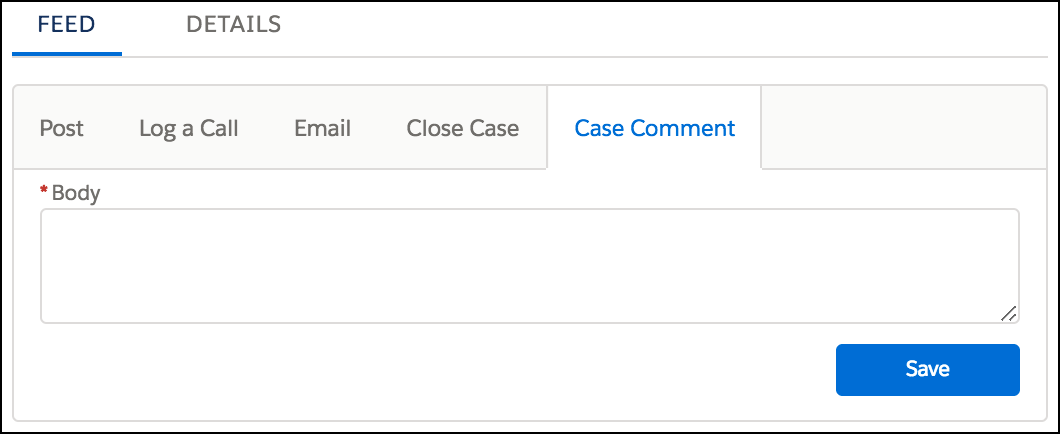
When support reps click the action from the Service Console, they see:

Example

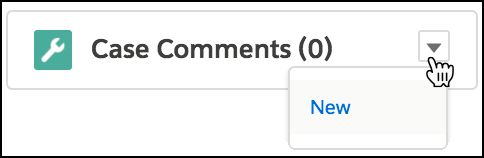
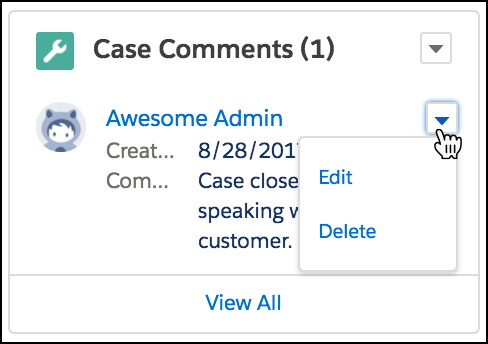
Tip In the Lightning App Builder, you can add the Case Comments related list to the case page. Then your support reps can also create case comments directly from the related list using the New button. They can also edit and delete comments.