---
schema_version: "1"
id: a6a3e437dde4fdef135c17434e5580746b3e1fffd8a189afcf98f36050b0861f
title: Set Up and Manage the Case Timeline
collection: admin
version: current
locale: en-us
portal_url: https://docs.salesforce.com/admin/current/en-us/service/264-0-0/cases_set_up_and_manage_the_case_timeline.md
canonical_url: https://help.salesforce.com/s/articleView?id=service.cases_set_up_and_manage_the_case_timeline.htm&release=264.0.0&type=5
source_site: help.salesforce.com
content_type: documentation
content_hash: 1c530d513d8e46d058a0a79008a7e17d61534bd893e77c74e1d2aab63f018f0e
description: The Case Timeline is a new, intelligent component that replaces the existing fragmented feeds and related lists with a single, unified, and curated view of all case-related events. It provides reps with instant context by intelligently organizing customer conversations, internal collaboration, and critical case lifecycle milestones.
products:
- Service Cloud
release: "264"
---
# Set Up and Manage the Case Timeline
The Case Timeline is a new, intelligent component that replaces the existing fragmented feeds and related lists with a single, unified, and curated view of all case-related events. It provides reps with instant context by intelligently organizing customer conversations, internal collaboration, and critical case lifecycle milestones.
### Required Editions
To learn more about the Timeline feature, see [Timeline](https://help.salesforce.com/s/articleView?id=ind.timeline.htm&type=5&language=en_US).
## Turn on Case Timeline
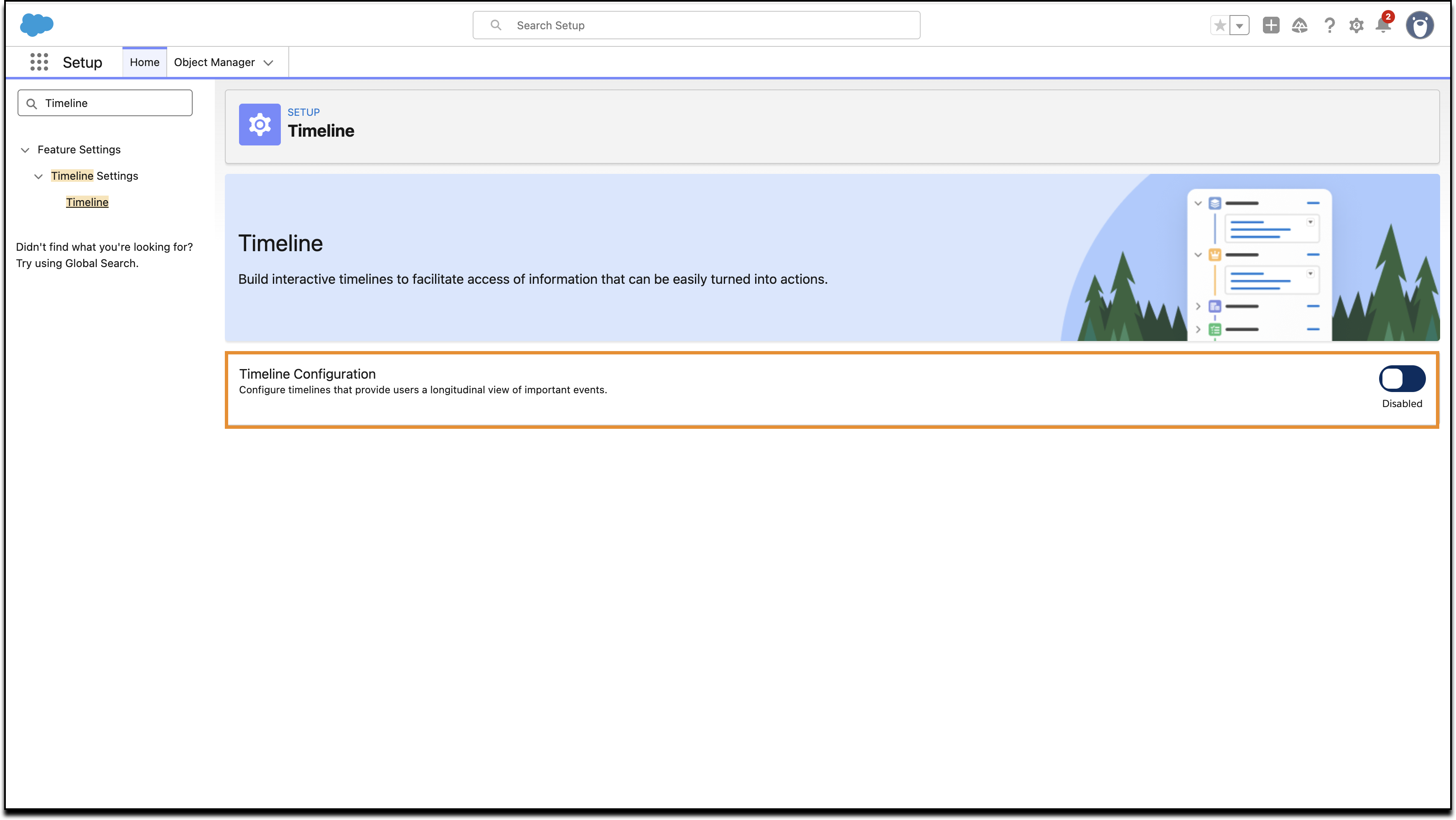
1) In Setup, search and select **Timeline**. In the Timeline window, toggle the Timeline Configuration to **Enabled**.
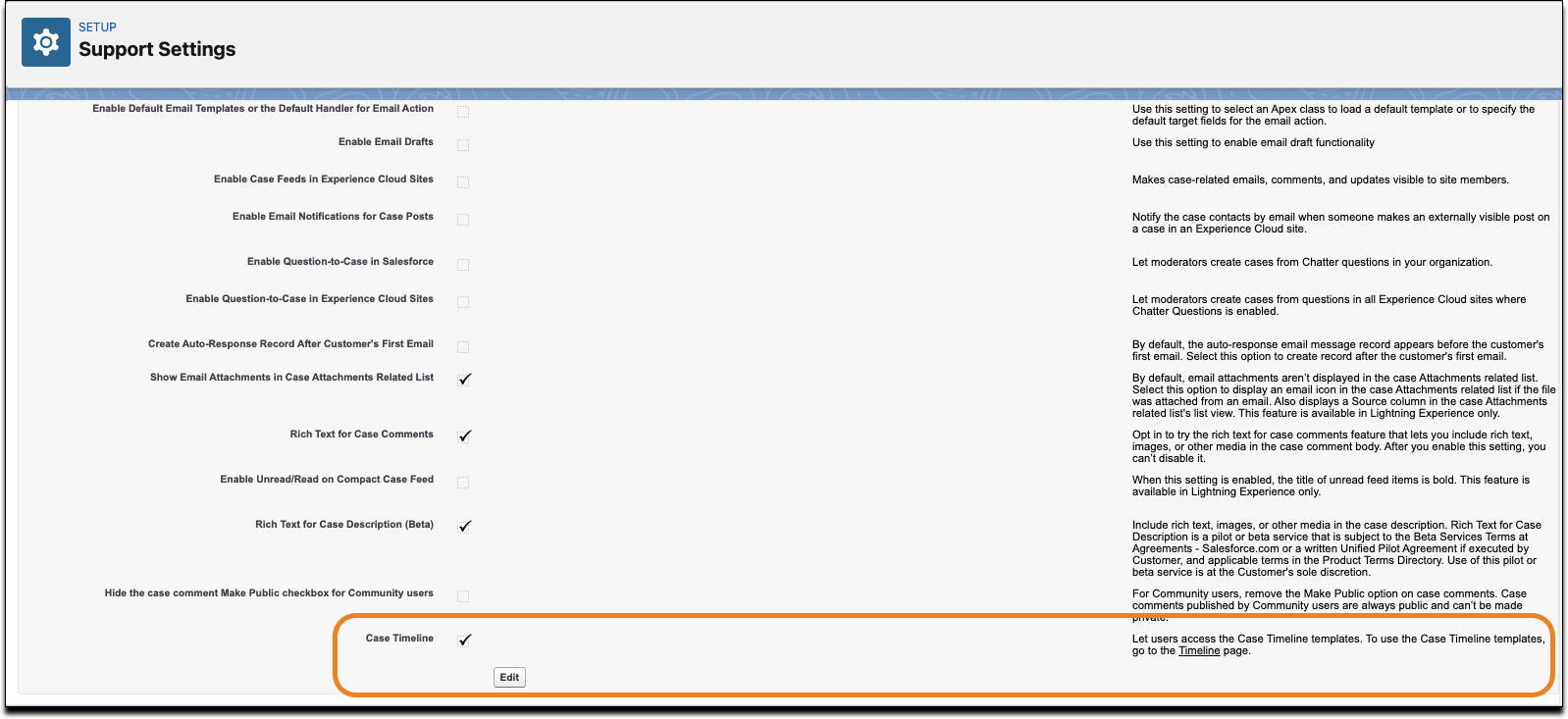
2) In Setup, in the Quick Find Box, search for Support Settings and select **Support Settings**. In the Support Settings window, select **Case Timeline**.
Timeline templates help you create case timelines with minimal setup. When you turn on Timeline, three standard templates are available to help you get started.
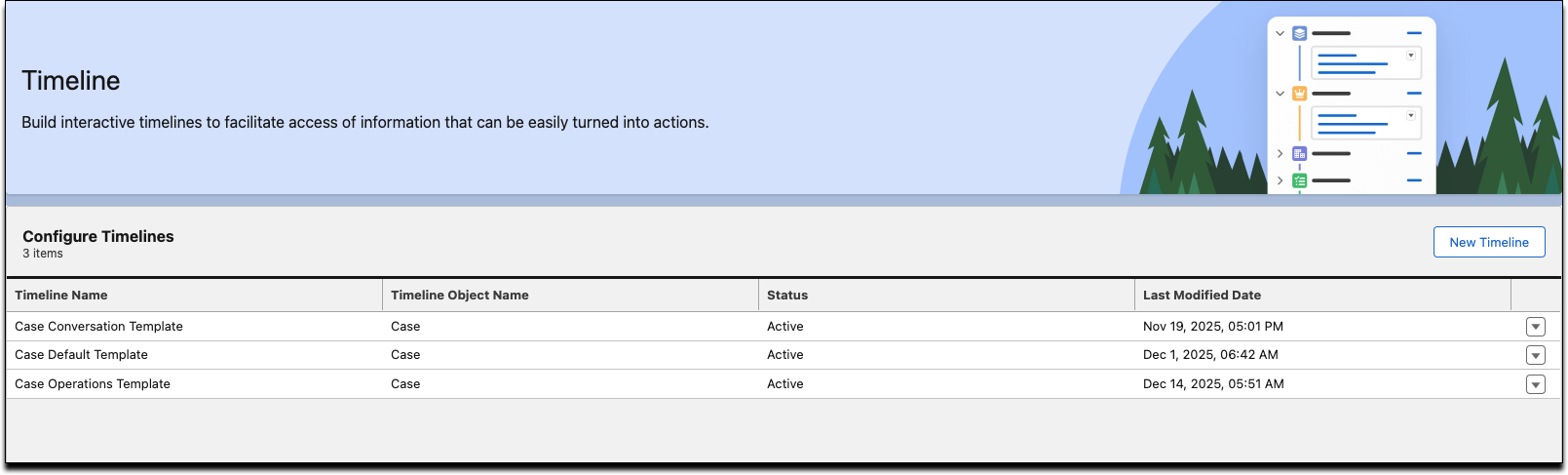
- **Case Conversation Template**: Use this template to filter out the case related updates from all the conversations related to the case. It is pre-configured with events important for conversations, such as: Email Message, Case Comment, Content Document Link, Swarm, and Voice Call.
- **Case Default Template**: This template gives you context into the history of the case. It is pre-configured with events important for case history, such as: Case History, Case Milestone, Case Team Member, Case Comment, and Case (EntitlementId).
- **Case Operations Template**: Use this template to view all the critical highlights of the case such as case history and milestones. It includes pre-configured events that show completed milestones, such as: Case Milestone, Task, Topic Assignment, Survey Subject, and Case Article.
## Preview a Timeline
Preview each Timeline on a case you are working on to decide which layout is the most appropriate for your needs. The Timeline templates can be customized.
- In the **Timeline** window, click the dropdown button next to a Template and select **View**.
- Click **Preview Timeline**.
- Search for the specific case in the **View Timeline On** search bar.
- Once you know which Timeline you want to use, click the dropdown button next to that Template and select **Activate**.
## Add the Case Timeline component to the Case Page Layout
To be able to see Case Timeline in the case feed, add the Case Timeline component to the Case Page Layout.
- In Setup, in the **Object Manager**, search for Case and select **Case**.
- In the Case window, select **Case Page Layout**.
- In the Case Layout panel, select **Mobile and Lightning Actions**. Drag the **Timeline** button from the Mobile and Lightning Actions to the Salesforce Mobile and Lightning Experience Actions. Click **Save** in the Case Layout panel.