---
schema_version: "1"
id: a1756eddbb334dee00fa2a526ff2e95aba4c9bfdbd2bd956a830f8623d362cb9
title: Email Customers in Lightning Experience
collection: admin
version: current
locale: en-us
portal_url: https://docs.salesforce.com/admin/current/en-us/service/264-0-0/cases_email_lex.md
canonical_url: https://help.salesforce.com/s/articleView?id=service.cases_email_lex.htm&release=264.0.0&type=5
source_site: help.salesforce.com
content_type: documentation
content_hash: 8a4ce93c86fe1ff43728a53fc6c6ea9ff1b1d59fff83d615b4c29de515fa9b69
description: Use the email publisher in case feed to answer customer questions and resolve customer issues in Lightning Experience.
products:
- Service Cloud
release: "264"
---
# Email Customers in Lightning Experience
Use the email publisher in case feed to answer customer questions and resolve customer issues in Lightning Experience.
### Required Editions

Note To email customers from the Service Console app in Lightning Experience, Email-to-Case must be enabled in your org.
To get started, open a case in the console. In the case feed publisher section, click **Email**. You can insert merge fields, look up contacts, preview emails, clear emails, and more from the email publisher. You can also insert Salesforce Classic and Lightning Experience email templates, attach files, and remove attachments if you change your mind.
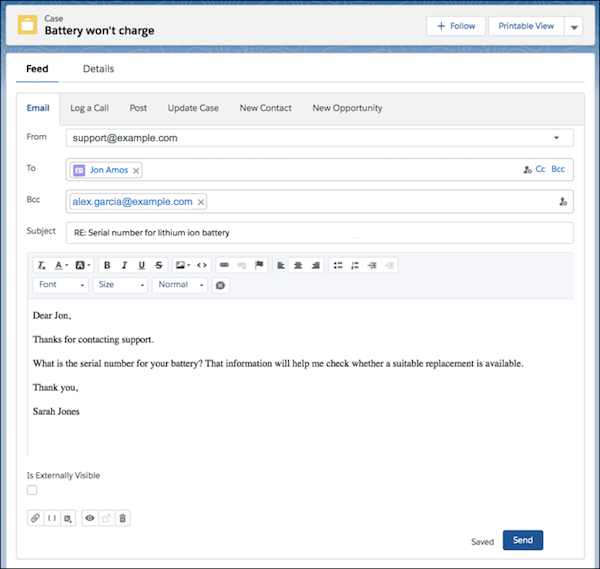
Here are some things to keep in mind when working with emails in Lightning Experience.
Look up contacts
To look up contact email addresses, click the lookup icon in the To, CC, or BCC field. In the email composer, you can filter contacts by account contacts and by your colleagues (internal users). To add contacts as email recipients, select the contacts and click **Add**. Don't see who you're looking for? You can search by name.
Note that you can select email address pills by clicking on them, unless you are using Safari.
Attachments
To attach multiple files from your computer, drag the files to the body of the email. You can drag as many files as you want, but the files can’t be more than 2 GB. To attach files uploaded in Salesforce, use the attachment icon.
Merge fields
Merge fields resolve only on send and preview. The field appears as plain text when inserted into the publisher.

Tip You can insert merge fields that aren't listed in the dialog box, such as merge fields for accounts or contacts. Enter them as plain text and use the preview button to review before sending.
Email templates
You can insert Lightning Experience and Salesforce Classic templates. When you insert a template, the subject is replaced with the template’s subject.
If you insert a responsive email template that includes an HTML ``, ``, ``, or `<style>` tag, the template overwrites the content in the email body. Don't worry – we display a confirmation message, so you know before anything is overwritten.
Email drafts
A working draft of your email is saved every few seconds when you compose, reply, or forward an email. You can leave it and return to it at any time.

Note Email drafts are private and can’t be shared.
Email status
The email history shows replies sent by the Salesforce user, starting with the most recent reply. The message details include an email status.
| Email Status | Description |
| --- | --- |
| New | An inbound email that hasn’t been read. |
| Read | An inbound email that has been read but not replied to. |
| Sent | An outbound email. |
| Replied | Any email that has been replied to. Replying to a sent email gives it a Replied status. |
The status of an email is Replied when it’s replied to directly. For example, if you send an outbound reply to an inbound email, its status is Replied. If you then send a subsequent outbound reply to the same inbound email but don’t reply directly to the first outbound reply, then the status of the first outbound reply is set to Sent.
Preview emails
Use preview to review an email and its merge fields before sending.
Delete and clear emails
The trash icon deletes the working draft and resets the fields to the original state. The behavior differs depending on whether email drafts are enabled.
- When email drafts aren’t enabled, this action clears the body, subject, and added recipients, reverting the email to its original state.
- When email drafts are enabled, it deletes the draft and then reverts.
Pop-to-docked email composer
Open the docked email composer, which appears on the side of the console, so that it's easier to view the case feed while replying to an email. You also can maximize the email composer from the docked composer to help you focus on writing.
To open the docked composer, click the popout-to-docked view icon in the email composer toolbar.
If your admin enabled email drafts, then the popout-to-docked view button is disabled.
Docked email composer
When you send an email using the docked email composer, only a partial page refresh occurs.
Images
Embed images into messages by copy and pasting, providing an image URL, and browsing for or uploading Salesforce Files. The behavior for each method is slightly different.
- Copy and paste—Supports all image file types. The image is added as an attachment and inline, and the inline image can be resized. Images in case emails have a maximum size of 1 MB. In other emails, the maximum is 5 MB. Microsoft Edge isn’t supported. Internet Explorer 11 or earlier doesn’t allow resizing images.
- Web URL—No maximum file size. The image is added inline and can be resized. The image isn’t added as an attachment, and it isn’t converted to a Salesforce File. The default description text for an image is set to “User uploaded image.”
- Browse or upload Salesforce File—Creates a Salesforce File from an uploaded file, or inserts an existing Salesforce File. The file size limit is based on the limits for Salesforce Files. The image can’t be resized from the message itself. The image is added as an attachment and inline. If a content version for a Salesforce File changes, messages that used an older version of the Salesforce File aren’t updated.

Note When using the case email publisher in Lightning Experience, email attachments are included only when you forward messages, but not when you reply to messages.
Tables
To add a table to an email, click the table icon in the email composer’s actions menu and fill out the table settings. Then, add your content to the table. Use the email composer actions menu to style the contents or insert images in the table. To edit the table’s cell spacing, padding, and alignment, double left-click on a table border.

Note
- The table action isn’t available in the Lightning email template editor.
- Tables can be copied and pasted into the email composer from other applications, but the styling can be affected.
- Depending on where you’re viewing a table in Salesforce, table borders can appear as a double or single line.
Code Samples
Insert a code snippet that retains the code formatting by clicking the code sample icon and pasting the code into the code window.
Keep in mind that your Salesforce admin can customize the email experience for cases. See [Create a Send Email Quick Action for Cases](https://help.salesforce.com/s/articleView?id=service.case_interaction_send_email_quick_action_create.htm&release=264.0.0&type=5 "Create a Send Email quick action to let support reps send emails from the case feed in Lightning Experience and the Salesforce mobile app.").
#### See Also
- [Merge Fields for Cases](https://help.salesforce.com/s/articleView?id=service.merge_fields_cases.htm&release=264.0.0&type=5 "The list of available email template merge fields in the Salesforce Merge Language depends on the type of data that you’re working with. Most of the merge fields for cases correspond directly with a case field.")