Execute standard case and assignment rules automatically and consistently for all
records created via Experience Cloud sites. Automatic assignment eliminates the need for complex
custom code or flows to replicate out-of-the-box routing functionality, so you can deliver
immediate, accurate, and scalable customer service.
Required Editions
- From Setup, in the Quick Find box, enter Case Assignment Rules and
select Case Assignment Rules.
- Select the Apply case assignment rules to cases created via the Community
Portal checkbox.
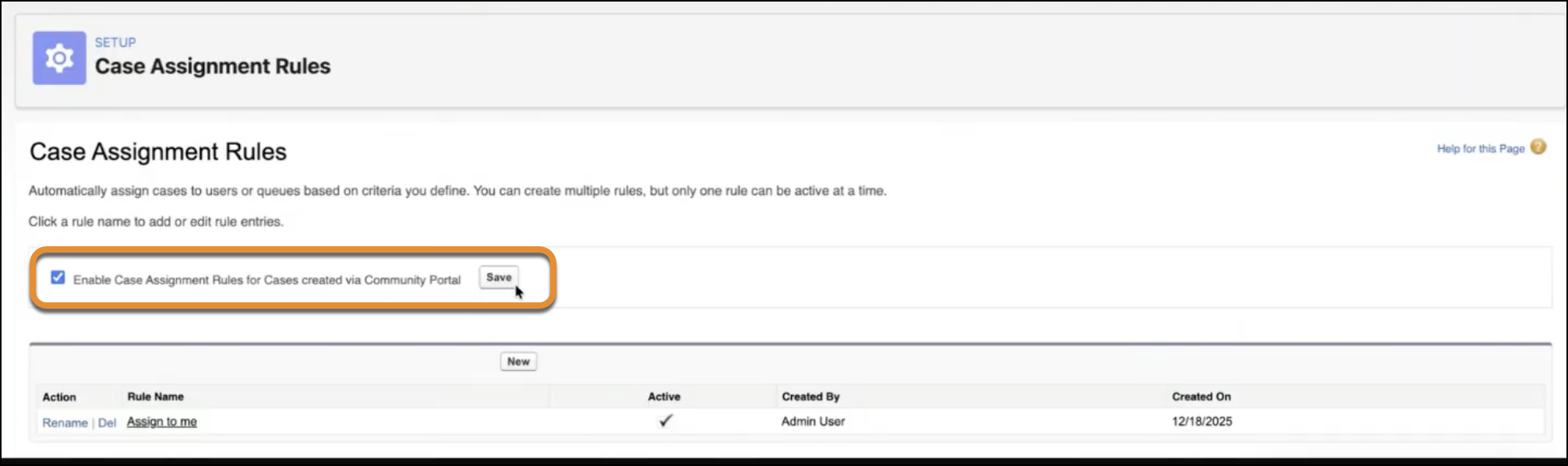
After you enable the preference, standard case assignment rules execute automatically for
cases created via Experience Cloud components by Experience Cloud site members and guest
users. This feature is not available for High Volume Customer Portal licenses. The execution
of these rules is functionally identical to cases created via Email-to-Case, Web-to-Case, or
the standard Salesforce UI.
Troubleshoot Case Assignment in Experience Cloud
Understand why a case
wasn't assigned and make sure that the behavior matches standard Salesforce routing
logic.
- Verify org preference status: Make sure that the organisation preference for
assigning cases automatically for cases created through contact forms is enabled. If this
preference is disabled, cases bypass standard routing logic.
- Check rule application consistency: The execution of assignment rules for
Experience Cloud is functionally identical to standard methods like Email-to-Case or the
standard Salesforce UI. If a case isn't assigned, check whether it meets the specific rule
criteria defined in your standard assignment rules.
- Identify legacy workarounds: Check for existing custom code or flows previously
used to replicate routing. Phase out these workarounds to prevent conflicts with the new
standard behavior.
- Review case origin: Confirm that the case was created via an Experience Cloud
component or contact form. The automatic trigger is implemented specifically for these
platform changes.
Successful implementation reduces the time to first agent assignment for cases
originating from your Experience Cloud sites.
