---
schema_version: "1"
id: 7478a8970b08f60ecc2ae569dc4f49c585fb1a9c348da88fd4fff52c4f07cd83
title: Create a Flow to Link Contacts to Cases
collection: admin
version: current
locale: en-us
portal_url: https://docs.salesforce.com/admin/current/en-us/service/264-0-0/case_object_linking_flow_template.md
canonical_url: https://help.salesforce.com/s/articleView?id=service.case_object_linking_flow_template.htm&release=264.0.0&type=5
source_site: help.salesforce.com
content_type: documentation
content_hash: 1d7dd9cf7fbb90895243e89baa274a4023ee21863783292a22632b2366e655da
description: To improve service quality, add a flow that finds contacts for cases created by Email-to-Case. Use the flow template Find Contact for Associated Case from Email-to-Case.
products:
- Service Cloud
release: "264"
---
# Create a Flow to Link Contacts to Cases
To improve service quality, add a flow that finds contacts for cases created by Email-to-Case. Use the flow template Find Contact for Associated Case from Email-to-Case.
### Required Editions
| User Permissions
Needed |
| To run flows |
Run Flows
OR
Manage Flow
|
Your support reps can use this flow as-is in the Actions & Recommendations component. To meet business needs, you can also modify the flow template as follows.
1. If you don’t use Channel-Object Linking, skip to step 3. If you do use it, turn it off before adding Individual-Object Linking. From Setup, in the Quick Find box, enter Channel-Object Linking, and then select **Channel-Object Linking**.
2. Turn off **Channel-Object Linking**.
3. From Setup, in the Quick Find box, enter Flows, and then select **Flows** under Process Automation.
4. Click **New Flow**.
5. Click **All + Templates**.
6. Click **Individual-Object Linking Flow**.
7. Select the **Find Contact Associated with Case from Email-to-Case** flow template.
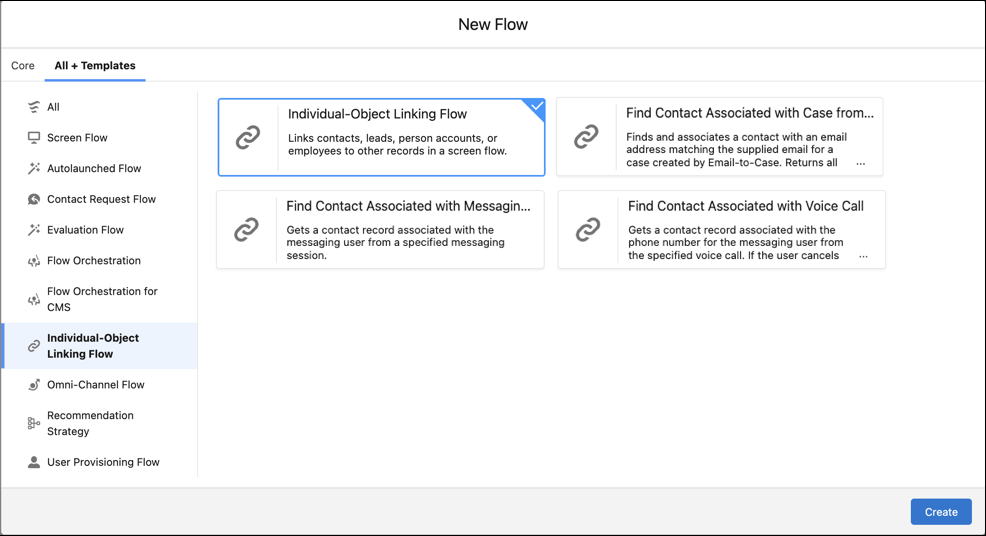
8. Click **Create**.
9. Click **Save**.
10. Test and update the flow, and then activate it.
When a support rep runs the flow, it displays contacts with the same email address as the case’s Web Email field. To link a contact to the case, the support rep selects a matching contact.