---
schema_version: "1"
id: e670da9f1f6169fab3fbc4d703ff77d7306f0c15f060e0a86e006a2bfa10e1d6
title: Send and Reply to Email in the Salesforce Classic Case Feed
collection: admin
version: current
locale: en-us
portal_url: https://docs.salesforce.com/admin/current/en-us/service/264-0-0/case_interaction_sending_email.md
canonical_url: https://help.salesforce.com/s/articleView?id=service.case_interaction_sending_email.htm&release=264.0.0&type=5
source_site: help.salesforce.com
content_type: documentation
content_hash: 000b21cf2303794b3e1ede138076d3d881e46095abb56473862df694e27c7f6d
description: Use the features of the Case Feed email action to save time when writing messages and customize the emails you send to customers.
products:
- Service Cloud
release: "264"
---
# Send and Reply to Email in the Salesforce Classic Case Feed
Use the features of the Case Feed email action to save time when writing messages and customize the emails you send to customers.
### Required Editions
| User Permissions
Needed |
| To send emails: |
Send Email |
The email action in Case Feed is available only if your organization uses Email-to-Case and if the Enable Case Feed Actions and Feed Items setting is enabled.

Note Depending on how your administrator has set up Case Feed, some of the options described in the screenshot aren’t available to you or look different.
Here's how to use the email action.
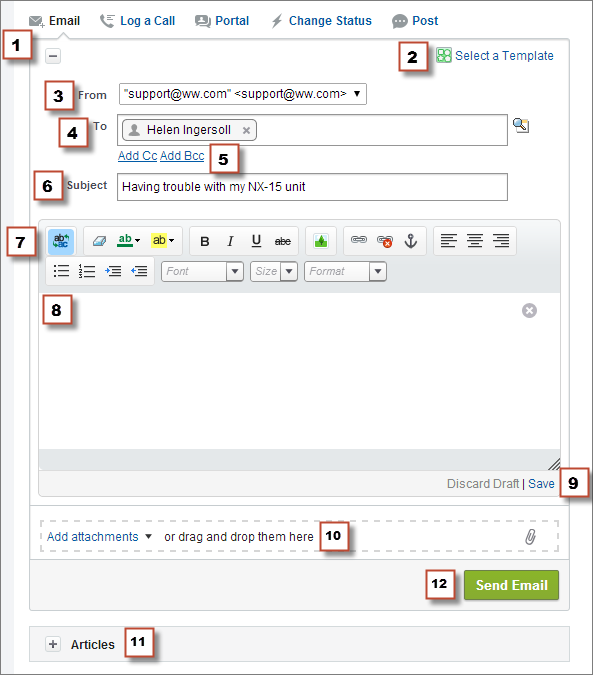
1. In the feed for the case, click **Email**. Depending on how your administrator has set up Case Feed, some of the options described in the screenshot aren’t available to you or look different. To write a reply to a message, click **Reply** or **Reply All** below an email message in the feed.
2. If your department uses email templates, [choose one for your message](https://help.salesforce.com/s/articleView?id=service.case_interaction_using_email_templates.htm&release=264.0.0&type=5 "Templates help you ensure consistency, save time, and include basic information, such as a customer’s name and their case number, all with one click. If your administrator has created text, HTML, or Visualforce email templates, or if you’ve created your own templates, you can use them when emailing customers in Case Feed.").
3. Select a **From** address.

Note If this field doesn't appear as a picklist, your administrator has already defined a From address.
4. The email address of the contact who created the case automatically appears in the To field, as long as the creator is an existing contact. To add more recipients, click  to look up an address, or type or paste email addresses or names in the To field.
- When you enter an email address or name that matches one contact or user, the address appears as a button with the person's name.
- To add several addresses at once, copy and paste them separated by spaces or commas. These email addresses appear as buttons, and, if they're associated with a contact or user, show the contact's name.
- When you enter an email address that matches multiple contacts or users, the address appears as a button. Click the button to see a list of people associated with the email address. Choose the contact or user that you want to associate with the message.
5. If you want to copy other people on the message, click **Add Cc** or **Add Bcc**.
6. By default, the email subject is the name of the case it's related to. If you apply an email template that includes a subject, then the template subject is shown. You can edit the subject if you want to.
7. [Use the rich text editor](https://help.salesforce.com/s/articleView?id=service.case_interaction_rich_text_editor.htm&release=264.0.0&type=5 "The rich text editor lets you customize the emails you send to customers. Use it to format text, add bulleted or numbered lists, and add images and links.") to add formatting to your message.
8. Create your message. If your department uses quick text messages, type ;; to insert one.
9. If your administrator has enabled email drafts, you can click **Save** to save a copy of your message without sending it. When you save a message as a draft, any support rep with access to the case can edit it.
10. Click **Attach File** or drag files in the attachments pane to add files to the message.
11. Optionally, [attach an article to the message](https://help.salesforce.com/s/articleView?id=service.case_interaction_using_articles.htm&release=264.0.0&type=5 "Knowledge articles can help you solve cases more quickly by providing in-depth troubleshooting steps and other detailed information. Use the articles tool in Case Feed to search for articles relevant to the case you're working with, attach articles to the case, and email them to customers.").
12. Click **Send Email**.

Note Depending on how your administrator has set up Case Feed, this button has a different name.
Click and drag  in the bottom right corner to change the height of the message pane. Make it larger so you can see more of what you're writing. Make it smaller so you can see more of the case history in the feed without scrolling. After you resize the message pane, it appears in the new size each time you write an email, until you resize it again.
#### See Also
- [Post on Cases and Experience Cloud Site Questions with the Experience Action in the Case Feed](https://help.salesforce.com/s/articleView?id=service.case_interaction_portal_post.htm&release=264.0.0&type=5 "The Experience action in the case feed is your default option for responding to customers on cases that originated from an Experience Cloud site or customer portal.")
- [Use Case Feed in Salesforce Classic](https://help.salesforce.com/s/articleView?id=service.case_interaction_overview.htm&release=264.0.0&type=5 "Case Feed streamlines the way you create, manage, and view cases. It includes case actions like creating case notes, logging calls, changing the case status, and communicating with customers in a Chatter feed. Case Feed displays important case events in chronological order, so it's easy to see the progress of each case.")
- [Enable Case Feed Actions and Feed Items in Salesforce Classic](https://help.salesforce.com/s/articleView?id=service.case_interaction_enabling.htm&release=264.0.0&type=5 "Enabling Case Feed actions and feed items gives your users access to some standard actions they need when working with cases, such as Email and Change Status, and to feed items related to those actions.")