
The Experience action in the case feed is your default option for responding to customers on cases that originated from an Experience Cloud site or customer portal.
Required Editions
| View supported editions. |
| User Permissions Needed | |
|---|---|
| To create case posts in customer portals or Experience Cloud sites: | Edit on cases |
To post on cases in a customer portal or Experience Cloud site:
- Click Answer Customer on the Case Feed page.
-
Click
 and select Community.
Depending on how your administrator has set up Case Feed, you’re able to click Experience without first having to click Answer Customer.
and select Community.
Depending on how your administrator has set up Case Feed, you’re able to click Experience without first having to click Answer Customer. -
Enter the message to the customer.
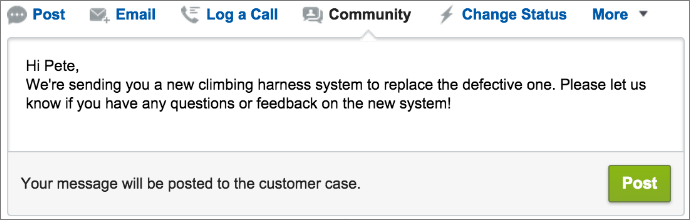
-
If you're working on a case that was escalated from a question in Chatter Questions or
Chatter Answers, choose who you want your post to be visible to:
- Select Customer Only to post your answer as a private reply, or Everyone to post it as a public reply.
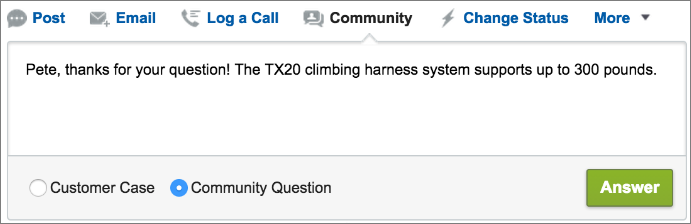
- Select Customer Case to make a post visible to all internal
and external users with access to the case, or Community Question
to post a public answer on the site user’s question. If you select Customer
Case and your Salesforce administrator has enabled the site case feed, you
create a Chatter post instead of a case comment.
-
Optionally, select Send Email to send a message to the customer
letting them know that a reply to their question has been posted to the case.
This option is only available if your administrator has enabled it, and if the customer you're replying to is associated with the case and has a valid email address. If your organization uses the site case feed and email notifications for Chatter case posts are enabled, users are automatically notified by email about public posts on their cases and this option doesn’t appear.
- Optionally, attach a Knowledge article to the post.
- Click the button to publish your post.

Note If the site case feed is enabled in your organization, you can change the visibility of
case posts after they are published.