---
schema_version: "1"
id: 5ea606398a20e53dd9047c31dc0ef2adbf0c39d833ac1c5064b409c7cef99441
title: Add Quick Actions to the Case Page Layout for Lightning Experience
collection: admin
version: current
locale: en-us
portal_url: https://docs.salesforce.com/admin/current/en-us/service/264-0-0/case_interaction_add_actions_to_page_layout_lex.md
canonical_url: https://help.salesforce.com/s/articleView?id=service.case_interaction_add_actions_to_page_layout_lex.htm&release=264.0.0&type=5
source_site: help.salesforce.com
content_type: documentation
content_hash: d1a92bced49abd6f67f3790bfbbfc0e4e0a439d63d5f067f579f357b4d272916
description: Make actions available to your service reps by adding them to the Salesforce Mobile and Lightning Experience Actions section in the case page layout.
products:
- Service Cloud
release: "264"
---
# Add Quick Actions to the Case Page Layout for Lightning Experience
Make actions available to your service reps by adding them to the Salesforce Mobile and Lightning Experience Actions section in the case page layout.
### Required Editions
| User Permissions
Needed |
| To edit a page layout: |
Customize Application |
You can add standard actions and custom actions to the page layout. When you create a custom action, it appears in the palette.
You can drag actions from the palette to the page layout.

Important You can add an LWC quick action to the highlights panel of a case record page if you create it as a dynamic action in Lightning App Builder. You can't use the page layout to add an LWC quick action to the highlights panel of a case record.
1. From Setup, click the **Object Manager** tab. Select **Cases**, and then open the **Case Page Layouts** setup page.
2. Select the page layout that you want to add the action to, and then click **Edit**.
3. Add quick actions to the case page layout.
1. Click **Mobile & Lightning Actions**.
2. Drag the action into the Salesforce Mobile and Lightning Experience Actions section, and then place the action where you want it to appear.
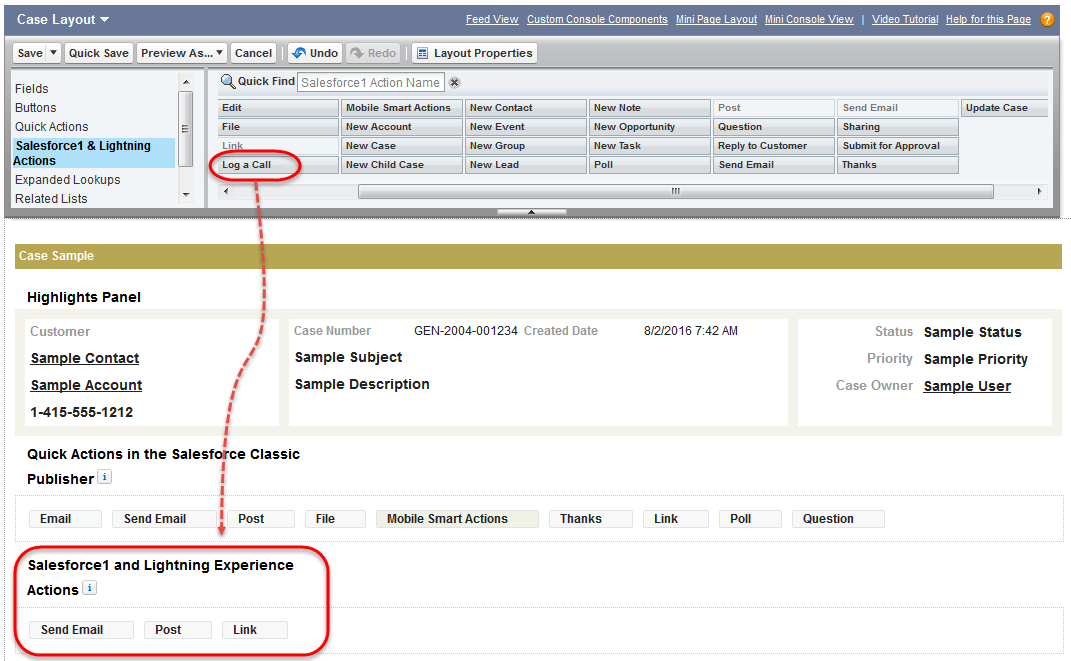
3. Save your changes.