
To create a Bring Your Own Channel for Contact Center as a Service (CCaaS) messaging channel as part of a contact center, follow the setup flow.
Required Editions
| View supported editions. | |
 This article applies to:
|
Bring Your Own Channel for CCaaS |
 This article doesn’t apply to:
|
Enhanced In-App Chat, Enhanced Web Chat v1, Enhanced Web Chat v2, Enhanced WhatsApp, Enhanced Facebook Messenger, Standard and Enhanced SMS, Enhanced Apple Messages for Business, Enhanced LINE, and Bring Your Own Channel for Messaging |
| User Permissions Needed | |
|---|---|
| To install packages: | Download AppExchange Packages |
| To set up and edit Messaging channels: | Configure Messaging |
| To create local external client apps: | Create, edit, and delete External Client Apps |
| To update all fields except Profiles, Permission Sets, and Service Provider SAML Attributes: |
Customize Application AND either Modify All Data OR Manage Connected Apps |
| To update Profiles, Permission Sets, and Service Provider SAML Attributes: | Customize Application AND Modify All Data AND Manage Profiles and Permission Sets |

Install a Managed Package
Add a Bring Your Own Channel for CCaaS Messaging Channel
- From Setup, in the Quick Find box, enter Messaging Settings, and then select Messaging Settings.
- Click New Channel.
- Select the Conversation Channel Definition tile that represents the Managed Package that you installed, and click Next.
-
Choose whether to create a contact center or use an existing one.
- Create a contact center if setting up a new contact center for Bring Your Own Channel for CCaaS.
- Use an existing contact center to add Bring Your Own Channel for CCaaS Messaging capabilities to a partner telephony contact center.
-
If you create a contact center, enter the requested details.
- If your partner messaging provider supports it, enter your contact center display and API names, or upload the .xml file that contains your contact center definition.
- Complete the details required by your CCaaS provider.
- Give your Bring Your Own Channel messaging channel a name.
- Click anywhere to populate the API Name field, and save your changes.
-
If required for your Messaging channel, turn on Event-Driven
Settings. These options appear if your Messaging partner supports them in
the Conversation Channel Definition. Usage counts towards your high volume platform
event allocation. See Considerations and Limitations for Bring Your Own Channel and Bring Your
Own Channel for CCaaS for more information.
- To show messaging end users an indicator when a rep is typing, select Show agent typing indicator.
- To send end users acknowledgments when their inbound messages are read or delivered, select Show messaging users read and delivered receipts.
- To show end users loading text and progress animations while an Agentforce Service agent is processing, select Show Agentforce agent progress indicator.
-
If supported by your CCaaS partner, set up routing for this Messaging channel. Check
with your CCaaS partner for their recommendation based on how their integration works.
Routing information passed by your CCaaS partner through an Interaction Service API call
takes precedence over your Messaging channel Omni-Channel Routing setting, if both are
set.
- Under Omni-Channel Routing, click Edit.
- To route messages with an Omni-Channel flow, select Omni-Channel Flow in the Routing Type field, and then enter the names of the Omni-Channel flow and fallback queue that you created previously.
- To route messages to a queue, select Queue in the Routing Type field, and then enter the name of the queue that you created previously.
- Save your changes.
- Click Activate.
Create and Configure an External Client App for OAuth Integration
Certain CCaaS providers require you to set up and manage your own external client app (ECA) to provide authentication for the integration between their platform and the Salesforce Interaction Service API. Check with your provider whether setting up your own app is a required setup step for their integration. First create the ECA and then update the Conversation Channel Definition (CCD).
If you don’t have a self-signed certificate, follow the steps to Create a Private Key and Self-Signed Digital Certificate. Make sure you have the certificate saved in your system. You upload the file when you create the ECA.

- To check whether your CCaaS provider requires you to set up your own external client app, from Setup, go to Messaging Settings and select the Messaging channel you created. In the Conversation Channel Definition section, if you see Modify Conversation Channel Definition, you must create your own ECA. Otherwise, the partner provider manages the app for you.
- We recommend using an external client app for Interaction Service authentication instead of a connected app. Starting in Spring ’26, customers can’t create a connected app unless they request the ability to create connected apps from Salesforce Support. To migrate a preexisting connected app, see Create an External Client App from a Connected App.
- Create an external client app and set Distribution State set to Local.
-
In the OAuth Settings area of the page, select Enable
OAuth.
The OAuth Settings area expands and the OAuth settings fields are visible.
-
Add a callback URL (endpoint), which is the same as the OAuth redirect URI. We
recommend you use
https://login.salesforce.comto start with. - Add the OAuth scopes Access Interaction API resources (interaction_api) and Perform Requests at any time (refresh_token, offline_access).
- In the Flow Enablement section, select Enable JWT Bearer Flow.
- Upload your self-signed certificate.
- To create the ECA, click Create.
- In your external client app’s Policies tab, click Edit.
- Under OAuth policies, from the Permitted Users dropdown, select Admin approved users are pre-authorized. If you see a warning message, click OK.
- Under App Policies, add the System Administrator profile.
- Save your changes.
-
After setting up your ECA, update the Conversation Channel Definition for your
Messaging channel to reference the app you created.
- From Setup, in the Quick Find box, enter Messaging Settings, and then select Messaging Settings.
- Select the Messaging channel you created.
- In the Conversation Channel Definition section, click Manage Conversation Channel Definition. If this button isn’t available, your CCaaS provider manages the ECA, and you don’t need to create one and associate it with the Conversation Channel Definition.
- Select the external client app that you created.
- Save your changes.
Add Users to Your Partner Contact Center
Add Messaging users or Voice users as service reps or admins to a partner contact center.
- From Setup, in the Quick Find box, enter Contact Centers. Select Partner Contact Centers or Partner Telephony Contact Centers, depending on your setup.
- Select the contact center.
-
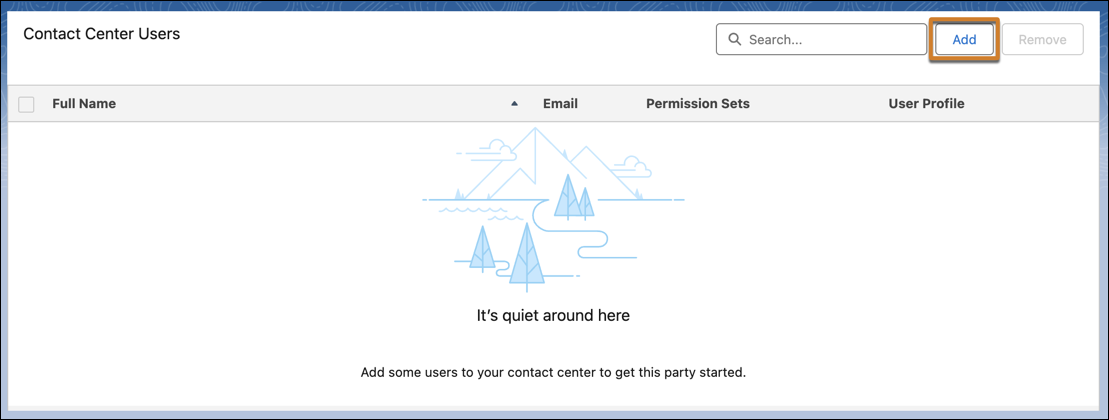
On the Contact Center details page, in the Contact Center Users section, add users to the
partner contact center.
Test Your Bring Your Own Channel Messaging Channel
- Open the Service Console app, and go to the Omni-Channel utility bar at the bottom of the console, provided it’s installed. Go online as the service rep assigned to the messaging button.
- Open the app where your customers initiate Bring Your Own Channel, and start a conversation.
- In the console tab, verify that you received a conversation request. Accept the request and try sending a message.