---
schema_version: "1"
id: ac5bfae0b85b9c7eae1936fe2e839782a5a3fc7aae2b8a4f6de1e95249d22bf4
title: Transfer Bot Conversations to a Queue
collection: admin
version: current
locale: en-us
portal_url: https://docs.salesforce.com/admin/current/en-us/service/264-0-0/bots_service_transfer_queue.md
canonical_url: https://help.salesforce.com/s/articleView?id=service.bots_service_transfer_queue.htm&release=264.0.0&type=5
source_site: help.salesforce.com
content_type: documentation
content_hash: b0014e18eb0f18b584a96c289e4538415ccedd723db581e2893932d0106f0c8f
description: You can route bot conversations to a queue of service reps by using Rule dialog steps. And you can help customers who initiate a transfer when service reps are offline with the No Available Agents dialog.
products:
- Service Cloud
- Service Intelligence
release: "264"
---
# Transfer Bot Conversations to a Queue
You can route bot conversations to a queue of service reps by using Rule dialog steps. And you can help customers who initiate a transfer when service reps are offline with the No Available Agents dialog.
### Required Editions
To transfer a conversation to a queue, create an ID variable to define the destination queue. Then use a Rule dialog step with the same queue ID variable to initiate the transfer.

Note Bot-to-Queue transfers count as two conversations. After the transfer, service reps can’t transfer conversations back to a bot.
1. Create an ID variable to define the destination queue.
1. In the Bot Builder menu, select **Variables** and click **New**.
2. For the Data Type, select **ID**. For the SObject Type, select **Queue**.
3. Click **Save**.
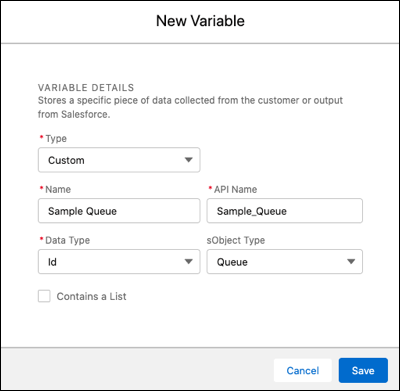
2. From the Dialog Component Library, drag the **Set Routing Type** rule step onto the canvas.
3. In the Step Properties panel, in the Route Type field, select **Queue**. In the Route Source field, select the queue that you want to transfer to. In the Destination Variable field, select the ID variable that you created.
4. Click **Add Rule Action**.
5. In the Rule Action field, select **Transfer**. In the Destination Variable field, select the ID variable set in the previous step.
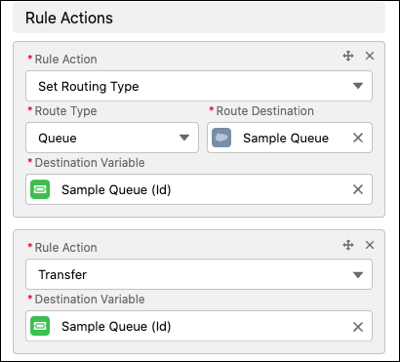
6. Save the dialog.
Resolving Transfer Issues with the No Available Agents System Dialog
In Chat, if a transfer is started, the bot follows this process to identify the destination of the conversation:
- The bot first checks for service rep capacity. If a service rep is available to take the chat, the bot transfers to the service rep.
- If all service reps are at capacity, the bot reviews the settings of the Chat Button record assigned to the bot to identify the queue size. The bot reviews the queue size only if Enable Queue is checked, and uses the Overall Queue Size or the Queue Size Per Agent to identify the size. You can identify the Chat Button assigned to the bot by visiting the Deployments section of the Bot Overview page.
- If there’s room to wait in the queue defined by the Chat Button, the session gets added to the queue and a message is sent to the customer to let them know they’re on hold.
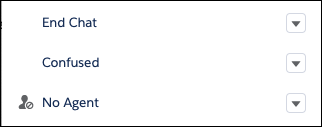
- If there’s no room to wait in the queue, the bot moves to the No Agent system dialog.
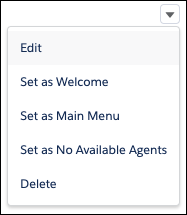
If you don’t see the No Agent dialog by default, you can assign a dialog to the No Agent functionality by selecting Set as No Available Agents in the dialog dropdown.
Bot Behavior in Messaging
In Messaging, the bot checks service rep availability by using the business hours in the Messaging Settings. If the transfer is attempted outside of the set business hours, the bot moves to the No Agent dialog. To set business hours, see [Modify Messaging Channel Settings](https://help.salesforce.com/s/articleView?id=service.livemessage_modify_channel_settings.htm&type=5&language=en_US).
Bots using Messaging without a No Available Agents dialog defined attempt to transfer the conversation. If no service reps are available, the bot ends the conversation without notifying the customer. We recommend assigning a No Agent dialog and including a message informing the customer that the conversation has ended.
- **[Track Transfer Status and Agent Availability](https://help.salesforce.com/s/articleView?id=service.bots_service_track_transfer_status_and_agent_availability.htm&release=264.0.0&type=5)**
You can monitor transfer routing details — including destination queue names and agent availability — and cancel transfer or conference requests directly from the transfer dialogue box.