Automate order lookups using the Check the status of an order, Order look up, Order found, and Order not found dialogs.
Required Editions
| View supported editions. |
The Check Order Status dialog skill allows users to check on their order. For example, a B2C bot can check if the shoes they ordered were shipped. In a B2B bot, this dialog can check whether a contract has been approved.
Check the status of an order
The Check Order Status dialog skill starts with the Check the status of an order dialog. This dialog asks the end user whether they have their order number and guides the conversation depending on the response. If they have their order number, the bot asks for it and moves to the Order look up dialog. If not, the bot transfers to a service rep.
Order look up
The Order look up dialog launches a flow to search for the order. In contrast to the Case look up, which uses case number and email address, Order look up relies on the order number alone. This dialog is built without it because the standard Salesforce order object doesn’t include an email field:
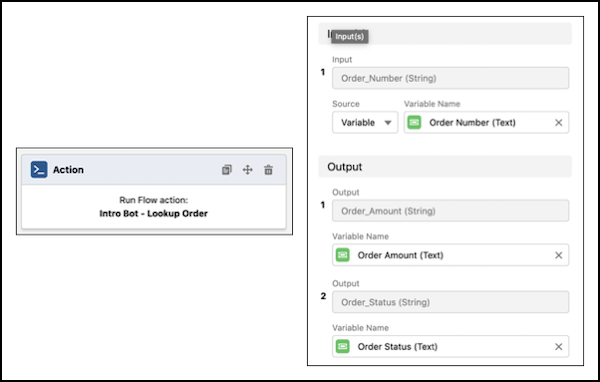
The rest of this dialog guides the conversation based on whether the order status variable is filled. If the variable is filled, the bot moves to the Order Found dialog.
Order Found & Order Not Found
The order number, amount, and status are reported to the user using merge syntax:
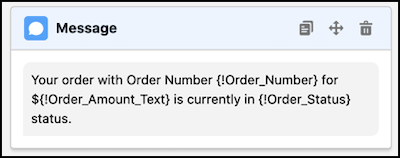
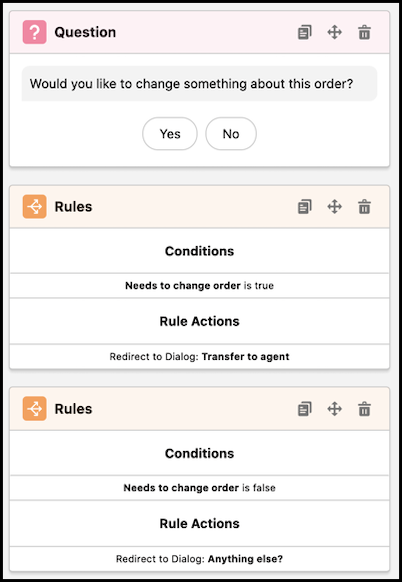
The bot then asks the user if they want to update, cancel, or return an order. If so, the user is directed to a service rep who can help. If the variable isn’t filled, the bot moves to the Order Not Found dialog and notifies the customer that the order wasn’t found. Then the bot transfers to the Anything Else? dialog.