
Use rules to specify the conditions that start any of these actions: call a dialog from within the current dialog, redirect to a different dialog, clear a variable value, transfer to a service rep, and set a variable. Use rules to send targeted messages to your customers with Conditional Messaging. Rule conditions are optional.
Required Editions
| View supported editions. |
| User Permissions Needed | |
|---|---|
| To build and manage Einstein Bots: |
Customize Application OR Modify Metadata OR Manage Bots |
- From the Dialog Component Library, drag a step from the Rules section onto the
canvas.
Rule actions are:
- Call Dialog: Retains the context of the conversation and returns the conversation
back to the original dialog after the second dialog is completed.
- If a Redirect to Dialog is used within a call condition, the Call Dialog chain ends and the Redirect to Dialog continues.
- If an intent is detected, the Call Dialog chain ends and the dialog associated with the intent is started.
- We recommend no more than five Call Dialogs in a chain.
- Clear Variable (or Clear Variable Value): Changes the variable that you specify to an unset state.
- End Chat: Ends the bot conversation.
- Redirect to Dialog: Interrupts the current dialog and starts another dialog. Unlike
Call Dialog, Redirect to Dialog is a one-way transfer to the new dialog.
- Use the Redirect Type field to specify the destination of the redirect. To identify a specific
dialog to use every time, select Dialog. To redirect to an
object variable set earlier in the conversation, use
Variable.
- The variable redirect type supports object variables only. The ConversationDefinitionDialog object and other variables types, including string and object list, aren't supported. To learn more about variables, see What's a Variable?
- In cases where a Confused system dialog is used, add Redirect to Dialog as a new dialog step within the Confused Dialog. This step moves the conversation flow forward instead of using an action in the Next Step section.
- Use the Redirect Type field to specify the destination of the redirect. To identify a specific
dialog to use every time, select Dialog. To redirect to an
object variable set earlier in the conversation, use
Variable.
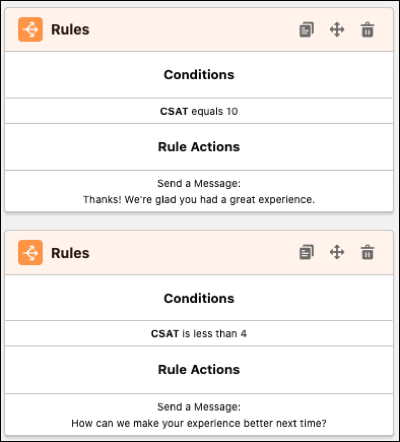
- Send Message (or Send a Message): Sends a message to the customer. This rule action
is useful for providing directed messaging based on a customer’s input.
- Set Language (or Set Conversation Language): Sets the language the bot uses with the end user based on a variable.
- Set Routing Type: Routes the chat session to a specialized queue that you define as a context variable. Use this action to transfer to the right service rep or queue by overriding the default queue on chat buttons for Chat (Live Agent) or the channel ID for Messaging.
- Set Variable: Sets a bot variable to a custom value, context variable, or another bot variable.
- Transfer: Escalates the chat session to a queue, service rep, or bot.
- Call Dialog: Retains the context of the conversation and returns the conversation
back to the original dialog after the second dialog is completed.
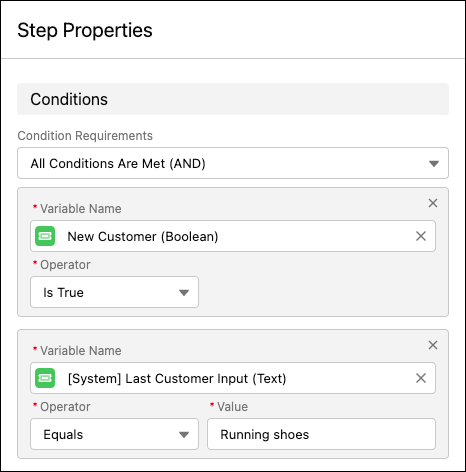
- Optionally, you can create a condition sentence using a variable, an operator, and a
value. In the Step Properties panel, click Add Condition, and then
specify any required parameters. If you create multiple conditions, you can use the
Condition Requirements field to add AND/OR functionality. To ensure that rule conditions
are respected in bots using multiple languages, on Rule dialog steps, use the OR condition
requirements to specify any text value conditions in each bot language.
 Note The Value field works best when you use these data formats:
- Boolean: "true", “false”. These values aren’t case-sensitive and false includes the “is not set” condition.
- Date: yyyy-MM-dd
- Date/Time: yyyy-MM-ddTHH:mm:ss+HH:mm
- Number: non-negative and negative decimal numbers
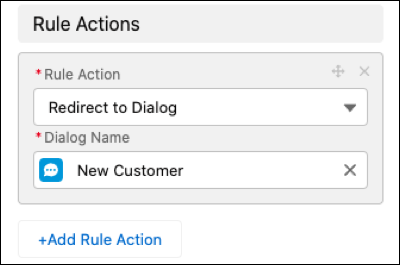
- To add multiple rule actions, in the Step Properties panel, click Add Rule
Action. Select a rule action from the Rule Action field, and then specify
any required parameters.
- Save the dialog.
Note Rule actions fire in the order shown. To change the order, drag the rule actions and save the dialog.