---
schema_version: "1"
id: d102b216a2c1a3fac8799bd3106ca98dfb3bcb06bce76a3152dd2ec39528f61a
title: Set Up a Dialog Question Step with Dynamic Choice Responses
collection: admin
version: current
locale: en-us
portal_url: https://docs.salesforce.com/admin/current/en-us/service/264-0-0/bots_service_setup_dialog_question_dynamic.md
canonical_url: https://help.salesforce.com/s/articleView?id=service.bots_service_setup_dialog_question_dynamic.htm&release=264.0.0&type=5
source_site: help.salesforce.com
content_type: documentation
content_hash: a3517d945a6cf8c75cd7cc7f49973a15237098cf29c37de8d0e152fb4f5f2490
description: Use a Dynamic Question step to offer dynamically created choices based on the output of a selected action
products:
- Service Cloud
- Service Intelligence
release: "264"
---
# Set Up a Dialog Question Step with Dynamic Choice Responses
Use a Dynamic Question step to offer dynamically created choices based on the output of a selected action
### Required Editions
Before you begin, create an Apex action or a Flow that returns a list of a list of values. Or create a list variable that holds a list of values. The merge field syntax for objects is {!Field}.
To gather information from your customer, your bot must know which entity to search for in the customer input to find the information (for example, date, location, and money). The bot also must know which variable to use to store it.
1. From the Dialog Component Library, drag the **Dynamic** Question step onto the canvas.
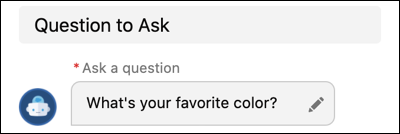
2. In the Step Properties panel, enter the question from your bot to the customer in the Ask a question field.

Note You can call standard fields in standard objects using the {!FieldName} format found in Object Manager. For custom fields, use the Field Name and include \_\_c at the end: {!CustomField\_\_c}. To call a specific record, use {!Record.Field}.
To call an item in a list variable, use FieldName\[X\], with X referring to the location of the item in the list. Einstein Bots uses a zero-based index with list variables, you can call the first item of the list using FieldName\[0\].
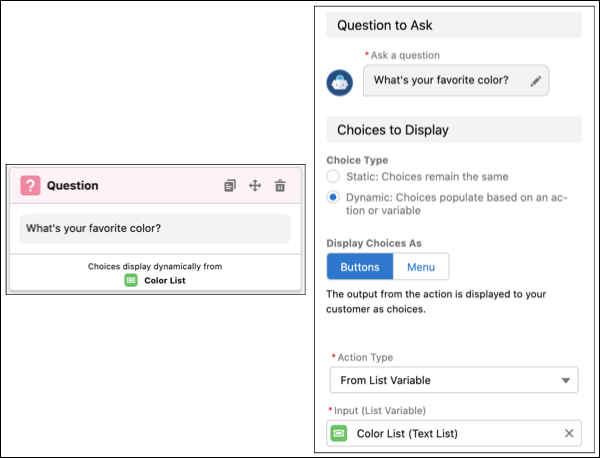
3. Under Choices to Display, specify the format of your choices (buttons or menus).
4. In the Action Type field, specify whether your answer values are from an Apex action, Flow action, or a List Variable. Then select the action name or list variable in the new dropdown.
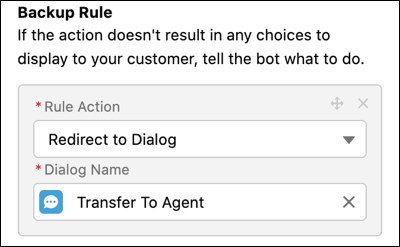
5. Dynamic Choices require an Error Rule Action in case the dynamic choice generation fails. Select **Call Dialog** or **Redirect to Dialog**, and then define the appropriate dialog.
6. Select or create an entity that matches the information you want to gather and a variable to store the answer.
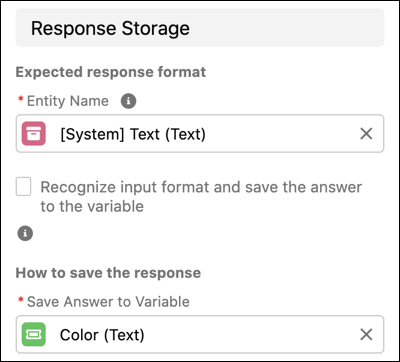
When using Flow as the Action Type, the variable created to collect the output of the flow must be designated as a List Variable.
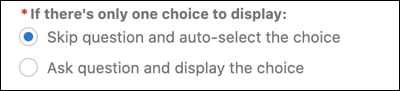
7. Define the action if the dynamic list generates only one choice. The bot can skip the question and auto-select the choice, or the bot can ask the question and display the choice (useful in situations requiring confirmation).
8. Save the dialog.