---
schema_version: "1"
id: 2cde98c59dce6a2a40214a8f9f4918a097e5d58066b4cea6177c87ac42c3a14b
title: Set Up a Dialog Question Step with Static Choice Responses
collection: admin
version: current
locale: en-us
portal_url: https://docs.salesforce.com/admin/current/en-us/service/264-0-0/bots_service_setup_dialog_question.md
canonical_url: https://help.salesforce.com/s/articleView?id=service.bots_service_setup_dialog_question.htm&release=264.0.0&type=5
source_site: help.salesforce.com
content_type: documentation
content_hash: 613a590f8ddd4d7869ed65bd9fa700e525a4f70bed6058044db3c24387ea5a5a
description: Use a Static Question step to offer predefined options that let your customers answer questions quickly.
products:
- Service Cloud
- Service Intelligence
release: "264"
---
# Set Up a Dialog Question Step with Static Choice Responses
Use a Static Question step to offer predefined options that let your customers answer questions quickly.
### Required Editions
To gather information from your customer, your bot must know which entity to search for in the customer input to find the information (for example, date, location, and money). The bot also must know which variable to use to store it.
1. From the Dialog Component Library, drag the **Static** Question step onto the canvas.
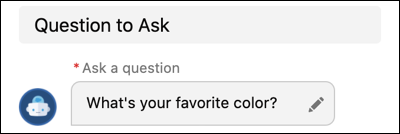
2. In the Step Properties panel, enter the question from your bot to the customer in the Ask a question field.

Note You can call standard fields in standard objects using the {!FieldName} format found in Object Manager. For custom fields, use the Field Name and include \_\_c at the end: {!CustomField\_\_c}. To call a specific record, use {!Record.Field}.
To call an item in a list variable, use FieldName\[X\], with X referring to the location of the item in the list. Einstein Bots uses a zero-based index with list variables, you can call the first item of the list using FieldName\[0\].
3. Specify the format of your choices (buttons or menus), and then add the predefined choices you want to display.
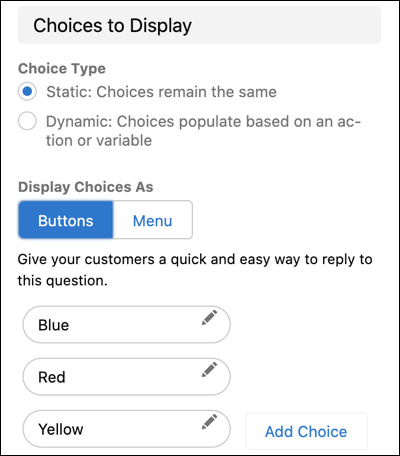
Customers can reply by selecting a static option or by replying with 1, 2, or 3. SMS users must enter 1, 2, or 3 to select a choice. If your bot will be used in enhanced WhatsApp or Apple Messages for Business channels, select **Menu**. If Buttons is selected, the end user doesn't see the question until they select an option.
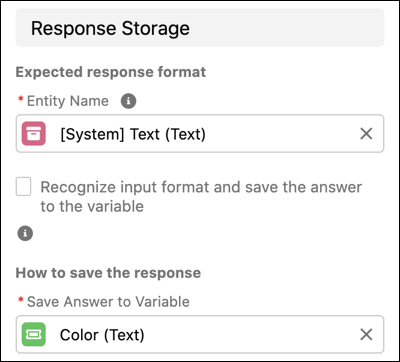
4. Select or create an entity that matches the information you want to gather and a variable to store the answer.
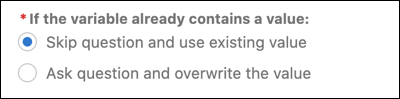
5. Tell the bot what to do if the variable already contains a value. Conversations that use the same dialog multiple times can retain the value and skip the question (for example, asking for the customer’s name). Or, the bot can ask the question and override the value (for example, looking up multiple orders).
6. Save the dialog.
#### See Also
- [Add a Custom Entity](https://help.salesforce.com/s/articleView?id=service.bots_service_add_entity.htm&release=264.0.0&type=5 "Create custom entities to gather information that matches a regex pattern or list of synonym values.")
- [Set Up a Dialog Rule Step](https://help.salesforce.com/s/articleView?id=service.bots_service_setup_dialog_rule.htm&release=264.0.0&type=5 "Use rules to specify the conditions that start any of these actions: call a dialog from within the current dialog, redirect to a different dialog, clear a variable value, transfer to a service rep, and set a variable. Use rules to send targeted messages to your customers with Conditional Messaging. Rule conditions are optional.")
- [Use Intents to Understand Your Customers](https://help.salesforce.com/s/articleView?id=service.bots_service_train_bot.htm&release=264.0.0&type=5 "Using Natural Language Processing (NLP) through intent management is uncharted territory for most admins. It’s important to remember that building bots is iterative - starting off with a small bot and then building it into a complex machine is part of the journey. As you gain feedback from your customers and review data, your bots grow in ways you have never expected!")
- [Set Up a Dialog](https://help.salesforce.com/s/articleView?id=service.bots_service_setup_dialog.htm&release=264.0.0&type=5 "After you add a dialog, set it up by adding steps (outbound messages, questions, actions, rules) and tell the bot what to do after the dialog finishes. If you’re using intents, train the bot to understand the customer intent associated with the dialog.")