
After you add a dialog, set it up by adding steps (outbound messages, questions, actions, rules) and tell the bot what to do after the dialog finishes. If you’re using intents, train the bot to understand the customer intent associated with the dialog.
Required Editions
| View supported editions. |
| User Permissions Needed | |
|---|---|
| To build and manage Einstein Bots: |
Customize Application OR Modify Metadata OR Manage Bots |
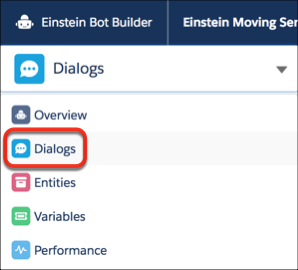
- From the Bot Builder menu, click Dialogs.
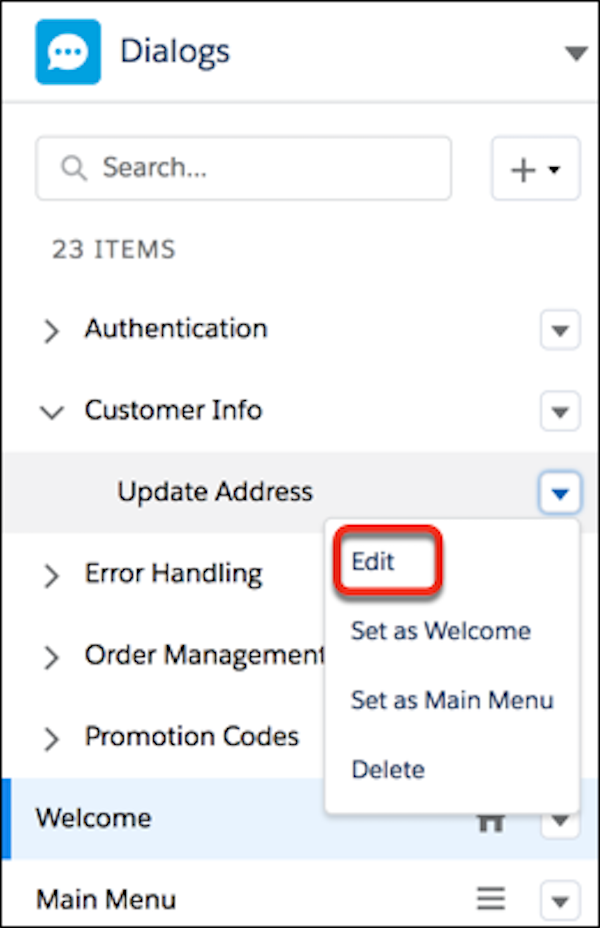
- In the Dialogs panel, click the dialog that you want to set up and click
 | Edit.
If you don’t have any dialogs yet, see Add a Dialog.
- To add a step to the dialog, drag a step from the Dialog Component Library onto the canvas,
or click
 on the canvas to select a type of step. Then configure the details in the Step
Properties panel.
on the canvas to select a type of step. Then configure the details in the Step
Properties panel. Add any of these types of steps:
- Outbound Messages—Send an outgoing message from your bot to your customer.
- Questions—Gather information from your customer.
- Actions—Run an autolaunched flow, send email, or use Apex to read, update, or delete Salesforce objects, retrieve data and display it to the customer, and retrieve external data from a third-party API.
- Rules—Specify the conditions that start any of these actions: call a dialog from within the current dialog, redirect to a different dialog, clear a variable value, transfer to a service rep, and set variables.
Drag dialog steps around the canvas to change their order in the dialog.
- Tell the bot what to do when it finishes a dialog. The bot can wait for customer input
and evaluate the intent, show a menu of options, start another dialog, or transfer the
customer to a service rep.
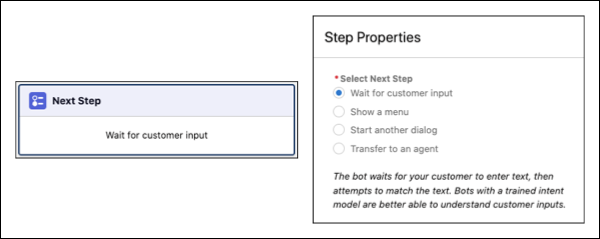
When a standard bot transfers to a service rep with the dialog Next Step, the bot transfers the conversation to a service rep in the queue specified in the channel or deployment. An enhanced bot transfers the conversation to the default outbound Omni-Channel flow specified on the Bot Overview page. The conversation is then routed to a service rep, queue, or skill, based on the business rules in the flow.
Each menu item is a dialog. To display a menu, use Show a menu to build a menu, where each menu item is a dialog. Or use Start another dialog to display the Main Menu dialog.
- Save the dialog.
- Set Up a Dialog Message Step
Use an Outbound Message step to send a message from the bot to your customer. - Use a Dialog Question Step
Question steps allow bots to ask the customer questions, receive data from the customer, and inform the bot about what action to take next. - Set Up a Dialog Action Step
Use Action steps to run autolaunched flows and send emails. Action steps let your bot use Apex to create, read, update, or delete Salesforce objects, retrieve data and display it, and retrieve external data from a third-party API. Add a goal to a dialog to evaluate how well your bot is helping your customers. - Set Up a Dialog Rule Step
Use rules to specify the conditions that start any of these actions: call a dialog from within the current dialog, redirect to a different dialog, clear a variable value, transfer to a service rep, and set a variable. Use rules to send targeted messages to your customers with Conditional Messaging. Rule conditions are optional.