
Name the dialog and decide whether to include it in the Bot Options menu that’s always available to your customers in the chat window.
Required Editions
| View supported editions. |
| User Permissions Needed | |
|---|---|
| To build and manage Einstein Bots: |
Customize Application OR Modify Metadata OR Manage Bots |

Note Dialogs are
specific to the version of the bot in which they’re created.
-
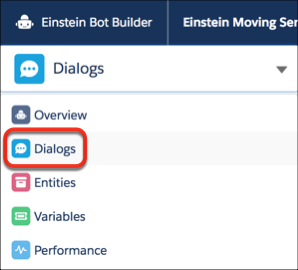
From the Bot Builder menu, click Dialogs.
-
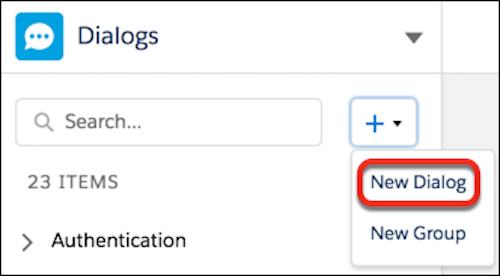
In the Dialogs panel, click New.
-
Determine whether to create a dialog from scratch or by using Einstein Conversation Mining
(beta).
- After you set up Einstein Conversation Mining and build your first report, you can select any finished report from the dropdown. Then, you can create a dialog based on one of the top contact reasons. If you choose a contact reason for your dialog, the Name, API Name, and Description fields fill in with details from the contact reason. After you save, excerpts from your conversation records used to build the contact reason transfer into the new bot dialog as dialog intent utterances.
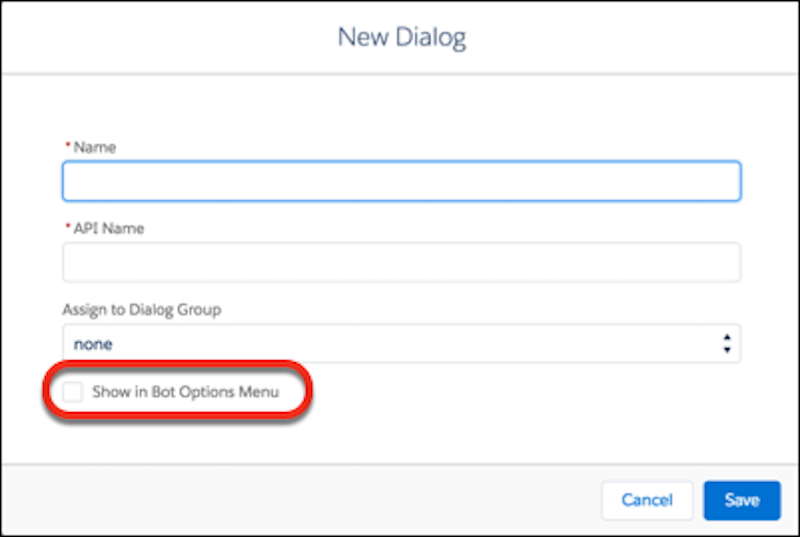
- If you choose to not use Einstein Conversation Mining, give the dialog a name, API name, and optional description.
- To include the dialog in a group of related dialogs, select the group name.
-
To include the dialog in the persistent options menu in the chat window, select
Show in Bot Options Menu (for use with Chat channels only).
- Save the new dialog.
- Set up the dialog by adding dialog steps.