---
schema_version: "1"
id: b849f490e5196db0cee5f5e11b74a93336162f4cc8506e68f0e4fac05d2a3c17
title: Manage Secondary Language Translations
collection: admin
version: current
locale: en-us
portal_url: https://docs.salesforce.com/admin/current/en-us/service/264-0-0/bots_service_language_translations.md
canonical_url: https://help.salesforce.com/s/articleView?id=service.bots_service_language_translations.htm&release=264.0.0&type=5
source_site: help.salesforce.com
content_type: documentation
content_hash: 05a74fd9701b5d2d4aa5c463ea5fee62c8d10bb2b83b90b69437d872819787b1
description: Edit bot translations directly in each bot dialog.
products:
  - Service Cloud
  - Service Intelligence
release: "264"
---
# Manage Secondary Language Translations

Edit bot translations directly in each bot dialog.

### Required Editions

<table class="slds-table slds-table_bordered slds-max-medium-table_stacked slds-m-bottom_small edition"><colgroup><col></colgroup><tbody><tr class=""><td class="slds-cell-wrap" style="vertical-align:top;"><a href="https://help.salesforce.com/s/articleView?id=service.einstein_service_intro.htm&amp;language=en_US" target="_blank">View supported editions</a>.</td></tr></tbody></table>

<table class="slds-table slds-table_bordered slds-max-medium-table_stacked slds-m-bottom_small permission">
        <colgroup>
          <col style="width:50%">
          <col style="width:50%">
        </colgroup>
        <thead class="slds-text-title_caps ">
          <tr class="">
            <th scope="colgroup" class="slds-cell-wrap" colspan="2" style="text-align:center;vertical-align:top;" id="d21682e57">User Permissions Needed</th>
          </tr>
        </thead>
        <tbody>
          <tr class="">
            <td data-label="User Permissions Needed" class="slds-cell-wrap" style="vertical-align:top;" headers="d21682e57 ">To build and manage Einstein Bots:</td>

            <td class="slds-cell-wrap" style="vertical-align:top;" headers="d21682e57 ">
              <p>Customize Application</p>
              <p>OR</p>
              <p>Modify Metadata</p>
              <p>OR</p>
              <p style="margin-bottom:0;">Manage Bots</p>
            </td>

          </tr>
        </tbody>
      </table>

- Einstein Bots uses Translation Workbench to store translations. Turn on Translation Workbench, set up secondary languages, and define translator users in Translation Workbench. Learn more at [Add a Secondary Bot Language](https://help.salesforce.com/s/articleView?id=service.bots_service_language_secondary.htm&release=264.0.0&type=5 "Create secondary languages to your existing bots.")
- To edit translations, users must have the **Manage Translation** permission or be assigned as a translator for a specific language in Translation Workbench. Users that don’t have required permissions can only view translations in the Bot Builder.
- Users with permissions to translate dialog text for a specific language can manage translations even with read-only access to the rest of the bot.
- Einstein Bots supports translations entered manually, through import and export, and added by the bot.

Add translations where the end user expects to interact with the bot. Start with message and question dialog steps, and include dialog names to cover exact matching. Or you can use the included compare tool to find visible text and add translations. To learn more about how the bot processes free text from the customer’s perspective, see [Navigating Bot Conversations](https://help.salesforce.com/s/articleView?id=service.bots_service_navigating_conversations.htm&release=264.0.0&type=5 "To build a more efficient bot, learn about how its parts work, such as the Confused dialog, conversation repair, transfers, and intent management. Understanding the order of operation also helps you troubleshoot your bot.").

To edit the bot translations:

1. In the Bot Builder, click **Dialogs**.
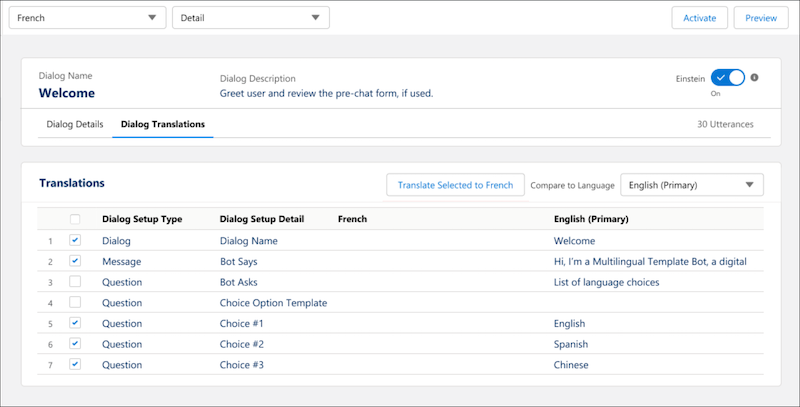
2. Select the dialog you want to translate, and then click the **Dialog Translations** tab.
3. From the language dropdown, select the language that you want to manage translations for.
    
    The Translations section displays the selected language’s dialog step text.
4. To see another language alongside the selected language, select a language from the Compare to Language dropdown.
5. To quickly add translations, select the dialog steps that you want to translate, and then click **Translate Selected** (beta). Or, to add translations manually, click ![Pencil icon](https://sf-zdocs-cdn-prod.zoominsoftware.com/tdta-service-support_intelligence-264-0-0-production-enus/dcd06a7b-b5ab-448b-a767-4e2e90481508/support_intelligence/images/bots/bots_service_multilang_edit.png) for the text that you want to add or edit. You can edit multiple translations in one interaction. When you’re done, save your changes.
    
    ![To edit translations, visit the Dialog Translations tab.](https://sf-zdocs-cdn-prod.zoominsoftware.com/tdta-service-support_intelligence-264-0-0-production-enus/dcd06a7b-b5ab-448b-a767-4e2e90481508/support_intelligence/images/bots/bots_service_multilang_example.png)