---
schema_version: "1"
id: 13911821bde64722626b47cafaa8699f79434d8d8b950959ed1640856a4e1cd1
title: Set a Bot Conversation Language
collection: admin
version: current
locale: en-us
portal_url: https://docs.salesforce.com/admin/current/en-us/service/264-0-0/bots_service_language_set.md
canonical_url: https://help.salesforce.com/s/articleView?id=service.bots_service_language_set.htm&release=264.0.0&type=5
source_site: help.salesforce.com
content_type: documentation
content_hash: 9e9a6dce874dd3c2c76ff464f632d7f9c16dacaeec52c7c8e10889fe75781b14
description: You can easily define a bot conversation language at the beginning of the conversation. End users can then select their preferred language and switch to the translated text. You can also set the preferred language variable using browser information or based on a URL.
products:
- Service Cloud
- Service Intelligence
release: "264"
---
# Set a Bot Conversation Language
You can easily define a bot conversation language at the beginning of the conversation. End users can then select their preferred language and switch to the translated text. You can also set the preferred language variable using browser information or based on a URL.
### Required Editions
For bots with multiple languages, set the preferred language as early as possible in the conversation to deliver an immersive experience. You can create a variable to store the language and add a dialog to manually set it inside the conversation.
You can also write custom code to define the preferred language based on data from the source website or browser metadata. If you code to set the language in the background, include a dialog to manually change the language if the set language is incorrect.
To create a bot conversation language selection dialog:
1. In the Bot Builder menu, select **Variables**. Click **New**.
2. Create a variable with a Custom Type and a Text Data Type, and then save your changes.
3. In the Bot Builder menu, select **Entities**. Click **New**.
4. Create an entity with a Data Type of Text and Extraction Type of Value, and then save your changes.
5. Click the name of your new entity. Set your primary language as the active language using the language dropdown.
6. To add values, click **Add** next to Value List.
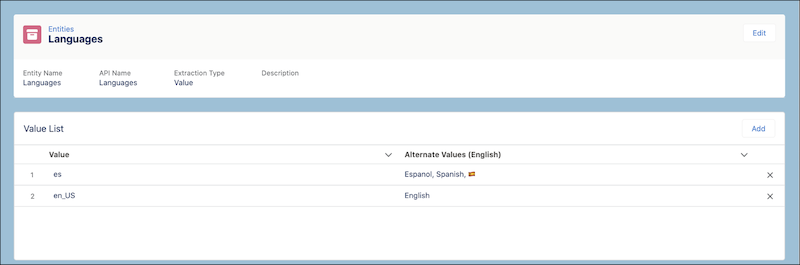
7. Enter a value and an alternative value for each supported language. Make sure that the value matches the language code of the supported languages, as they’re the same across all languages. The alternative values, separated by commas, define ways that the language can be entered by an end user. Einstein Bots only supports translations for the languages listed in [Set or Update a Bot Primary Language](https://help.salesforce.com/s/articleView?id=service.bots_service_language.htm&release=264.0.0&type=5 "Every Einstein Bot requires a primary language to be able to understand your end users. Defining a bot primary language helps with natural language processing (NLP) and named entity recognition (NER).").
8. Change the active language to each secondary language, and provide values and alternate values.
9. In the Bot Builder menu, select **Dialogs**. Click , and then **New Dialog**.
10. To add a question dialog step, click  in the dialog, then select **Question**.
11. In the Bot Asks field, ask the end user to select their preferred language. Select the custom entity and variable.
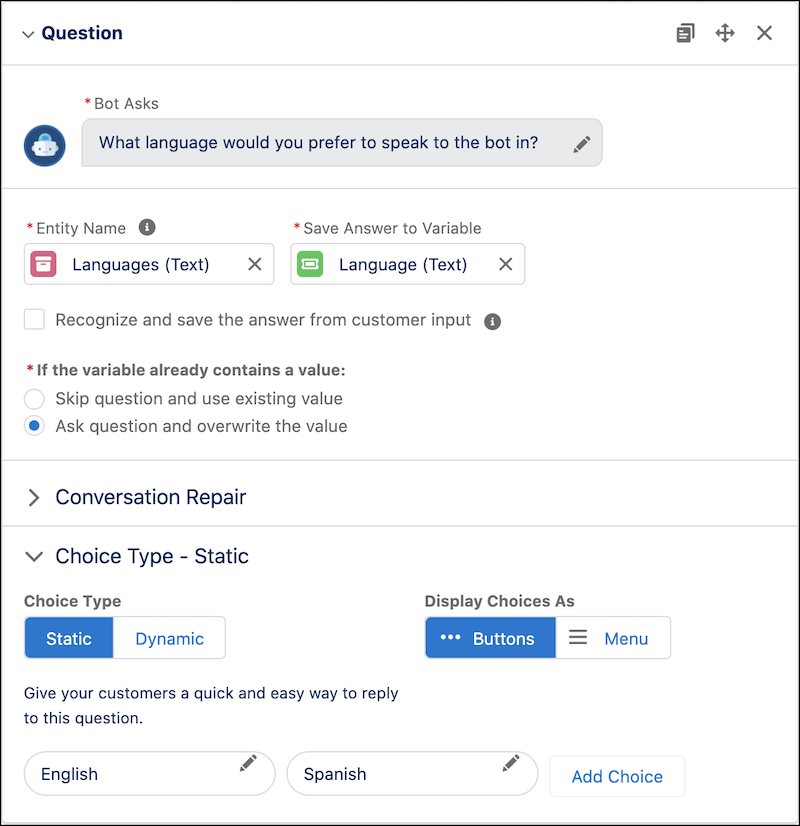
12. In Choice Type, select Static, and include options for all available languages.

Note
The static options include one of the alternative values from your entity. Including multiple variations of alternative values covers cases where the end user chooses not to select the static choices and types in a value instead.
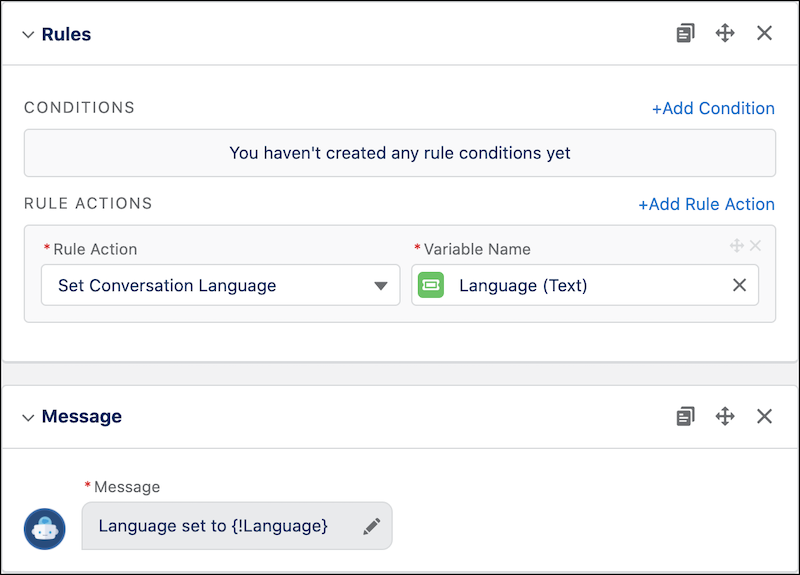
13. Add a Rule Dialog Step without a condition. Select **Set Conversation Language** as the Rule Action and your custom variable as the Variable Name.
14. Add a message dialog step with a message confirming the language has been set to the selected language.
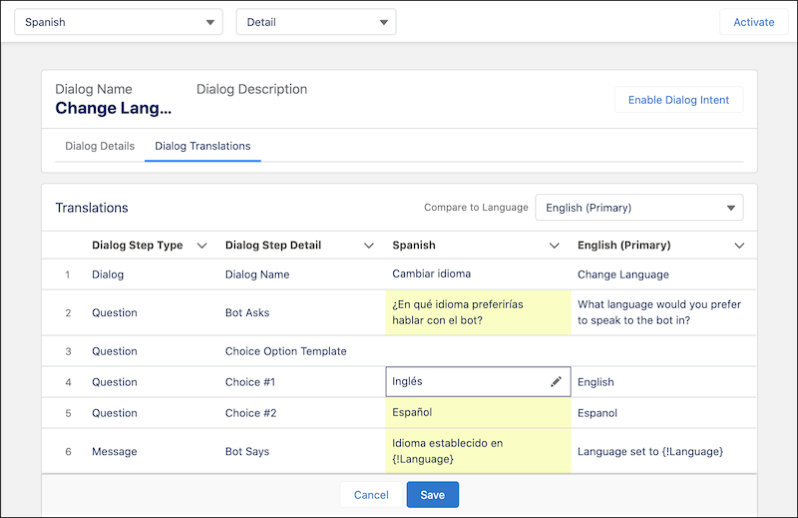
15. In the Next Step section, select **Start another dialog**, select the **Main Menu** dialog, and then save your changes. To enter secondary language translations, change your active language to each secondary language, and click into the Dialog Translations tab. Save your changes.