Bots are an integrated product—they include Bot features, input from Chat and Messaging channels, and they work together with Apex and Flows. A great way to get started is to learn how to use the Event Logs to troubleshoot.
Required Editions
| View supported editions. |
| User Permissions Needed | |
|---|---|
| To build and manage Einstein Bots: |
Customize Application OR Modify Metadata OR Manage Bots |

Note In orgs created in Summer ‘23 and later, Salesforce automatically
enables enhanced Omni-Channel routing. Enhanced Omni-Channel routing doesn’t support standard
bots or channels. If enhanced Omni-Channel routing is enabled for your org, we recommend cloning your standard bots as
enhanced bots. But if you still want to use standard bots, you can switch to standard
Omni-Channel routing.
- Confirm the status of Einstein Bots on the Salesforce Trust site. Use the search tool to find your instance, and then click into the instance for details. A green check in the Einstein Bots section means that it’s connected. To review past incidents, go to the History tab.
- Identify whether the issue is a channel issue or a bot issue. The best way to test the source of the issue is to spin up a new bot with the same channel and evaluate its performance.
-
If the issue is with the bot, check the bot’s event logs.
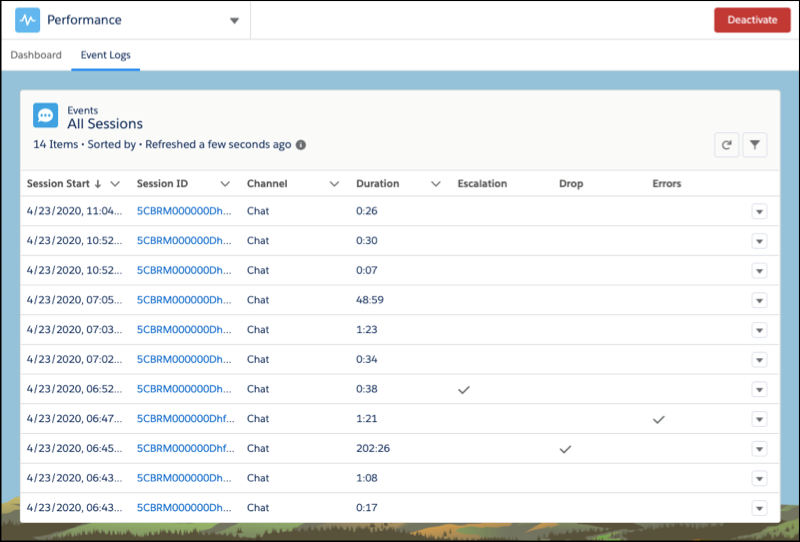
- From the Bot Builder menu, click Performance. Then select the Event Logs tab.
-
The log displays chat session information for the last seven days. If a session has
errors, details about the error are in the Errors column.
-
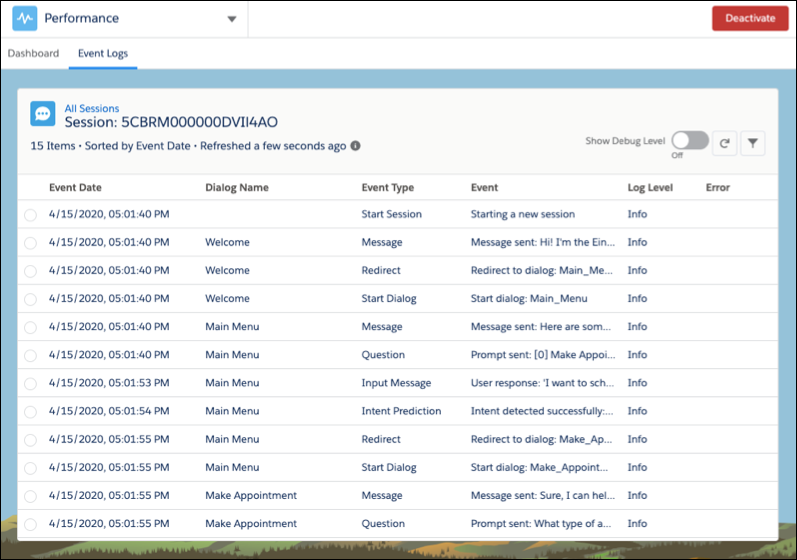
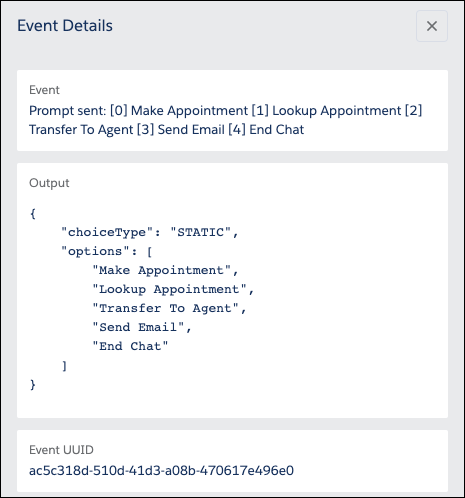
To drill into a session, click the session ID. Each session includes events, which
map to dialogs. If there’s an error with an event, click next to the event for more
information. A description of each event can be found in the Bot Data Reference Guide.
-
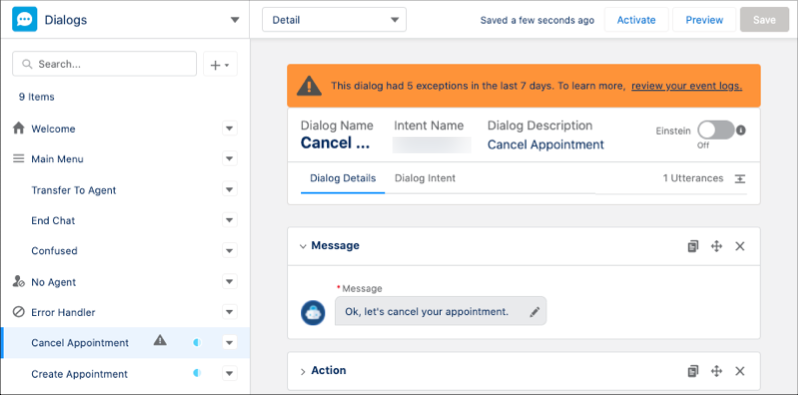
If the error is less than 7 days old, a notification shows on the dialog related to
the error. To view the event logs related to the dialog error, click the link in the
notification.
-
To see additional details in event logs, enable Log Conversations on the Einstein
Bots setup page. If Log Conversations isn’t enabled, you see
[logSensitiveData not allowed]instead of Message, Input, and Output values in event logs.
Note When using the event logs:- The Event field maxes out at 255 characters.
- In the Event Detail screen, The Output field shows that the message was sent to the customer. If a merge field is included in the message, the merged message shows in the Message Template field.
- As of this release, rule evaluations only show whether the bot used the dialog, regardless of whether the rule evaluation is true or false.
- Input arrays always start with 0.
- Event logs older than seven days are removed.
- If your bot is missing required permissions, add the permissions to the sfdc.chatbot.service.permset permission set. From Setup, in the Quick Find box, enter Permission Sets, and then click Permission Sets. Then click the sfdc.chatbot.service.permset permission set.
-
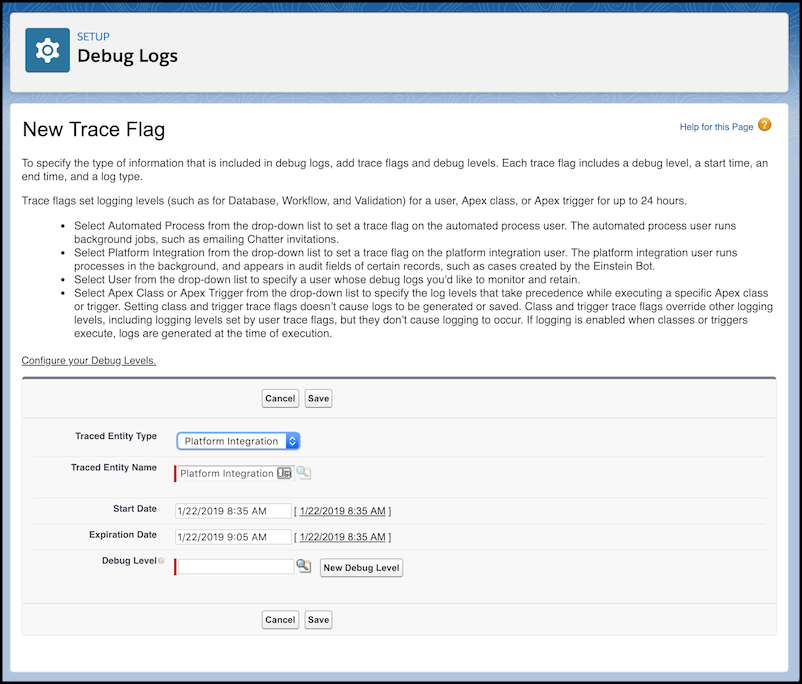
If your bot is heavily customized with Apex, review the Debug Logs. From Setup, in the
Quick Find box, enter, enter Debug Logs, and then click
Debug Logs. Create a user trace flag and select
Platform Integration as its trace entity type.