
Use the Set Routing Type dialog step to route enhanced bot conversations to a different outbound Omni-Channel flow than the default outbound Omni-Channel flow. To route conversations from the Transfer to Agent dialog or the Transfer to Agent Next Step, use the Outbound Omni-Channel Flow setting instead.
Required Editions
| View supported editions for Einstein Bots. |
| View supported editions for Messaging. |
| User Permissions Needed | |
|---|---|
| To build and manage Einstein Bots: |
Customize Application OR Modify Metadata OR Manage Bots |

Before you begin, in Flow Builder, create an Omni-Channel flow for your transfer use case.
- Route Conversations to an Enhanced Bot
- Omni-Channel Flow: Route Conversations to Queues
- Omni-Channel Flow: Route Conversations to a Specific Agent
- Omni-Channel Flow: Route Conversations Using Skills
After you create your Omni-Channel flow, navigate to the Bot Builder to set up a transfer using your flow.
To transfer conversations, use the Transfer rule action. If you transfer conversations using the End Chat action, then messaging sessions are ended.
-
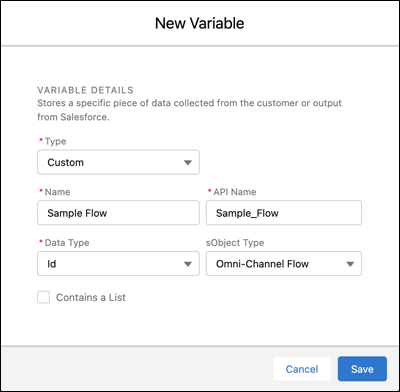
Create an ID variable to define the destination Omni-Channel flow.
- In the Bot Builder menu, select Variables and click New.
- For the Data Type, select ID. For the SObject Type, select Omni-Channel Flow.
-
Save your changes.
-
In a dialog, add a Set Routing Type dialog step with the same flow ID variable to initiate
the transfer.
- In the Bot Builder, navigate to the dialog you want to transfer from. Then from the Dialog Component Library, drag the Set Routing Type dialog step onto the canvas.
-
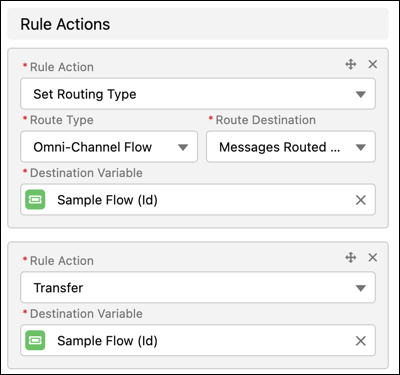
In the Step Properties panel, complete these fields:
Field Input Route Type Select Omni-Channel Flow. Route Destination Select the Omni-Channel flow to use to transfer the conversation. Destination Variable Select the ID variable that you created. - Click Add Rule Action.
-
In the Rule Action field, select Transfer. In the Destination
Variable field, select the ID variable set in the previous step to point to your
Omni-Channel flow.
- Save the dialog.
All conversations that aren’t routed go to the No Agent Available dialog.