---
schema_version: "1"
id: 8578e998768ba7edf17bec1383e2543250585d2eada88caa1994ea44f04c00d1
title: Route Conversations to an Enhanced Bot
collection: admin
version: current
locale: en-us
portal_url: https://docs.salesforce.com/admin/current/en-us/service/264-0-0/bots_service_enhanced_route_to.md
canonical_url: https://help.salesforce.com/s/articleView?id=service.bots_service_enhanced_route_to.htm&release=264.0.0&type=5
source_site: help.salesforce.com
content_type: documentation
content_hash: 0e7f7f6e7a938fa241a404d113d735f6e79c7982ad6dc29ee8850ae6096e7764
description: Create an Omni-Channel flow to route conversations to your bot over enhanced Messaging channels, including Enhanced Chat and enhanced third-party channels. You can add powerful business rules to a flow to send a conversation to a bot or a service rep based on your criteria.
products:
- Service Cloud
- Service Intelligence
release: "264"
---
# Route Conversations to an Enhanced Bot
Create an Omni-Channel flow to route conversations to your bot over enhanced Messaging channels, including Enhanced Chat and enhanced third-party channels. You can add powerful business rules to a flow to send a conversation to a bot or a service rep based on your criteria.
### Required Editions

Note To route a conversation to an enhanced bot from Slack, [connect your bot](https://help.salesforce.com/s/articleView?id=service.bots_service_deploy_to_channels.htm&release=264.0.0&type=5 "Einstein Bots can connect to many different end points, expanding the ways that you can deliver bots to your customers. Use the Connections section to view and add standard channels to your bot, or to connect standard and enhanced bots to the Einstein Bots API. To manage routing for enhanced bots, use Omni-Channel flows.") in the Connections section of the Bot Overview page, and then select your Slack app. To route a conversation to an enhanced bot from the Einstein Bots API, follow the steps in the [Einstein Bots API Get Started Guide](https://developer.salesforce.com/docs/service/einstein-bot-api/guide/prerequisites.html).
These steps cover how to create an inbound Omni-Channel flow from scratch. But depending on how you created your enhanced bot, Salesforce may have done some of the work for you. Each path to creating an enhanced bot gives you a different head start on inbound routing. To learn more, visit [Create an Enhanced Bot](https://help.salesforce.com/s/articleView?id=service.bots_service_enhanced_create.htm&release=264.0.0&type=5 "Use the Guided Setup Flow to create an enhanced bot from scratch or from a template. Or you can clone an existing bot.").
To create and manage Omni-Channel flows, turn on Omni-Channel.
## Create an Omni-Channel Flow
Create an Omni-Channel flow that routes conversations to your bot.
1. From Setup, in the Quick Find box, enter Flows, and then select **Flows**.
2. Select an existing Omni-Channel flow to edit, or follow the steps to [create an Omni-Channel flow from scratch](https://help.salesforce.com/s/articleView?id=service.omnichannel_create_a_flow.htm&type=5&language=en_US).
3. Drag the Route Work action onto the canvas. Route Work actions are the last object in the flow.
4. Give the action a label and API name and optionally, a description.
5. Under Set Input Values, complete the required fields.
| Field | Input |
| --- | --- |
| Record ID | Select the recordId variable you created. |
| Service Channel | Select **Messaging**. |
| Route To | Select **Bot** to populate the list of enhanced bots. |
6. Under Bots, select your bot. Only active bots are available. If your bot doesn’t appear in the list, [activate your bot](https://help.salesforce.com/s/articleView?id=service.bots_service_activate_bot.htm&release=264.0.0&type=5 "When you’re ready to put your bot to work, activate your bot and welcome your new agent to the team!"), refresh Flow Builder, and try again. If you deactivate your bot later, it’s still associated with any flows that you added it to.
7. Under Queue, select a fallback queue where the Omni-Channel Flow sends the conversation if routing is unsuccessful.
8. Save your changes.
All Omni-Channel flows that route conversations to your bot with the Route Work action appear in the Inbound Omni-Channel Flows section of the Bot Overview page.
## Connect Your Flow to Your Messaging Channel
After creating your Omni-Channel flow, link it to one or more Messaging channels by updating the channel’s routing settings. You can add the same flow to multiple channels, but a channel can have only one inbound flow.
If you haven’t created your enhanced Messaging channel, see:
- Enhanced Web Chat and In-App: [Prepare a Salesforce Org for Enhanced Chat](https://help.salesforce.com/s/articleView?id=service.miaw_prepare_org_1.htm&type=5&language=en_US)
- All other enhanced Messaging channels: [Route Service Cloud Messaging Sessions with Omni-Channel Flows](https://help.salesforce.com/s/articleView?id=service.messaging_routing_flows.htm&type=5&language=en_US)
To add a flow to a channel, your channel must be active. Manage your channels on the Messaging Settings page in Setup.
1. From the Inbound Omni-Channel Flows section of the Bot Overview page, click the dropdown menu for the flow you want to connect to your enhanced Messaging channel. Then select **Add to Channel**.

2. Specify the channel type and channel you want to modify, and select a fallback queue.
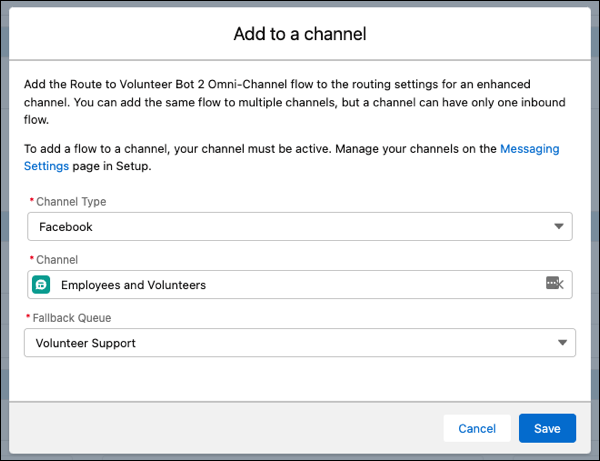
If the channel you want to modify already has a flow or queue associated with it, adding a flow to your channel replaces the existing flow or queue.
3. Save your changes.
To let your enhanced bot use context variables, map each messaging channel to the Messaging Session ID field on the Routable Id variable. See [Understand Context and System Variables](https://help.salesforce.com/s/articleView?id=service.bots_service_context_system_variables.htm&release=264.0.0&type=5 "Access important information during bot conversations with context and system variables. Context variables let your bot gather customer information regardless of channel. System variables store back-end information about conversations.").