Send a customized, interactive web page link over your enhanced channels with the enhanced link messaging component.
Required Editions
| View supported editions for Einstein Bots. |
| View supported editions for Messaging. |
| User Permissions Needed | |
|---|---|
| To build and manage Einstein Bots: |
Customize Application OR Modify Metadata OR Manage Bots |
Support for messaging components varies by channel.
Before you begin:
- From the Messaging Component page in Setup, create an enhanced link messaging component.
- If you’ve added parameters to your messaging component to use dynamic inputs to customize your enhanced link, create an Apex class or flow to generate session-specific inputs. Customizations can include showing different images or leading to different URLs.

Note These instructions assume that you use a dedicated Apex class or flow to populate
the messaging component. But you can use variables from anywhere in your bot, as long as
they’re of the same object type specified in the messaging component.
- From the Einstein Bots Setup page, select the bot you want to use to send an enhanced link.
- From the Bot Builder, click Dialogs, and then select the dialog that you want to use to send an enhanced link.
-
If you’ve added parameters to your messaging component to customize your enhanced link,
add an Apex class or flow to your dialog.
- From the Dialog Component Library, drag the Apex or Flow action dialog step onto the canvas.
- In the Step Properties panel, select the Apex class or flow associated with the enhanced link component.
- For each output, create or select a bot variable to store the output of the Apex class or flow. You’ll reference these variables again in the Enhanced Link dialog step to customize the enhanced link.
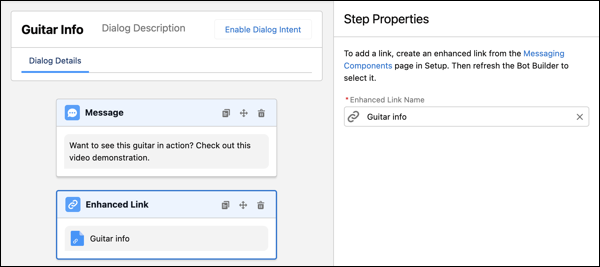
- From the Dialog Component Library, drag the Enhanced Link dialog step onto the canvas.
- In the Step Properties panel, enter the name of your messaging component to search for and select it. If you don’t see your link, refresh the builder and try again.
- If you’ve added parameters to your messaging component to customize your enhanced link, for each input parameter, specify a bot variable. In most cases, specify the same output variables you created in the previous Apex or Flow action steps in the corresponding input parameter fields.
- Save your changes.