---
schema_version: "1"
id: 69aa7eb9de5ae8a5ae16541df5e0a91a4445f319b0eba5bb3f10690bbf9f70de
title: Send a File with Static Content from an Enhanced Bot
collection: admin
version: current
locale: en-us
portal_url: https://docs.salesforce.com/admin/current/en-us/service/264-0-0/bots_service_enhanced_file.md
canonical_url: https://help.salesforce.com/s/articleView?id=service.bots_service_enhanced_file.htm&release=264.0.0&type=5
source_site: help.salesforce.com
content_type: documentation
content_hash: ddf544d62315a370b2ecc06bc1adec0f4d270154189f8d88e0ae78ab7353319a
description: Send a static file as a bot message. For example, send a PDF of a form or schedule for an event. Or send an image to help with instructions or troubleshooting.
products:
- Service Cloud
- Service Intelligence
release: "264"
---
# Send a File with Static Content from an Enhanced Bot
Send a static file as a bot message. For example, send a PDF of a form or schedule for an event. Or send an image to help with instructions or troubleshooting.
### Required Editions
Supported file types and sizes vary by channel. See [Send Images and Files in Messaging Sessions](https://help.salesforce.com/s/articleView?id=service.livemessage_agent_send_files.htm&type=5&language=en_US).
1. Upload a file from your computer or from Salesforce as an asset file.
1. From Files home, go to **Libraries** | **Asset Library**.
2. Click **Upload Asset File**. The file selector opens to let you upload a new file or select an existing file to make into an asset.
3. Enter a file name and an API name.
4. To make the file visible to customers outside of your organization, select **Let guest users see this asset file on public and login pages**.
5. Optionally, to make the file visible to your internal employees, select **Make asset file available to Salesforce org users**.
6. Save your changes. Your asset file is saved to the Asset Library and displays an Asset File label.
2. Navigate to the Bot Builder. Click **Dialogs**, and then select the dialog that you want to send a file from.
3. From the Dialog Component Library, drag the **File** dialog step onto the canvas.
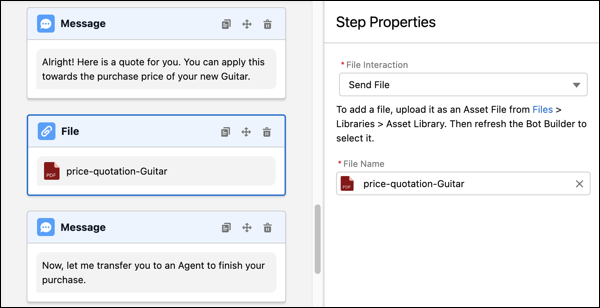
4. In the Step Properties panel, in the File Interaction field, select **Send File**.
5. In the File Name field, enter the name of your file to search for and select it. The search bar shows asset files only. If you don’t see your file, refresh the builder and try again.
6. Save your changes. Then when you’re ready, activate your bot.