---
schema_version: "1"
id: bc573af34938c06eeb770b993557024fa86268f324a3446394dd5923b8bc5590
title: Request a Payment with an Enhanced Bot
collection: admin
version: current
locale: en-us
portal_url: https://docs.salesforce.com/admin/current/en-us/service/264-0-0/bots_service_enhanced_async_payment.md
canonical_url: https://help.salesforce.com/s/articleView?id=service.bots_service_enhanced_async_payment.htm&release=264.0.0&type=5
source_site: help.salesforce.com
content_type: documentation
content_hash: 5c35cf833f59e537ca4ba7ebc3bbf540ca56a9779ea31c5150c9d6078363dccf
description: Use the payment messaging component to request and process payments from customers in enhanced Apple Messages for Business channels.
products:
- Service Cloud
- Service Intelligence
release: "264"
---
# Request a Payment with an Enhanced Bot
Use the payment messaging component to request and process payments from customers in enhanced Apple Messages for Business channels.
### Required Editions
This component is asynchronous. When the bot sends the component, the customer can continue the conversation and respond to the component later. Bots that use asynchronous components require careful configuration to ensure a natural conversational experience. Before adding this component to a bot, learn more about [best practices for asynchronous components](https://help.salesforce.com/s/articleView?id=service.bots_service_enhanced_async_best_practices.htm&release=264.0.0&type=5 "Customers don’t have to respond to asynchronous components right away. When you add an asynchronous component to a bot conversation, carefully consider your conversation design to gracefully handle errors and changes in context.").
This component is available only for enhanced Apple Messages for Business channels.
In enhanced bots, payment components time out after five minutes.
Before you begin:
- [Add Apple Pay to your channel and create a payment messaging component](https://help.salesforce.com/s/articleView?id=service.messaging_components_payment.htm&type=5&language=en_US).
When you set up a payment component, you specify a prompt that asks customers to make a payment and a confirmation message. The prompt and confirmation message aren’t visible in the Bot Builder, but you don’t need to add a separate dialog step to send them. In the bot conversation, the prompt is sent to the customer when they reach the dialog step that references your component. After the customer completes the payment, the confirmation message appears as a message from the customer.
- If you haven’t already, create one or more Apex classes to dynamically generate session-specific payment details each time the component is sent. Payment details include line items, a payment total, and optionally, shipping methods. For examples, see [Apex Reference Guide: RichMessaging Namespace](https://developer.salesforce.com/docs/atlas.en-us.apexref.meta/apexref/apex_namespace_RichMessaging.htm).

Note These instructions assume that you use a dedicated Apex class or flow to populate the messaging component. But you can use variables from anywhere in your bot, as long as they’re of the same object type specified in the messaging component.
1. To generate payment details each time the component is sent, add an Apex class to your dialog.
1. Go to the Bot Builder. Click **Dialogs**, and then select the dialog that you want to add the payment request to.
2. From the Dialog Component Library, drag the **Apex** or **Flow** action dialog step onto the canvas.
3. In the Step Properties panel, select the Apex class or flow associated with the payment component.
4. For each output, create or select a bot variable to store the output of the Apex class or flow. You reference these variables again in the Payment dialog step to customize the payment request.
5. Repeat for each Apex class or flow you created to populate the parameters.
2. Add the payment component to your bot.
1. From the Dialog Component Library, drag the **Payment** dialog step onto the canvas.
2. In the Step Properties panel, search for and select the payment component associated with your Apex class or flow. If you don’t see your component, refresh the builder and try again.
3. The payment messaging component is asynchronous, so tell the bot what to do after sending the form. The bot can wait for customer input or move on to the next dialog step. See [Conversation Design for Asynchronous Components](https://help.salesforce.com/s/articleView?id=service.bots_service_enhanced_async_conversation.htm&release=264.0.0&type=5 "Because customers don’t have to respond to asynchronous components right away, these components require careful conversation design. Use asynchronous component settings and Rule conditions and actions to ensure a natural conversational experience.").

Note When exact matching or intent recognition are enabled, the customer can enter text that redirects the bot conversation to another dialog (for example, “Main Menu”), regardless of the option you select.
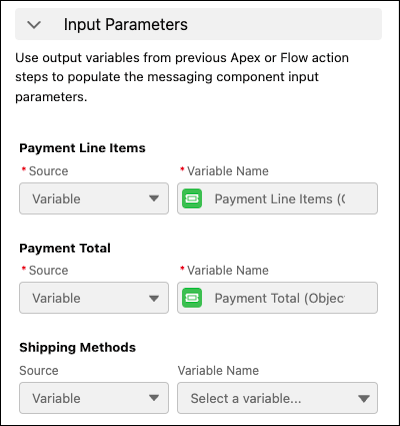
4. To customize the payment component, for each input parameter, specify a bot variable. In most cases, specify the same output variables you created in the previous Apex or Flow action steps in the corresponding input parameter fields.
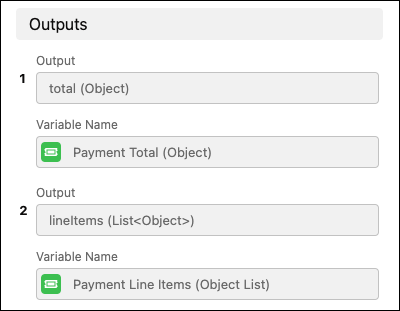
For example, in an Apex action step, you store the outputs of the PaymentLineItems class in the Payment Total object variable and the Payment Line Items object list bot variable. In the associated Payment dialog step, for the Payment Line Items and Payment Total input parameters, you specify the same variables.
| Apex dialog step | Payment dialog step |
| --- | --- |
|  |  |
5. Specify a backup rule action for the bot to use if the required input parameters don’t return details for the payment. Select **Call Dialog** or **Redirect to Dialog**, and then select the appropriate dialog.
6. In the output section, select or create a text variable to store the result of the payment.
7. Tell the bot what to do if the variable already contains a value. The bot can keep the original value and skip the payment request, or the bot can request a payment and override the original value.
8. Optionally, select or create an object list variable to store the list of error codes if the customer response results in an error. You can use Rule conditions and actions to customize the behavior of the Error Handler dialog based on the error variable. See [Error Handling for Asynchronous Components](https://help.salesforce.com/s/articleView?id=service.bots_service_enhanced_async_errors.htm&release=264.0.0&type=5 "Asynchronous components include an optional error variable to give you more control over how to handle specific errors. Use an Apex class and Rule actions to customize the behavior of the Error Handler dialog based on the error variable. For example, when a customer attempts to respond to an expired authentication request, you can prompt the user to try again with a new authentication request.").
3. Save your changes.
To specify the bot’s behavior when a customer responds to the component, add a Rule action step after the component. The Rule action step ensures that whenever your customer responds to the component, their response is confirmed and the conversation is redirected appropriately. See [Conversation Design for Asynchronous Components](https://help.salesforce.com/s/articleView?id=service.bots_service_enhanced_async_conversation.htm&release=264.0.0&type=5 "Because customers don’t have to respond to asynchronous components right away, these components require careful conversation design. Use asynchronous component settings and Rule conditions and actions to ensure a natural conversational experience.").
#### See Also
- [Compare Messaging Channel Capabilities](https://help.salesforce.com/s/articleView?id=service.livemessage_managed_package_lex_differences.htm&language=en_US)
- [Considerations for Messaging Components](https://help.salesforce.com/s/articleView?id=service.messaging_components_considerations.htm&language=en_US)
- [Considerations for Messaging Components in Enhanced Bots](https://help.salesforce.com/s/articleView?id=service.bots_service_enhanced_considerations.htm&release=264.0.0&type=5 "Carefully review these considerations before setting up Enhanced Bots.")