
Asynchronous components include an optional error variable to give you more control over how to handle specific errors. Use an Apex class and Rule actions to customize the behavior of the Error Handler dialog based on the error variable. For example, when a customer attempts to respond to an expired authentication request, you can prompt the user to try again with a new authentication request.
Required Editions
| View supported editions for Einstein Bots. |
| View supported editions for Messaging. |
| User Permissions Needed | |
|---|---|
| To build and manage Einstein Bots: |
Customize Application OR Modify Metadata OR Manage Bots |
Unlike other messaging components in Einstein Bots, asynchronous components don’t include conversation repair attempts. Instead, these components redirect to the system Error Handler dialog. Without any customization, the Error Handler dialog delivers a message and redirects the customer to the Main Menu dialog. Starting over makes sense when the customer encounters certain errors, such as an internal server error. But it’s not very efficient for the customer or the bot when the error is recoverable, such as a component timeout or an invalid shipping address.
When you add an asynchronous component to your bot, you’re prompted to specify an object list variable to store any error codes or types triggered by customer interaction with the component.
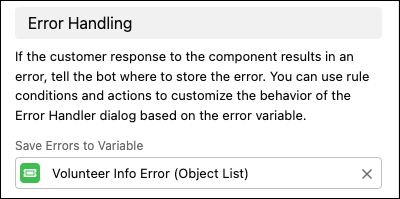
You can use the variable with an Apex class to customize the behavior of the Error Handler dialog.
-
From the Apex Classes page in Setup, create an Apex class that loops through the list
of errors stored in the object list variable and returns the error codes or types.
For example:
public with sharing class CheckBotError { @InvocableMethod(label='CheckBotError') public static List<String> CheckBotError(List<chatbots.Error> errors) { List<String> returnVal = new List<String>(); for (chatbots.Error err : errors) { if (err.errorType == 'TEST_TYPE') { returnVal.add('There was an issue with FOO. Please try SOMETHING ELSE.'); } } return returnVal; } } -
Add the Apex class to your bot’s Error Handler dialog to make the error codes and types
available to your bot.
- Go to the Bot Builder. Click Dialogs, and then select the Error Handler system dialog or any other dialog you use for error handling.
- From the Dialog Component Library, drag the Apex action dialog step onto the canvas.
- In the Step Properties panel, select the Apex class you created.
- For the input, select the object list variable you use to store the errors from your asynchronous component.
- For the output, create or select a variable to store the error codes or types the Apex class returns. Choose the variable type that works best with your Apex class and business case.
- Add Rule steps to customize the behavior of the Error Handler dialog. For every error code or type that you want to handle, create a condition that triggers the Rule step when the variable you specified in your Apex class contains the error code or type.
- Save your changes.
| Available Error Codes and Types | |
|---|---|
| Component | Error Codes and Types |
| Authentication |
|
| Form |
|
| Payment |
|