---
schema_version: "1"
id: 661b563bebe4d01047c35ab4d54dc005eef829e9d4edfcb2e2ffbe9865321613
title: Work with Dialog Groups
collection: admin
version: current
locale: en-us
portal_url: https://docs.salesforce.com/admin/current/en-us/service/264-0-0/bots_service_dialog_groups.md
canonical_url: https://help.salesforce.com/s/articleView?id=service.bots_service_dialog_groups.htm&release=264.0.0&type=5
source_site: help.salesforce.com
content_type: documentation
content_hash: 5ea2638c8d8426385857f488b5f3a8b6d8b6e4a62034f655808a42ee8c6abc8f
description: Manage your bot’s dialogs with dialog groups.
products:
  - Service Cloud
  - Service Intelligence
release: "264"
---
# Work with Dialog Groups

Manage your bot’s dialogs with dialog groups.

### Required Editions

<table class="slds-table slds-table_bordered slds-max-medium-table_stacked slds-m-bottom_small edition"><colgroup><col></colgroup><tbody><tr class=""><td class="slds-cell-wrap" style="vertical-align:top;"><a href="https://help.salesforce.com/s/articleView?id=service.einstein_service_intro.htm&amp;language=en_US" target="_blank">View supported editions</a>.</td></tr></tbody></table>

<table class="slds-table slds-table_bordered slds-max-medium-table_stacked slds-m-bottom_small permission">
        <colgroup>
          <col style="width:50%">
          <col style="width:50%">
        </colgroup>
        <thead class="slds-text-title_caps ">
          <tr class="">
            <th scope="colgroup" class="slds-cell-wrap" colspan="2" style="text-align:center;vertical-align:top;" id="d13328e57">User Permissions Needed</th>
          </tr>
        </thead>
        <tbody>
          <tr class="">
            <td data-label="User Permissions Needed" class="slds-cell-wrap" style="vertical-align:top;" headers="d13328e57 ">To build and manage Einstein Bots:</td>

            <td class="slds-cell-wrap" style="vertical-align:top;" headers="d13328e57 ">
              <p>Customize Application</p>
              <p>OR</p>
              <p>Modify Metadata</p>
              <p>OR</p>
              <p style="margin-bottom:0;">Manage Bots</p>
            </td>

          </tr>
        </tbody>
      </table>

Organize related dialogs into dialog groups. Expand and collapse dialog groups to view only the dialogs you need. Drag dialogs to different groups if you reorganize groups.

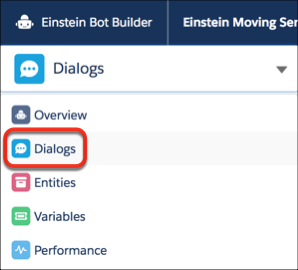
1. From the Bot Builder menu, click **Dialogs**.
    
    ![Dialogs option in Bot Builder menu](https://sf-zdocs-cdn-prod.zoominsoftware.com/tdta-service-support_intelligence-264-0-0-production-enus/dcd06a7b-b5ab-448b-a767-4e2e90481508/support_intelligence/images/bots/bots_service_builder_menu_dialog.png)
2. Do either of the following tasks:
    
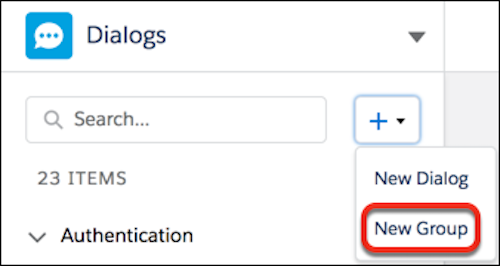
    1. To add a group, in the Dialogs panel, click **New Group**.
        
        ![New dialog group](https://sf-zdocs-cdn-prod.zoominsoftware.com/tdta-service-support_intelligence-264-0-0-production-enus/dcd06a7b-b5ab-448b-a767-4e2e90481508/support_intelligence/images/bots/bots_service_dialog_group_new.png)
        
        Give the dialog group a name and API name and then save the new group. Drag existing dialogs into or out of this group. You can assign new dialogs to this group when you create them.
    
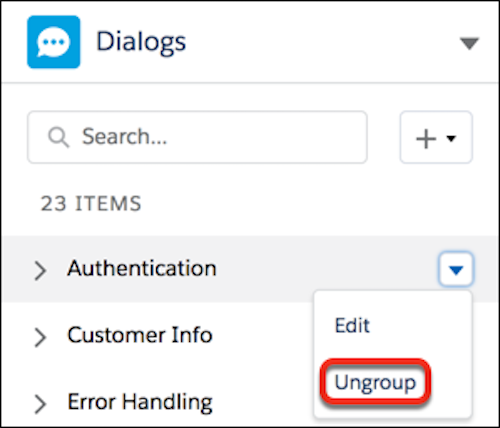
    1. To delete a group, right-click the group and click **Ungroup**.
        
        ![Ungroup dialogs](https://sf-zdocs-cdn-prod.zoominsoftware.com/tdta-service-support_intelligence-264-0-0-production-enus/dcd06a7b-b5ab-448b-a767-4e2e90481508/support_intelligence/images/bots/bots_service_dialog_group_ungroup.png)
        
        The dialog group is removed and any dialogs that were in the group become ungrouped dialogs in the Dialogs panel. Drag them to other dialog groups as needed.