---
schema_version: "1"
id: 1a868a2fe8bd0cb61d72903a9843624697d304de1ace2edbc2c7517dd148ef69
title: Clone a Dialog or Dialog Step
collection: admin
version: current
locale: en-us
portal_url: https://docs.salesforce.com/admin/current/en-us/service/264-0-0/bots_service_clone_dialog.md
canonical_url: https://help.salesforce.com/s/articleView?id=service.bots_service_clone_dialog.htm&release=264.0.0&type=5
source_site: help.salesforce.com
content_type: documentation
content_hash: 82b925bb25f78e21990cd8a8321e497b1a7e369c38729bc5c23d20781c1c239d
description: Cloning a dialog is a quick way to build your bot. Dialog step cloning helps you set up similar dialog steps with fewer clicks.
products:
  - Service Cloud
  - Service Intelligence
release: "264"
---
# Clone a Dialog or Dialog Step

Cloning a dialog is a quick way to build your bot. Dialog step cloning helps you set up similar dialog steps with fewer clicks.

### Required Editions

<table class="slds-table slds-table_bordered slds-max-medium-table_stacked slds-m-bottom_small edition"><colgroup><col></colgroup><tbody><tr class=""><td class="slds-cell-wrap" style="vertical-align:top;"><a href="https://help.salesforce.com/s/articleView?id=service.einstein_service_intro.htm&amp;language=en_US" target="_blank">View supported editions</a>.</td></tr></tbody></table>

<table class="slds-table slds-table_bordered slds-max-medium-table_stacked slds-m-bottom_small permission">
        <colgroup>
          <col style="width:50%">
          <col style="width:50%">
        </colgroup>
        <thead class="slds-text-title_caps ">
          <tr class="">
            <th scope="colgroup" class="slds-cell-wrap" colspan="2" style="text-align:center;vertical-align:top;" id="d73153e57">User Permissions Needed</th>
          </tr>
        </thead>
        <tbody>
          <tr class="">
            <td data-label="User Permissions Needed" class="slds-cell-wrap" style="vertical-align:top;" headers="d73153e57 ">To build and manage Einstein Bots:</td>

            <td class="slds-cell-wrap" style="vertical-align:top;" headers="d73153e57 ">
              <p>Customize Application</p>
              <p>OR</p>
              <p>Modify Metadata</p>
              <p>OR</p>
              <p style="margin-bottom:0;">Manage Bots</p>
            </td>

          </tr>
        </tbody>
      </table>

Bots that include similar tasks can benefit from dialog cloning. By building one time and then cloning, you can quickly customize dialogs to fit multiple automation paths.

To clone a dialog:

1. Navigate to the Dialog tab in the Bot Builder and find the dialog to clone. Click the dropdown ![Clone a dialog in the action menu.](https://sf-zdocs-cdn-prod.zoominsoftware.com/tdta-service-support_intelligence-264-0-0-production-enus/dcd06a7b-b5ab-448b-a767-4e2e90481508/support_intelligence/images/bots/bots_service_actionmenu.png) next to the dialog.
2. Select **Clone Dialog** in the dropdown.
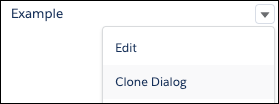
    
    ![Click Clone Dialog to clone a dialog.](https://sf-zdocs-cdn-prod.zoominsoftware.com/tdta-service-support_intelligence-264-0-0-production-enus/dcd06a7b-b5ab-448b-a767-4e2e90481508/support_intelligence/images/bots/bot_service_clone_dialog.png)
3. Enter a new dialog name and API name. The bot requires a unique Dialog Name and API Name for the cloned dialog.
4. If intent is enabled on your dialog, you can choose the destination of the intent data. You can choose to keep utterances and intent sets in the original dialog or move to the cloned dialog.
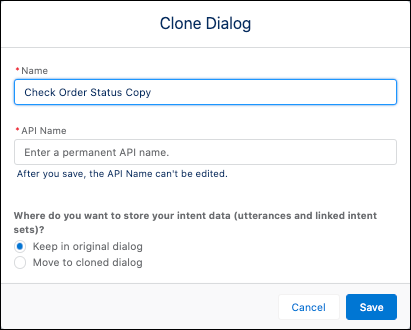
    
    ![Choose the location of your intent data.](https://sf-zdocs-cdn-prod.zoominsoftware.com/tdta-service-support_intelligence-264-0-0-production-enus/dcd06a7b-b5ab-448b-a767-4e2e90481508/support_intelligence/images/bots/bots_service_clone_dialog_intent.png)
5. Save your work.

To clone a dialog step, hover over the ![Clone a dialog step.](https://sf-zdocs-cdn-prod.zoominsoftware.com/tdta-service-support_intelligence-264-0-0-production-enus/dcd06a7b-b5ab-448b-a767-4e2e90481508/support_intelligence/images/bots/bot_service_clone_dialog_step_icon.png) icon in the dialog step and click to clone. The cloned dialog step appears below the original dialog step.