
Bot blocks are a group of components that you can import to multiple bots. Blocks are pieces of bots, as opposed to a bot template, which contains functionality for a whole bot.
Required Editions
| View supported editions. |
| User Permissions Needed | |
|---|---|
| To build and manage Einstein Bots: |
Customize Application OR Modify Metadata OR Manage Bots |
- Open the bot you want to use as the destination for this block.
-
On the dialog menu, click the plus icon, and then select Import a
Block.
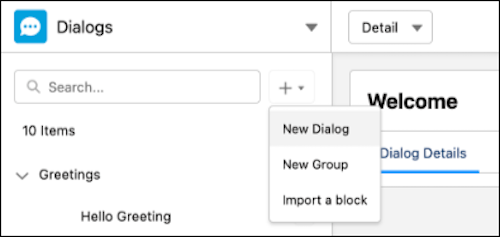
- Select the block from the list of available blocks. Then click Next.
- Review the block details and rename it to fit your bot. Then click Next.
- Blocks can include references to dialogs. You can resolve these references by mapping them to a bot dialog or by creating a bot dialog. Resolve all open dialogs and click Next.
- Resolve any included goals into your bot by creating a new goal or mapping to an existing goal. Click Next.
- Confirm mappings to the block variables. New variables are created by default, but you can choose to map them to existing variables instead. Click Next.
- Click Finish.
Your block is created as a dialog group in your bot. The dialog group counts towards your total allowed dialog groups in your bot version.
After you import a block into your bot, it turns into a dialog group and is no longer connected to the block template. Updates to the block template don’t affect the dialog group created from the block.
Some blocks require additional customization. See Explore the Einstein Bot Block Library.
To remove a dialog group created from a block, click the dropdown next to the dialog group name and select Ungroup. The dialog group is deleted and all dialogs part of that group are listed in the main dialog listing. To remove a block and all its dialogs, delete the dialogs first and then select Ungroup.