---
schema_version: "1"
id: b8ccdd0fab1974a5b8dfeb0b30488f7dcc8cc83603e293383a33dc09d1ff6e09
title: Create a Block from a Dialog Group
collection: admin
version: current
locale: en-us
portal_url: https://docs.salesforce.com/admin/current/en-us/service/264-0-0/bots_service_block_dialog_group.md
canonical_url: https://help.salesforce.com/s/articleView?id=service.bots_service_block_dialog_group.htm&release=264.0.0&type=5
source_site: help.salesforce.com
content_type: documentation
content_hash: 536321ea2f4932597f1fa1807e56ad4217fc5b789da9bf0e02abf0a998799787
description: Export a dialog group as the basis for a bot block. You can package bot blocks and share them between orgs or on AppExchange.
products:
- Service Cloud
- Service Intelligence
release: "264"
---
# Create a Block from a Dialog Group
Export a dialog group as the basis for a bot block. You can package bot blocks and share them between orgs or on AppExchange.
### Required Editions
A block can be built for either standard or enhanced bot types, but not both in the same block. To learn more about enhanced bots, see [Set Up Enhanced Bots](https://help.salesforce.com/s/articleView?id=service.bots_service_enhanced.htm&release=264.0.0&type=5 "Build more secure, more personalized conversational experiences with Enhanced Bots. Connect an enhanced bot to enhanced Messaging channels, including Enhanced Chat and enhanced third-party channels, and to Slack and the Einstein Bots API. Leverage the flexibility of Omni-Channel Flow and powerful business rules to route conversations to and from a bot. Plus, add rich content such as files to your bot conversations—no workarounds required."). When you create a block from a bot, the block inherits the type from the bot.
Before a dialog group can become a block, you must remove unsupported elements from the bot version. These elements include:
- Transfer actions: A block can’t contain the Transfer to Agent Rule action. The Transfer to Agent system dialog and the Transfer to Agent Next Step are allowed.
- Einstein Intent Sets: A block can’t contain a dialog intent that is linked to an Einstein Intent Set.
- Structured content in Enhanced Bots: Blocks support inbound files, but they don't support outbound files. Blocks don't support messaging components.
1. From the Einstein Bots main page, open the bot you want to use to create the block.
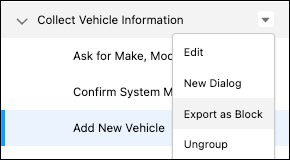
2. Identity the dialog group you want to use to create the block. Click the dropdown and then click **Export as Block**.
3. Give your block a name, and set a primary language and any secondary languages.
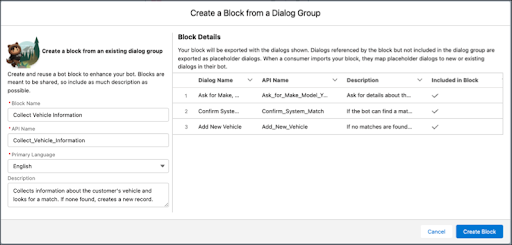
4. Optionally, you can add a permission set to your block so any bots created from your template have access to required resources, such as objects and flows.
5. Click **Create Block**.
The Bot Builder returns to the bot you used to create the block.