---
schema_version: "1"
id: 5887effb1bee65bb872f2d3eac4bca966ed9d52363b5fa1e64c512a3d7f97715
title: Add a Custom Bot User
collection: admin
version: current
locale: en-us
portal_url: https://docs.salesforce.com/admin/current/en-us/service/264-0-0/bots_service_add_profile.md
canonical_url: https://help.salesforce.com/s/articleView?id=service.bots_service_add_profile.htm&release=264.0.0&type=5
source_site: help.salesforce.com
content_type: documentation
content_hash: c3c38d9be215c91541af3e1448b4bbceb15b40280a80425112bead7de4a6246b
description: Expand a bot’s capabilities with a Custom Chatbot User. By default, each bot is assigned to the Basic Chatbot User. If you want a bot to use features or objects that require additional permissions, assign it to a custom user.
products:
  - Service Cloud
  - Service Intelligence
release: "264"
---
# Add a Custom Bot User

Expand a bot’s capabilities with a Custom Chatbot User. By default, each bot is assigned to the Basic Chatbot User. If you want a bot to use features or objects that require additional permissions, assign it to a custom user.

### Required Editions

<table class="slds-table slds-table_bordered slds-max-medium-table_stacked slds-m-bottom_small edition"><colgroup><col></colgroup><tbody><tr class=""><td class="slds-cell-wrap" style="vertical-align:top;"><a href="https://help.salesforce.com/s/articleView?id=service.einstein_service_intro.htm&amp;language=en_US" target="_blank">View supported editions</a>.</td></tr></tbody></table>

<table class="slds-table slds-table_bordered slds-max-medium-table_stacked slds-m-bottom_small permission">
        <colgroup>
          <col style="width:50%">
          <col style="width:50%">
        </colgroup>
        <thead class="slds-text-title_caps ">
          <tr class="">
            <th scope="colgroup" class="slds-cell-wrap" colspan="2" style="text-align:center;vertical-align:top;" id="d95728e57">User Permissions
              Needed</th>
          </tr>
        </thead>
        <tbody>
          <tr class="">
            <td data-label="User Permissions Needed" class="slds-cell-wrap" style="vertical-align:top;" headers="d95728e57 ">To build and manage Einstein Bots:</td>

            <td class="slds-cell-wrap" style="vertical-align:top;" headers="d95728e57 ">
              <p>Customize Application</p>
              <p>OR</p>
              <p>Modify Metadata</p>
              <p>OR</p>
              <p style="margin-bottom:0;">Manage Bots</p>
            </td>

          </tr>
          <tr class="">
            <td data-label="User Permissions Needed" class="slds-cell-wrap" style="vertical-align:top;" headers="d95728e57 ">To assign a Custom Chatbot User</td>

            <td class="slds-cell-wrap" style="vertical-align:top;" headers="d95728e57 ">Manage Users</td>

          </tr>
        </tbody>
      </table>

The bot performs actions, such as accessing record information, based on the user it’s assigned to. Before you assign a custom user to your bot, make sure that the user has access to features that you want your bot to use, including objects, Visualforce pages, Lightning web components, and Apex classes. You can use an existing user or create a user specifically for your bot.

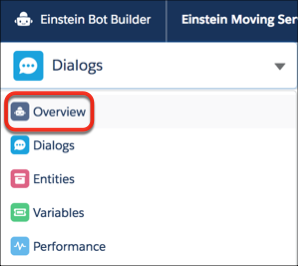
1. In the Bot Builder menu, click **Overview**.
    
    ![Overview option in Bot Builder menu](https://sf-zdocs-cdn-prod.zoominsoftware.com/tdta-service-support_intelligence-264-0-0-production-enus/dcd06a7b-b5ab-448b-a767-4e2e90481508/support_intelligence/images/bots/bots_service_builder_menu_overview.png)
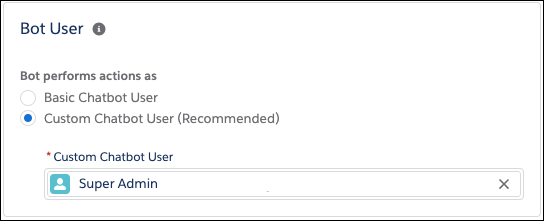
2. In the Settings area under Bot User, click **Edit** and then select **Custom Chatbot User**.
    
    ![Bot User setting with Custom Chatbot User.](https://sf-zdocs-cdn-prod.zoominsoftware.com/tdta-service-support_intelligence-264-0-0-production-enus/dcd06a7b-b5ab-448b-a767-4e2e90481508/support_intelligence/images/bots/bot_service_profile.png)
3. Select a user and then save your changes.

#### See Also

- [Create or Clone Profiles](https://help.salesforce.com/s/articleView?id=platform.users_profiles_cloning.htm&type=5&language=en_US)