---
schema_version: "1"
id: 55d525fb33442e6b7a89a6fdc462296a3da1be6118f0b4498c4f249179616085
title: Transfer a Call
collection: admin
version: current
locale: en-us
portal_url: https://docs.salesforce.com/admin/current/en-us/service/264-0-0/afcc_sv_transfer_call.md
canonical_url: https://help.salesforce.com/s/articleView?id=service.afcc_sv_transfer_call.htm&release=264.0.0&type=5
source_site: help.salesforce.com
content_type: documentation
content_hash: b1168b73db2397576da7c418910ae3ce07840d16f762ff1bbc14b3360896cb6d
description: Transfer calls to another rep or queue so customers are connected to the right person who can help.
products:
- Service Cloud
- Digital Engagement
release: "264"
---
# Transfer a Call
Transfer calls to another rep or queue so customers are connected to the right person who can help.
### Required Editions
This article applies to:
Salesforce Voice (Native Telephony)
- **[Make a Blind Transfer](https://help.salesforce.com/s/articleView?id=service.afcc_sv_transfer_call.htm&release=264.0.0&type=5)**
Transfer a call to another contact center rep, queue, or flow without giving context to the next rep.
- **[Make a Warm Transfer](https://help.salesforce.com/s/articleView?id=service.afcc_sv_transfer_call.htm&release=264.0.0&type=5)**
Transfer a call to another contact center rep, queue, or flow. Discuss the situation with another rep before connecting them with the customer, and then leave the call.
## Make a Blind Transfer
Transfer a call to another contact center rep, queue, or flow without giving context to the next rep.
1. While on a call, to immediately transfer the call without waiting for the next rep to join the call, click **Blind Transfer**.
2. Select another rep or queue and click **Call**. By default, the list shows only the available reps who can accept the call. To see all reps, change the filter to **Agent(All)**.
## Make a Warm Transfer
Transfer a call to another contact center rep, queue, or flow. Discuss the situation with another rep before connecting them with the customer, and then leave the call.
1. While on a call, click **New Call**.
2. To add another rep to the call, enter a rep or queue name or scroll through the list of transfer destinations to see who’s available.
3. Select a destination and then click **Call**. By default, the list shows only the available reps who can accept the call. To see all reps, change the filter to **Agent(All)**.After the second rep is connected, the **Merge** button is displayed on the Phone tab in the Omni-Channel utility.
4. Share necessary information with the second rep before combining the calls.
5. To swap between calls, resume the call with the customer. This puts the second rep on hold. To swap back, resume the call with the second rep.
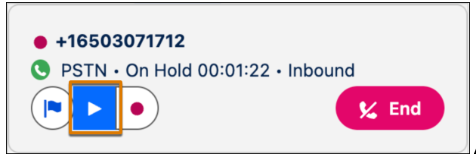
6. To combine both calls into a single call, click Merge. Continue the call as needed with three participants.

Note Reps can’t mute or remove the customer in a call group.
7. To complete the warm transfer and exit the call, click **Leave Call**. You’re disconnected, but the call continues with the remaining participants.
8. To become available for new calls, close the voice call tab or click **All Done** in the After Conversation Work (ACW) component.