---
schema_version: "1"
id: 5aff87edf820fd3366aee471752fed07c7f70b4da11ad87c873b4ba0a7da1ff2
title: Make and Answer a Call in Agentforce Contact Center
collection: admin
version: current
locale: en-us
portal_url: https://docs.salesforce.com/admin/current/en-us/service/264-0-0/afcc_sv_make_call.md
canonical_url: https://help.salesforce.com/s/articleView?id=service.afcc_sv_make_call.htm&release=264.0.0&type=5
source_site: help.salesforce.com
content_type: documentation
content_hash: 47eb53344a9997a84ffb3a544c8782f73979c21bd3a810938240f93dfe74604c
description: Call customers by dialing their phone number in the Omni-Channel utility. The Phone tab in the Omni-Channel utility and the Phone component provide common call functions such as mute, hold, transfer, and more.
products:
  - Service Cloud
  - Digital Engagement
release: "264"
---
# Make and Answer a Call in Agentforce Contact Center

Call customers by dialing their phone number in the Omni-Channel utility. The Phone tab in the Omni-Channel utility and the Phone component provide common call functions such as mute, hold, transfer, and more.

### Required Editions

This article applies to:

Salesforce Voice (Native Telephony)

<table class="slds-table slds-table_bordered slds-max-medium-table_stacked slds-m-bottom_small edition"><colgroup><col style="width:100%"></colgroup><tbody><tr class=""><td class="slds-cell-wrap" style="vertical-align:top;"><a href="https://help.salesforce.com/s/articleView?id=service.voice_editions.htm&amp;release=264.0.0&amp;type=5" title="Learn about the user interfaces, editions, and add-ons that support Voice solutions by Salesforce.">View supported editions</a>.</td></tr></tbody></table>

<table class="slds-table slds-table_bordered slds-max-medium-table_stacked slds-m-bottom_small permission">
        <colgroup>
          <col style="width:50%">
          <col style="width:50%">
        </colgroup>
        <thead class="slds-text-title_caps ">
          <tr class="">
            <th scope="colgroup" class="slds-cell-wrap" colspan="2" style="text-align:center;vertical-align:top;" id="d75030e70">User Permissions Needed</th>
          </tr>
        </thead>
        <tbody>
          <tr class="">
            <td data-label="User Permissions Needed" class="slds-cell-wrap" style="vertical-align:top;" headers="d75030e70 ">To make and answer calls:</td>

            <td class="slds-cell-wrap" style="vertical-align:top;" headers="d75030e70 ">
              <p>Agentforce Contact Center Rep (Salesforce Voice) permission set. </p>
              <p style="margin-bottom:0;">Learn how to view <a href="https://help.salesforce.com/s/articleView?id=platform.perm_sets_summary_page.htm&amp;language=en_US" target="_blank">permissions in this permission set</a>.</p>
            </td>

          </tr>
        </tbody>
      </table>

Make sure that you have a phone number with outbound voice capability and set the number as [your default Caller Line Identifier](https://help.salesforce.com/s/articleView?id=service.afcc_sv_set_cli.htm&release=264.0.0&type=5 "Set a 10-digit long code or toll-free number that supports outbound calling as your default Caller Line Identification (CLI) number. The CLI number must be associated with a voice channel.") (CLI).

1. To dial out, first set your status to either Online for All or Voice Online.
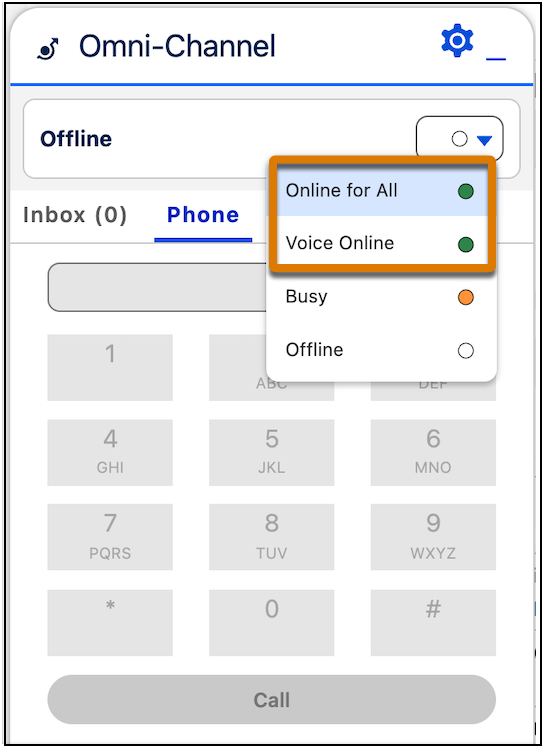
    
    ![Set status to show the rep is available.](https://sf-zdocs-cdn-prod.zoominsoftware.com/tdta-service-support_channels-264-0-0-production-enus/f3c4b3d2-ff86-4f7c-9fe2-3d8b23d35109/support_channels/images/agentforce_contact_center/afcc_sv_update_status.png)
2. There are a few ways to dial out to connect with users. From the Omni-Channel widget, use the keypad to dial a number manually and then click **Call**.Copy and paste a number into the dial pad, and click **Call**.
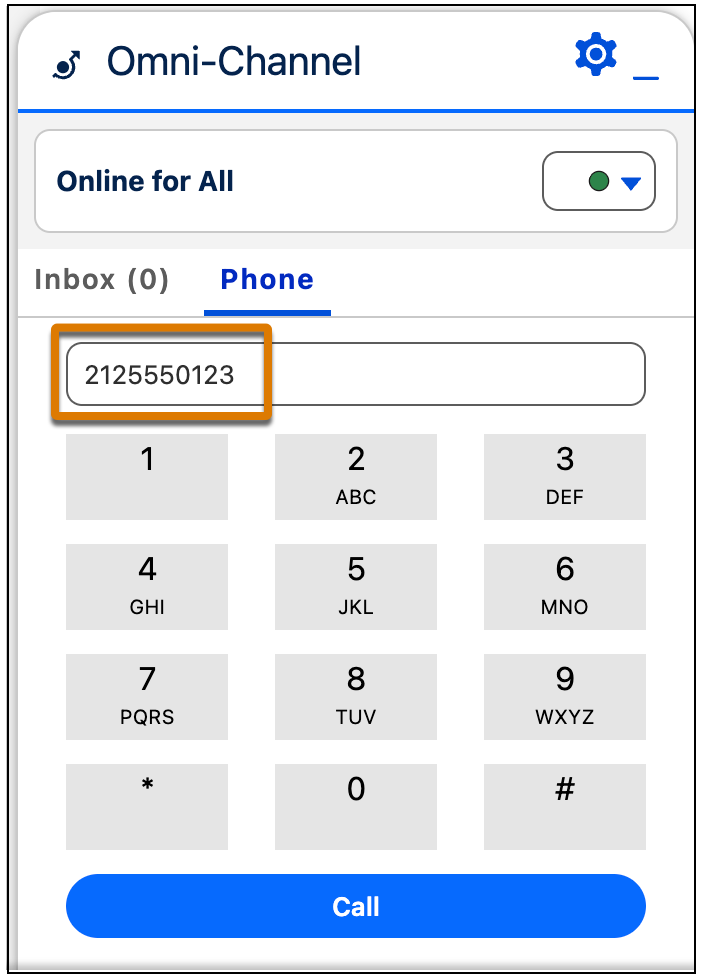
    
    ![Make a phone call from the utility.](https://sf-zdocs-cdn-prod.zoominsoftware.com/tdta-service-support_channels-264-0-0-production-enus/f3c4b3d2-ff86-4f7c-9fe2-3d8b23d35109/support_channels/images/agentforce_contact_center/afcc_sv_dial_out.png)
3. Click the phone number in a phone field of a contact, lead, activity, or account. Not all numbers are enabled for click-to-call. To check if a number is enabled for click-to-call, look for the phone icon at the beginning of the number.
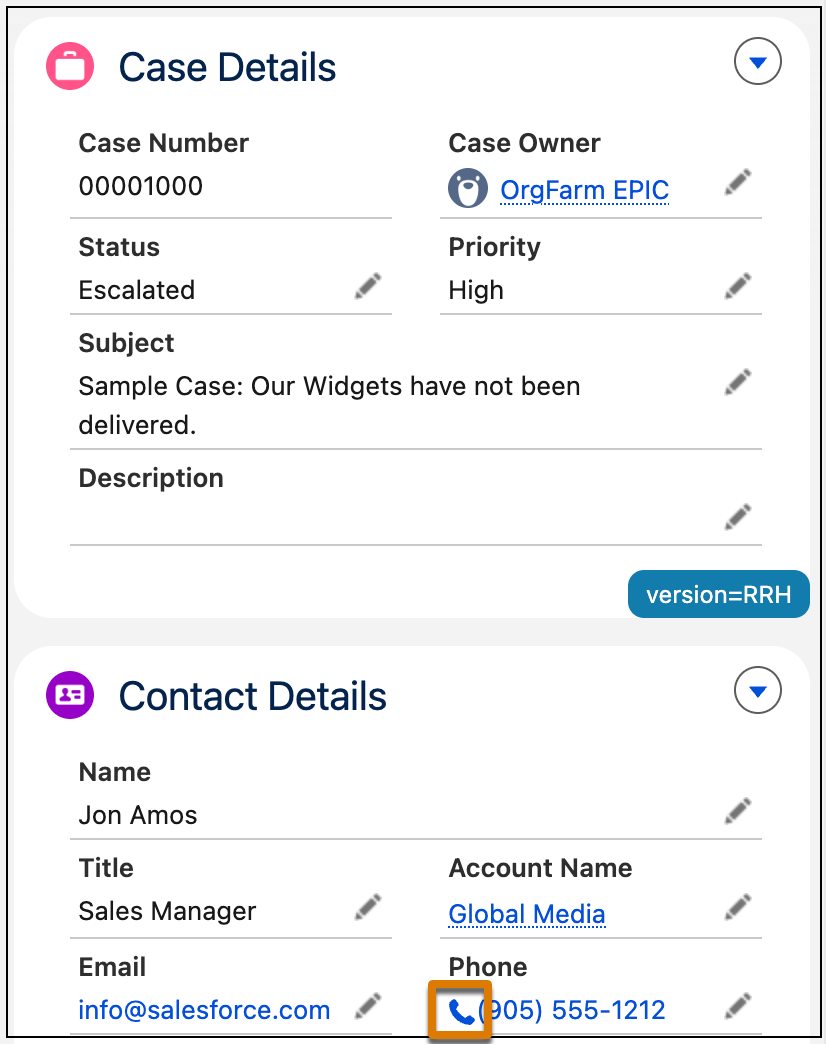
    
    ![Check for the phone icon to call the number](https://sf-zdocs-cdn-prod.zoominsoftware.com/tdta-service-support_channels-264-0-0-production-enus/f3c4b3d2-ff86-4f7c-9fe2-3d8b23d35109/support_channels/images/agentforce_contact_center/afcc_sv_phone_icon.png)
4. You can answer calls coming from a PSTN number or WhatsApp. From the Omni-Channel widget, go to Inbox and click the checkmark to answer the call. To know which channel the call is coming from, see the icon in the call message.
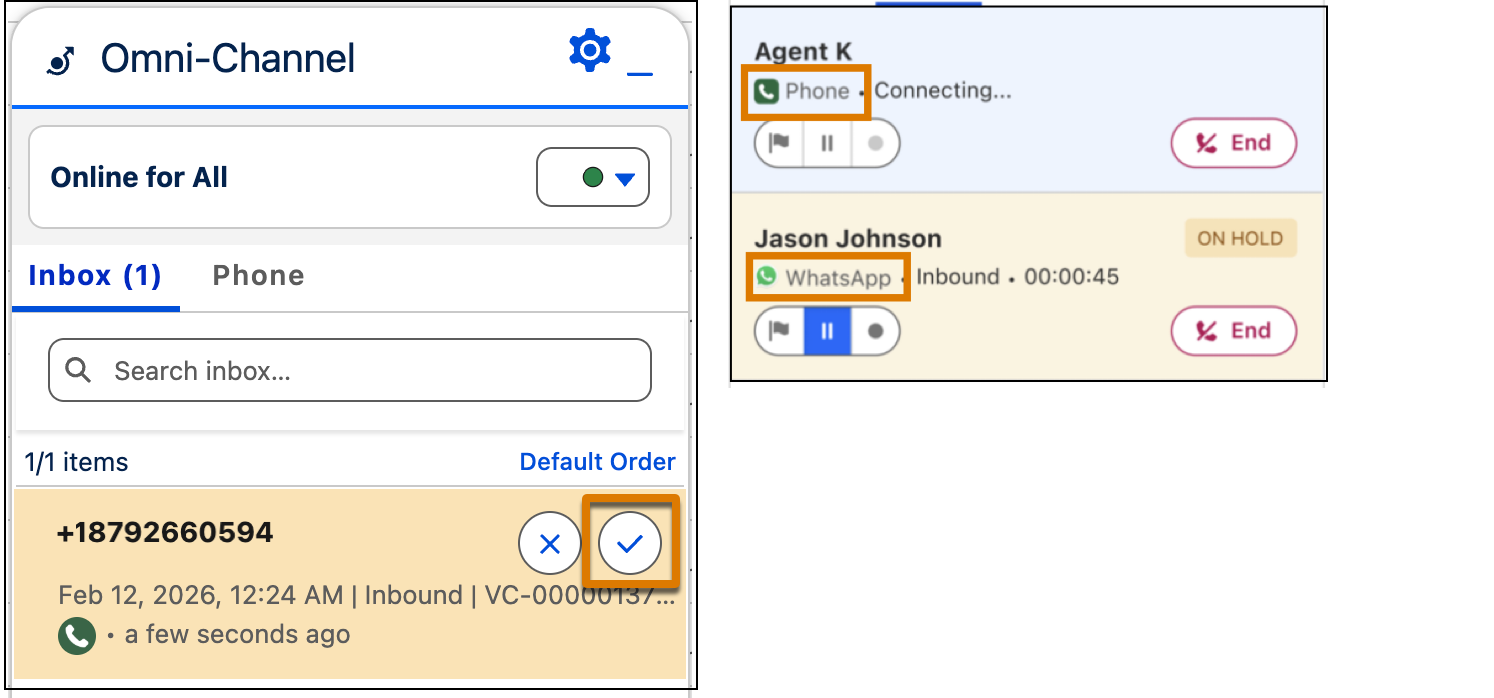
    
    ![Answer a call and know which channel it comes from.](https://sf-zdocs-cdn-prod.zoominsoftware.com/tdta-service-support_channels-264-0-0-production-enus/f3c4b3d2-ff86-4f7c-9fe2-3d8b23d35109/support_channels/images/agentforce_contact_center/afcc_sv_answer_call.png)
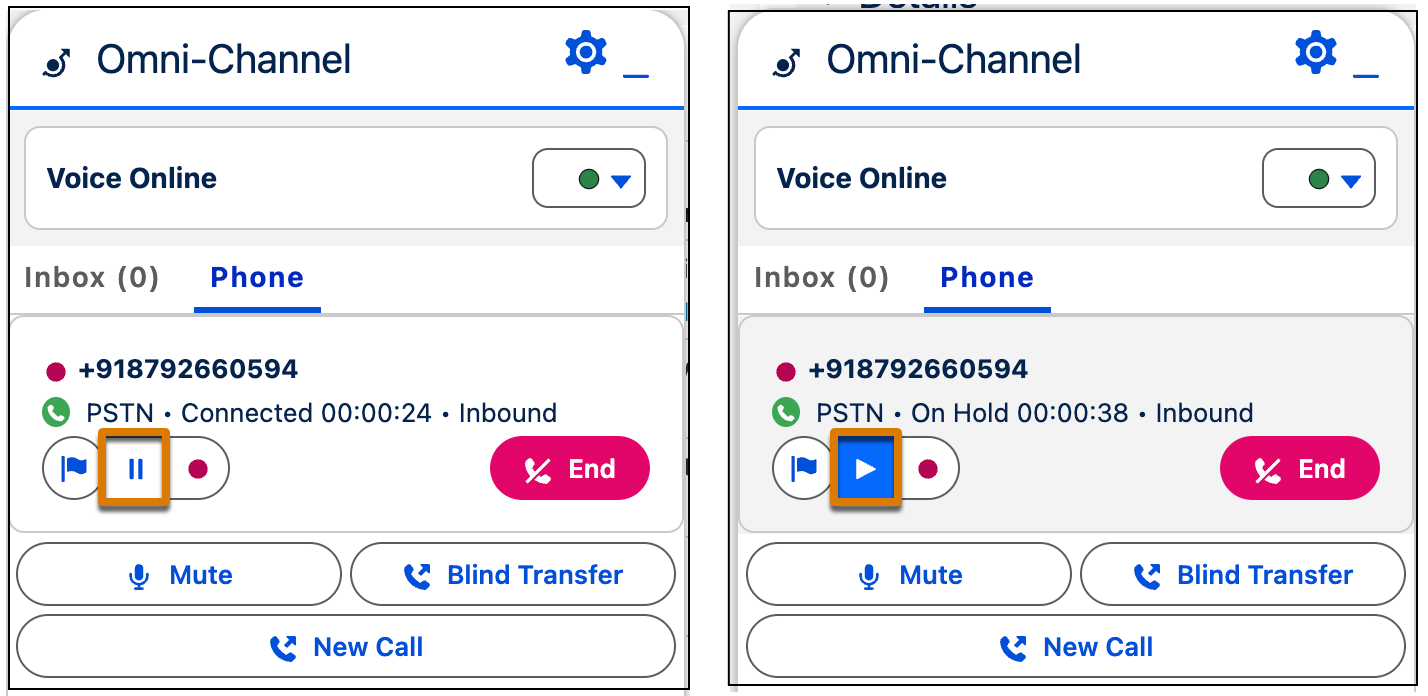
5. To put a caller on hold, click the Pause button. When you’re ready to resume the call, click the Play button.
    
    ![Pause and Play buttons to put a call on hold.](https://sf-zdocs-cdn-prod.zoominsoftware.com/tdta-service-support_channels-264-0-0-production-enus/f3c4b3d2-ff86-4f7c-9fe2-3d8b23d35109/support_channels/images/agentforce_contact_center/afcc_sv_hold_call1.png)
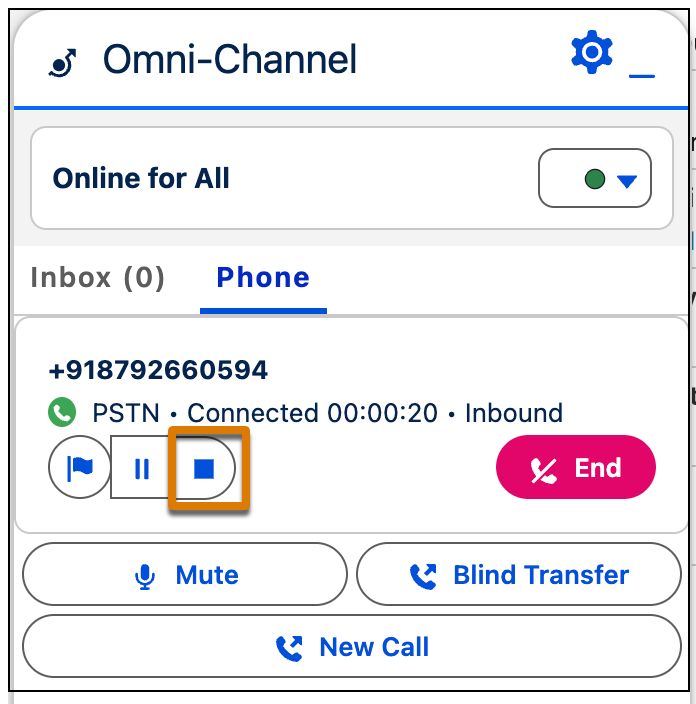
6. Call recording begins when the call is connected to a rep or based on what you’ve configured in your org settings. To configure call recording, see [Enable Recording and Transcription](https://help.salesforce.com/s/articleView?id=service.afcc_sv_enable_recording_and_transcription.htm&release=264.0.0&type=5 "Enhance service rep performance, improve supervisor oversight, and elevate the overall customer experience by leveraging call recordings and transcriptions."). To pause the recording, click the recording button. Recording is paused across all segments of the call, and remains paused till it is manually resumed. Recording remains paused even if the call is transferred or merged with another call. To resume recording, click the Resume button. When you pause or resume recording, transcription is also paused or resumed.
    
    ![Pause call recording from the softphone utility.](https://sf-zdocs-cdn-prod.zoominsoftware.com/tdta-service-support_channels-264-0-0-production-enus/f3c4b3d2-ff86-4f7c-9fe2-3d8b23d35109/support_channels/images/agentforce_contact_center/afcc_sv_pause_recording.png)
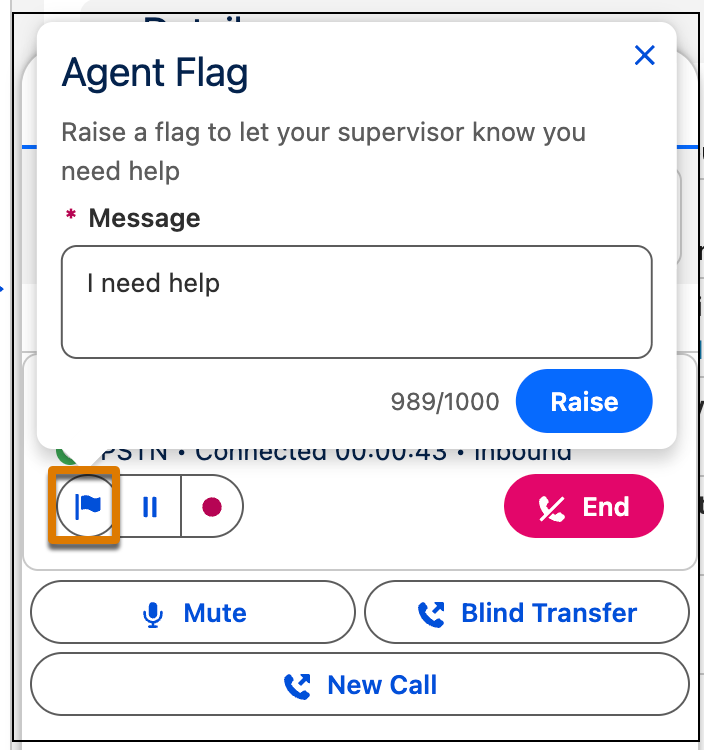
7. To notify your supervisor of a call, click the flag button. Enter a message for the supervisor and click **Raise**.
    
    ![Raise a flag to alert the supervisor.](https://sf-zdocs-cdn-prod.zoominsoftware.com/tdta-service-support_channels-264-0-0-production-enus/f3c4b3d2-ff86-4f7c-9fe2-3d8b23d35109/support_channels/images/agentforce_contact_center/afcc_sv_flag_call.png)
    
    Your supervisor is alerted in Command Center for Service, and your flag is added to the Raised Flags widget in their supervisor wallboard. If you no longer need help, you or the supervisor can lower the flag.
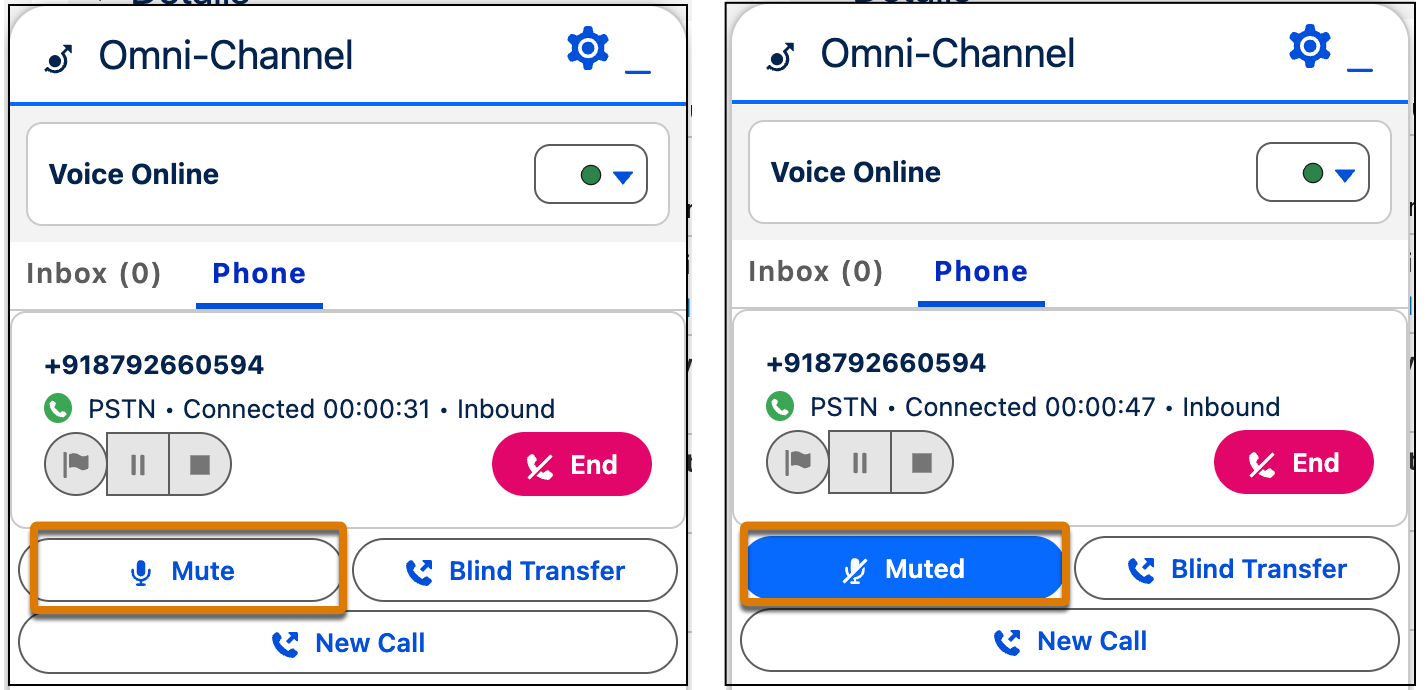
8. To mute a call, click **Mute**. To unmute the call, click **Muted**.
    
    ![Mute and unmute a call.](https://sf-zdocs-cdn-prod.zoominsoftware.com/tdta-service-support_channels-264-0-0-production-enus/f3c4b3d2-ff86-4f7c-9fe2-3d8b23d35109/support_channels/images/agentforce_contact_center/afcc_sv_mute_call.png)