Gain better administrative flexibility over Contact Center operations and define
specific recording requirements for different parts of a call using flow settings. Add specific
actions to Omni-Channel flows to manage recording and transcription behavior for unique scenarios,
such as disabling audio capture for agent interactions while maintaining transcripts for agent
handoffs.
Required Editions
This article applies to:
Salesforce Voice (Native Telephony)
| User Permissions Needed |
| To configure recording and transcription in an Omni-Channel Flow: |
Agentforce Contact Center Admin (Salesforce Voice) permission set.
Learn how to view permissions in this permission set.
|
For example, you can create a flow from the Inbound Routing flow in the Agentforce
Builder. To learn more, see Route Inbound Calls to a Voice-Enabled Agent.
-
From Setup, in the Quick Find box, enter Flows, and then select Flows.
-
Add IVR to Your Omni-Channel Flow.
-
In the section where you want to change the recording behavior, select Set
Recording and Transcription Behavior.
-
To configure the element, enter a unique name in the Label field that describes the
behavior.
-
In the Set Input Values section, configure these values:
-
Disable Recording: Select True to stop recording this segment of the call, or False to
allow recording based on org-level settings.
-
Disable Transcription: Select True to stop real-time transcription, or False to continue
generating a live transcript in the Conversation window.
-
VoiceCall Id: Enter the recordId variable to apply the settings to the current active
call.
-
Save and activate your flow.
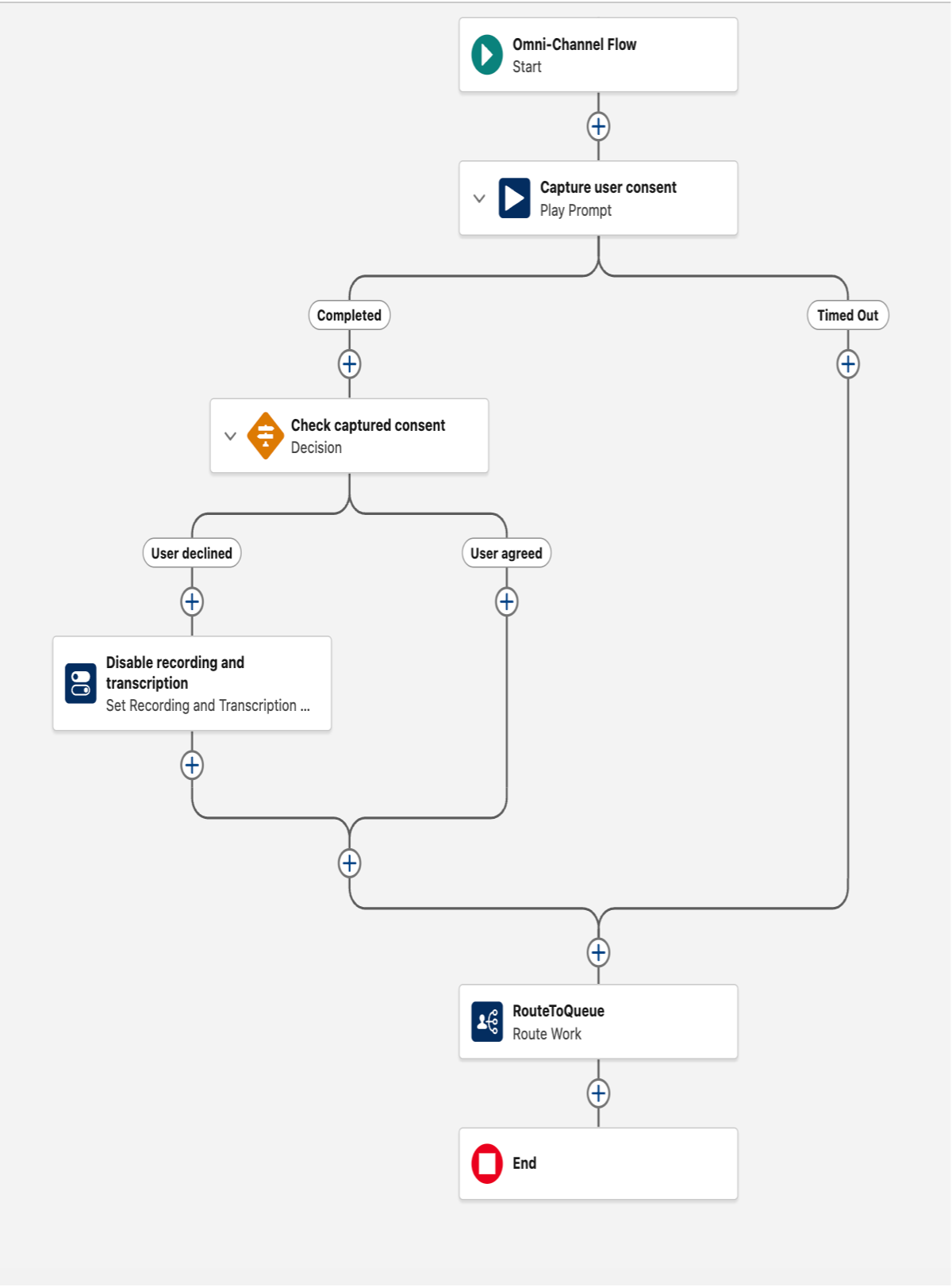
Here’s a sample flow of a recording and transcription behavior for a call segment.