---
schema_version: "1"
id: 062e8792c1799eeae3bd77786a307f2cc8c06ec4ef98e82ee43cce0337bb057a
title: Configure Transfers to External Numbers
collection: admin
version: current
locale: en-us
portal_url: https://docs.salesforce.com/admin/current/en-us/service/264-0-0/afcc_sv_configure_external_transfer.md
canonical_url: https://help.salesforce.com/s/articleView?id=service.afcc_sv_configure_external_transfer.htm&release=264.0.0&type=5
source_site: help.salesforce.com
content_type: documentation
content_hash: 83e7b642e1105a4194f9f353440fd375bd2f2ef8008f25c94c72e3e7d833c55d
description: Create a flow to transfer a call to a third party number.
products:
- Service Cloud
- Digital Engagement
release: "264"
---
# Configure Transfers to External Numbers
Create a flow to transfer a call to a third party number.
### Required Editions
This article applies to:
Salesforce Voice (Native Telephony)
Agentforce Contact Center Admin (Salesforce Voice) permission set.
1. From Setup, enter Flows in the Quick Find box, then select **Flows**.
2. Search for and open the omni-channel flow you want to modify or create a new omni-channel flow.
3. Add an action element and search for **Transfer to External Number**.
4. Click **Transfer to External Number** to add it to your flow.
5. Configure these fields:
1. Label — A display name for the action.
2. API Name — A unique identifier for the action.
3. Timeout Length — The maximum amount of time to pause the flow while it waits for the action to be completed. For external transfer, the flow resumes only when the external party leaves the call or doesn’t join. If the external caller joins, the flow resumes only when they leave.
6. Under Call Configuration, configure:
1. Record ID — The Voice Call ID for the active call.
2. External Number — The PSTN number of the external party to connect to.
3. Caller ID — The caller line identification number used to place the outbound call to the external party.
4. Call Attributes (optional) — Any additional attributes to pass as flow input parameters when the flow is triggered.
7. By default, DTMF (dual-tone multi-frequency) input is enabled for all participants, meaning any participant can send DTMF and all participants can receive it. To restrict who can send DTMF:
1. In DTMF Routing, set Sender to the specific participants who can send DTMF input — for example, customer and service rep only.
2. Similarly, set DTMF Receiver to determine who can receive DTMF inputs - for example, customer only.
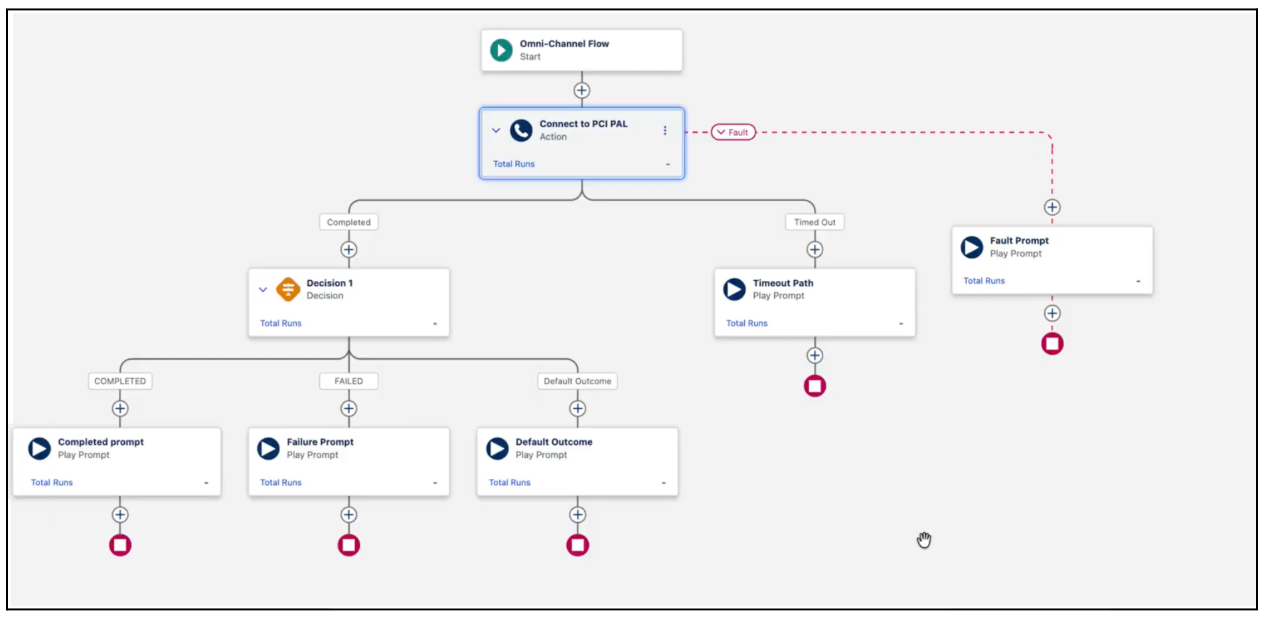
8. Based on the output from the flow, play a prompt to indicate that the call was transferred successfully or not or if no action was taken. You can also select a default output. Here’s how you flow might look like:
9. Save and activate your flow.