
Automate business workflows, including updating the Caller ID (CLI) shown to the customer, by evaluating real-time CRM data, rather than relying on one static, org-wide number. The flow runs in headless configuration and synchronously right after a rep places an outbound call, before the call reaches the carrier, so the CLI is resolved automatically per call with no effort from the rep.
Required Editions
This article applies to:
Salesforce Voice (Native Telephony)
| View supported editions. |
| User Permissions Needed | |
|---|---|
| To open, edit, or create a flow in Flow Builder: |
Agentforce Contact Center Admin (Salesforce Voice) permission set. |
Here are some use cases where you can use call origination flows to customize the native contact center to fit your needs.
- Dynamic CLI by region or brand — Resolve a CLI matching the customer's geography or business unit instead of a fixed default. For example, a UK rep calling a UK customer gets a local CLI, improving answer rates.
- Restrict call attempts outside allowed hours — Use status to block a call from proceeding when it falls outside preferred or allowed calling hours.
Only one Call Origination Flow can be attached to a given Voice Configuration at a time. Your org has an out-of-the-box sample flow, Resolve Outbound Caller ID, that checks the number being dialed and decides whether it's a US or international number, then sets the appropriate resolved caller ID accordingly. Duplicate the flow and then edit it to assign a CLI number to a specific rep in your org or customize it further for your specific business needs.
- From Setup, in the Quick Find box, enter Flows, and then select Flows.
- Click Resolve Outbound Caller ID and save it as a new flow.
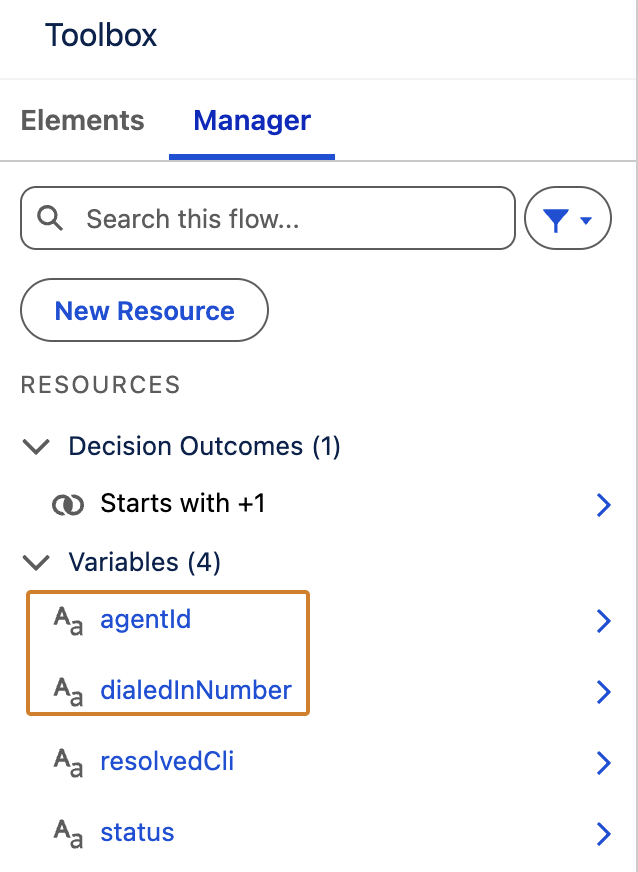
- The system passes these inputs to the flow:
agentId— the user ID of the rep placing the calldialedInNumber— the number the rep dialed
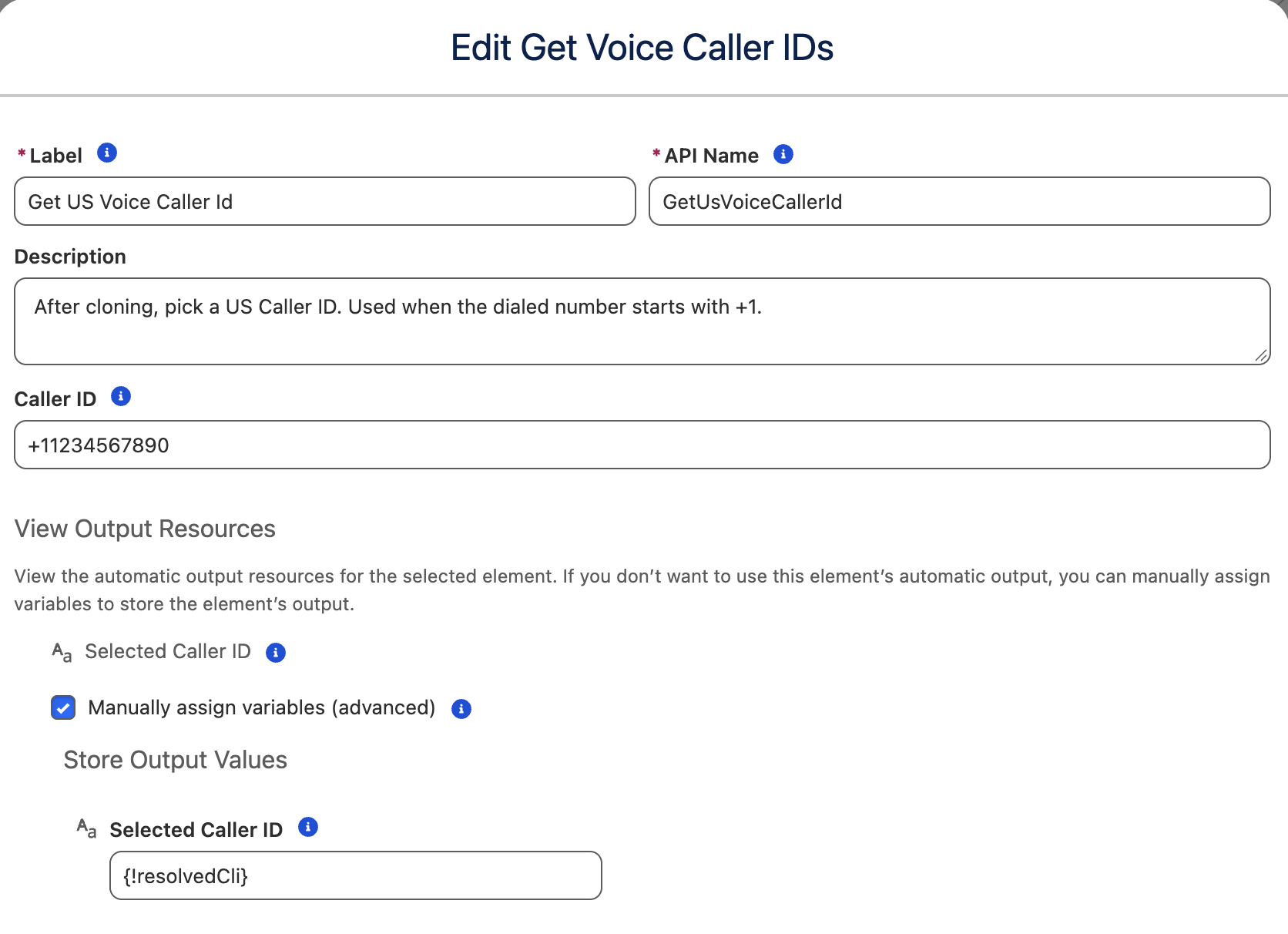
- If the dialed number starts with +1, edit the Action element, Get US Voice
Caller Id, to set the Caller ID to the number that you want displayed to the
receiver. You can select numbers with outbound calling capability that are also available
for CLI.
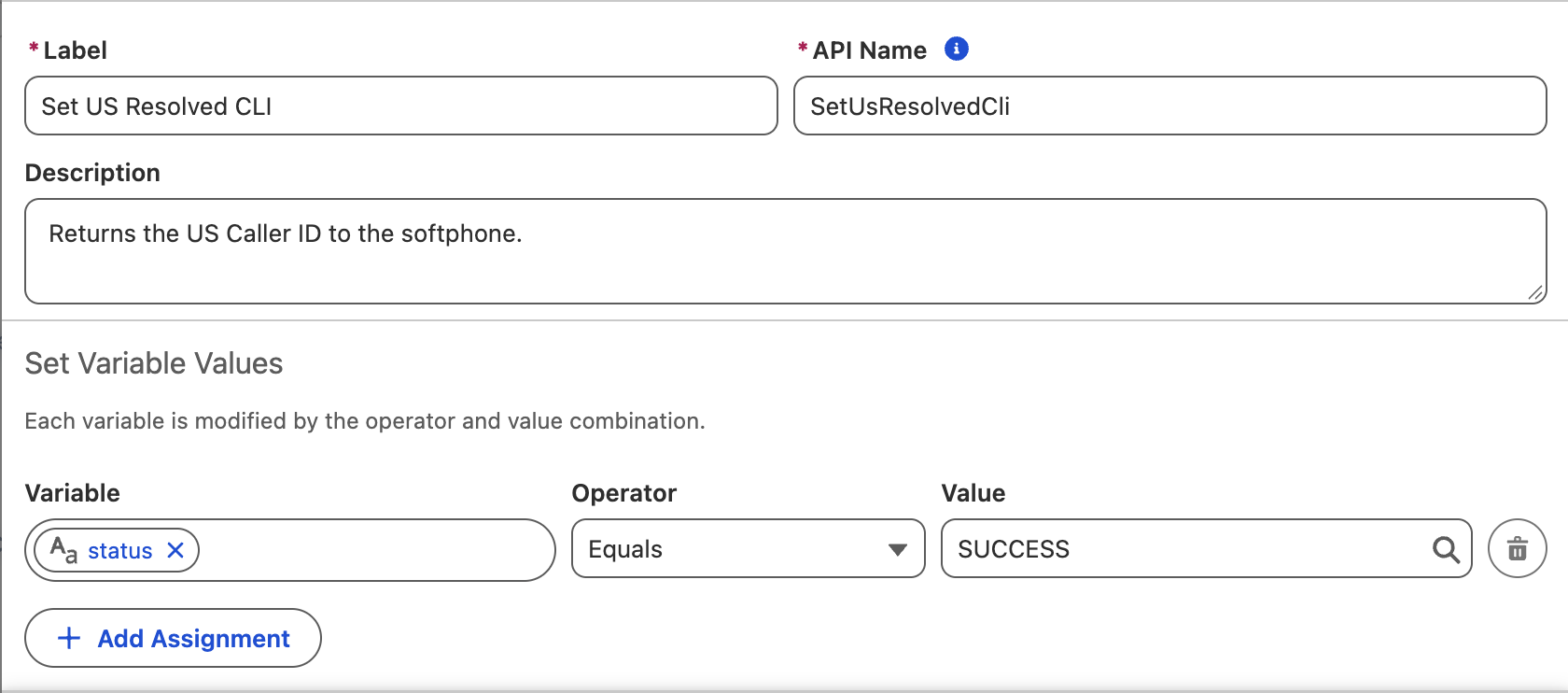
- Edit the assignment element, Set US Resolved CLI, to set status to
SUCCESS.
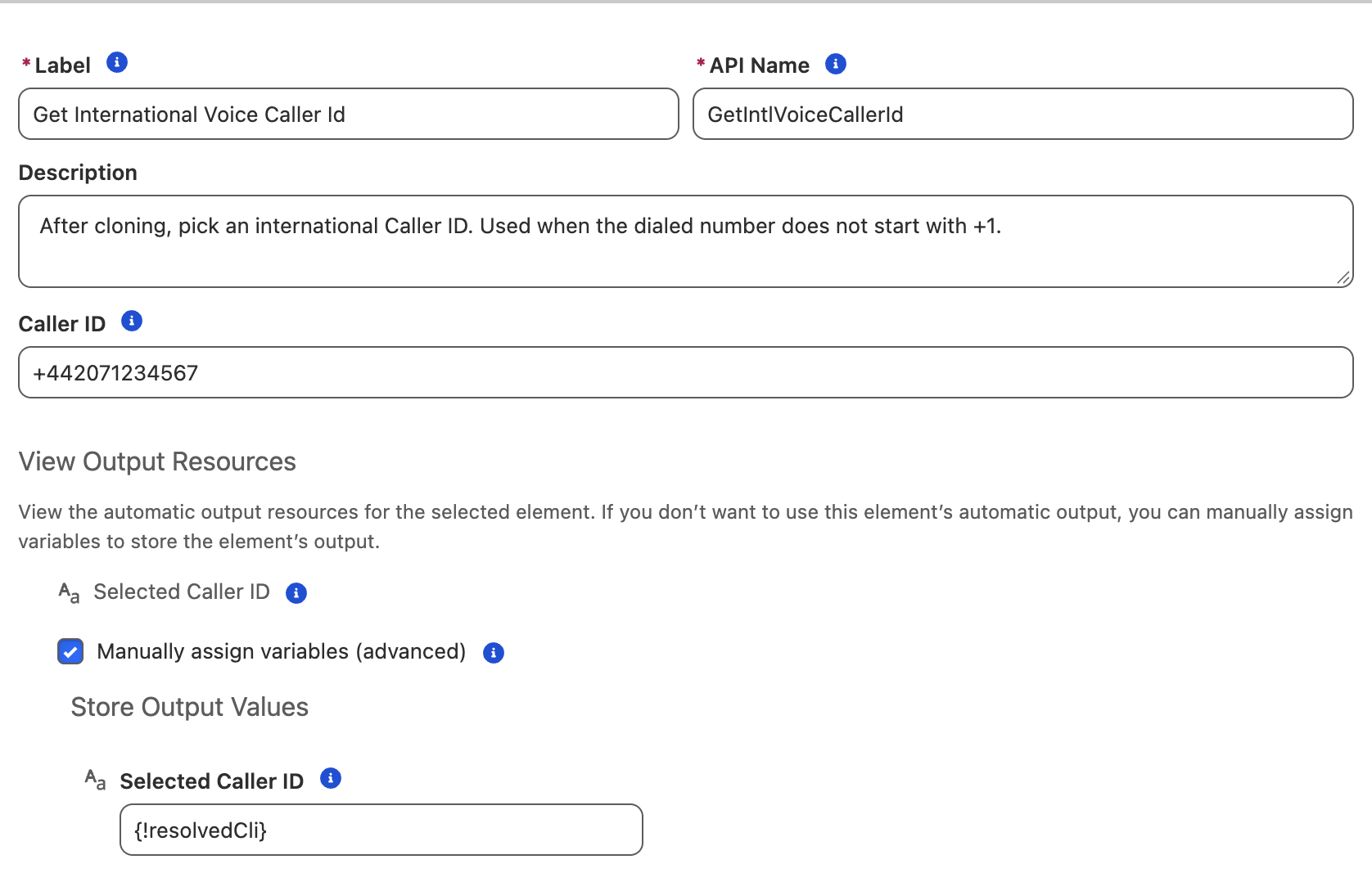
- If the dialed number doesn’t start with +1, edit the Action element, Get
International Voice Caller Id, to set the Caller ID to the number that you
want displayed to the receiver. You can select numbers with outbound calling capability that
are also available for CLI.
- Edit the assignment element, Set International Resolved CLI, to set
status to SUCCESS. The flow finishes after either branch, leaving
resolvedCliandstatusset for the calling process to use.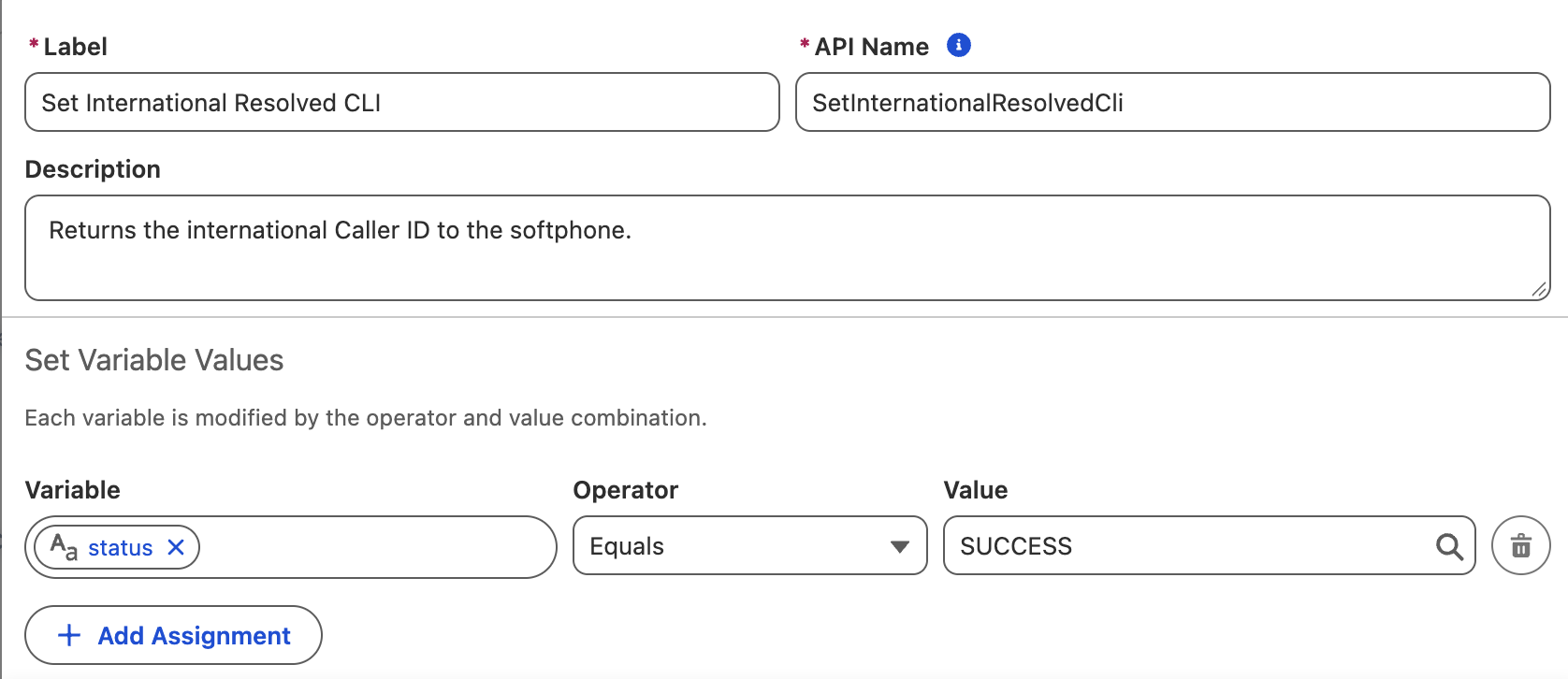
- Save and activate your flow.
- You can now add your flow to a voice configuration so that it’s automatically triggered when the rep makes a call.
If a flow is assigned to the rep's Voice Configuration and it returns
resolvedCli, that CLI is used. If no flow is assigned, or the flow doesn't
return a CLI, the Fallback Caller ID on the Voice Configuration is used. If the Voice
Configuration has no Fallback Caller ID set, the org-wide default CLI is used.