---
schema_version: "1"
id: 4a2a20093f05331aa2db91820e63e7a82469b7a538c6eec349b5c4796de24a52
title: Configure Call Escalation for WhatsApp Voice Channel
collection: admin
version: current
locale: en-us
portal_url: https://docs.salesforce.com/admin/current/en-us/service/264-0-0/afcc_sv_call_escalation.md
canonical_url: https://help.salesforce.com/s/articleView?id=service.afcc_sv_call_escalation.htm&release=264.0.0&type=5
source_site: help.salesforce.com
content_type: documentation
content_hash: 479475a3b4befa760858898055d3f2e6137abaf5c2a0fc9f080ae0f759b5d5e5
description: Use an Omni-Channel flow to configure automatic escalation from your messaging session to the same service rep in the WhatsApp voice channel.
products:
- Service Cloud
- Digital Engagement
release: "264"
---
# Configure Call Escalation for WhatsApp Voice Channel
Use an Omni-Channel flow to configure automatic escalation from your messaging session to the same service rep in the WhatsApp voice channel.
### Required Editions
This article applies to:
Salesforce Voice (Native Telephony)
- **[Step 1: Create a Call Escalation Template on Meta](https://help.salesforce.com/s/articleView?id=service.afcc_sv_call_escalation.htm&release=264.0.0&type=5)**
You need a template to make sure all information is captured before the call is escalated.
- **[Step 2: Import the Template to Your Salesforce Org](https://help.salesforce.com/s/articleView?id=service.afcc_sv_call_escalation.htm&release=264.0.0&type=5)**
Create a messaging component to hold the call escalation template.
- **[Step 3: Make the Messaging Channel Interruptible](https://help.salesforce.com/s/articleView?id=service.afcc_sv_call_escalation.htm&release=264.0.0&type=5)**
Make sure that messaging conversations can be interrupted and callers can make escalation calls to the same agent that they're interacting with in the messaging conversation.
- **[Step 4: Create Custom Fields](https://help.salesforce.com/s/articleView?id=service.afcc_sv_call_escalation.htm&release=264.0.0&type=5)**
Optionally, define custom fields to link voice and messaging objects.
- **[Step 5: Route Calls with an Omni-Channel Flow](https://help.salesforce.com/s/articleView?id=service.afcc_sv_call_escalation.htm&release=264.0.0&type=5)**
Edit the out-of-the-box template flow template to add your routing information.
- **[Step 6: Update Page Layout for Reps](https://help.salesforce.com/s/articleView?id=service.afcc_sv_call_escalation.htm&release=264.0.0&type=5)**
Add a messaging session component to the voice call page so that reps can easily navigate to see the messaging session details.
- **[Step 7: Update WhatsApp Channel Settings](https://help.salesforce.com/s/articleView?id=service.afcc_sv_call_escalation.htm&release=264.0.0&type=5)**
Update routing for your WhatsApp channel to point to the new Omni-Channel flow.
## Step 1: Create a Call Escalation Template on Meta
You need a template to make sure all information is captured before the call is escalated.
1. Create a [Call Us escalation template on Meta](https://www.facebook.com/business/help/2055875911147364?id=2129163877102343) with Marketing as the Category and then select **Custom**.
2. In the body, enter the message that you want to show your customers.
3. Click **Add a button** and select **Call Phone Number**.
4. Set **Call on WhatsApp** as the action type and enter the button text.
5. Click **Submit**.
6. Click **Confirm**.
## Step 2: Import the Template to Your Salesforce Org
Create a messaging component to hold the call escalation template.
1. From Setup, use Quick Find to open **Messaging Components**, and click **New Component**.
2. Select **Notification** and click **Next**.
3. Enter the plain text version of your automated message in Plain Text Formula, upload a relevant image, then click **Next**.
4. Enter a name and description for your component. Keep the default developer name as is.
5. Click **Done**. The Messaging Component Builder opens.
6. In Components Formats, click **Add Format**.
7. Select **External Template** and click **Done**.
8. Select your WhatsApp Business Account and click **Done**.
9. In the properties pane, under Components Format, click **External Template**.
10. Click **Select Template**. Only Meta-approved templates appear in the list.
11. Select the call escalation template that you created and save your changes.
The call escalation template component becomes available to reps in the Messaging Components list. Reps can send this template to customers in their WhatsApp conversations. Use service channel settings to set work items as interruptible.
## Step 3: Make the Messaging Channel Interruptible
Make sure that messaging conversations can be interrupted and callers can make escalation calls to the same agent that they're interacting with in the messaging conversation.
1. In Setup, under Omni-Channel, open **Service Channels**.
2. For Messaging, click **Edit**.
3. Select **Is Interruptible** and save your changes.
## Step 4: Create Custom Fields
Optionally, define custom fields to link voice and messaging objects.
1. From the Object Manager, open **Voice Call**.
2. Click **Fields & Relationships**.
3. Click **New**.
4. Select **Lookup Relationship** and click **Next**.
5. Select Messaging Session and click **Next**.
6. Enter a label and description and click **Next**.
7. Click **Next** and save your changes.
## Step 5: Route Calls with an Omni-Channel Flow
Edit the out-of-the-box template flow template to add your routing information.
1. From Setup, open **Flows** and click **Escalate WhatsApp Message to Call**.
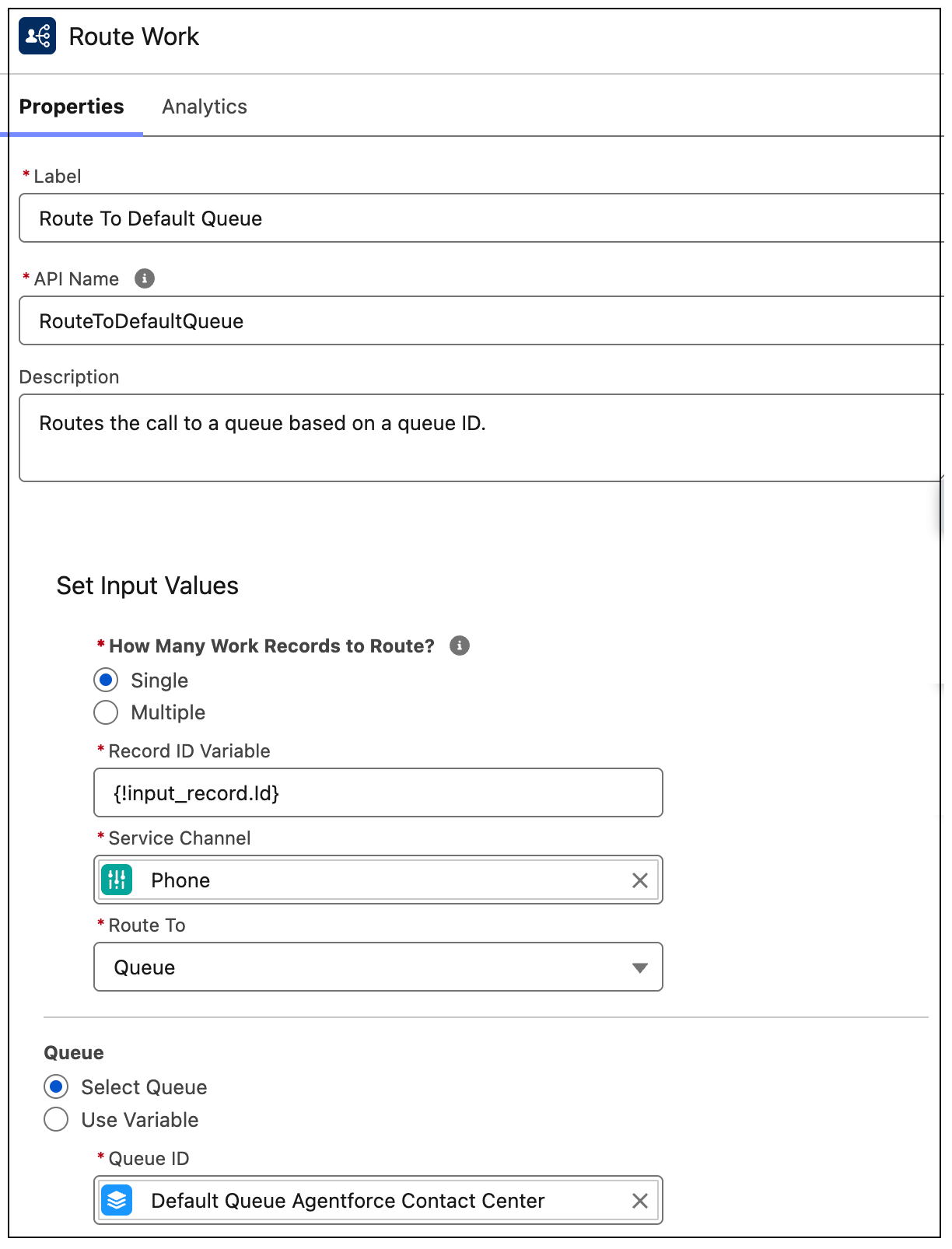
2. From the Route to Default Queue element, select the queue you want to route the call to.
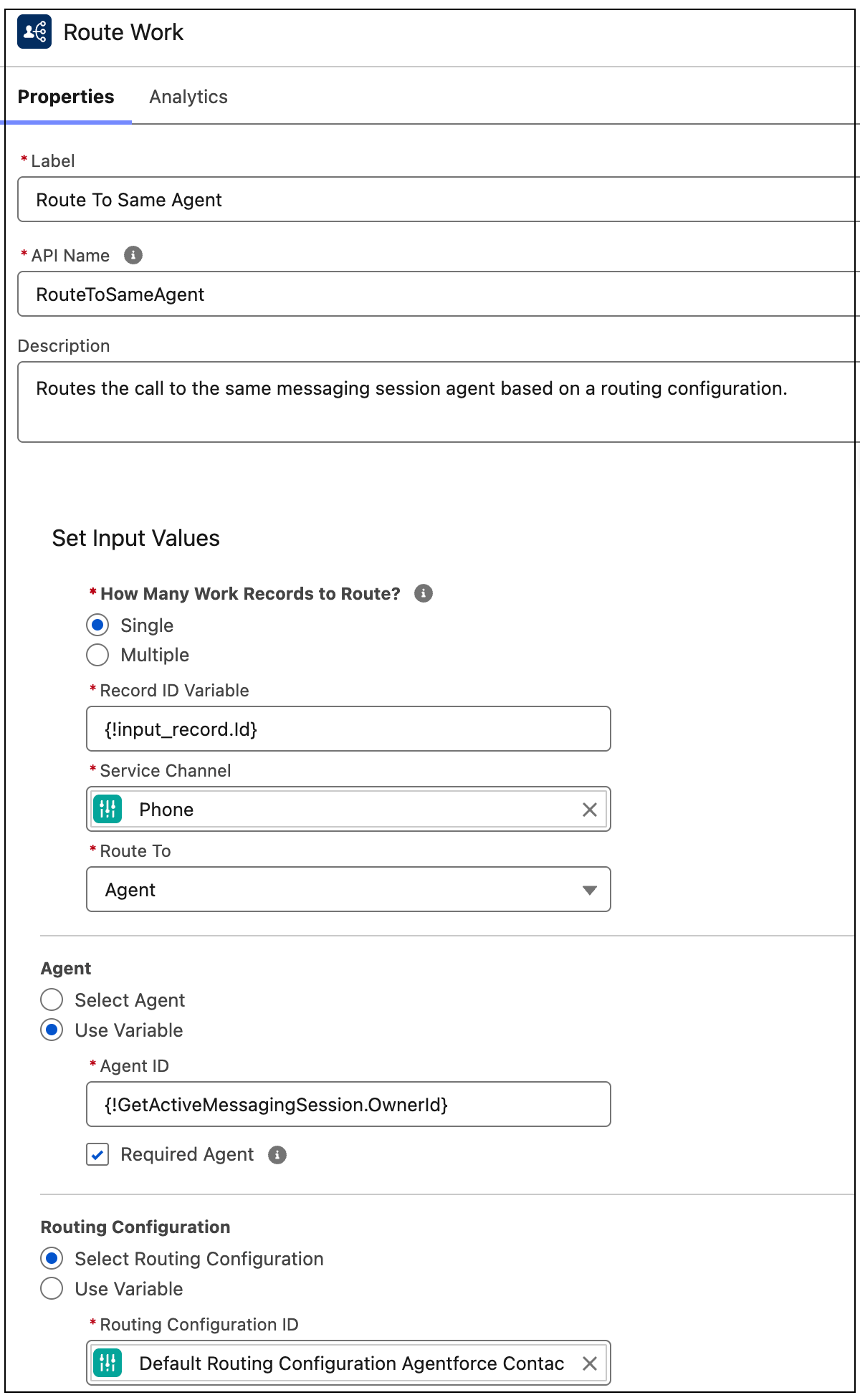
3. From Route to Same Agent, select the rep you want to route to.
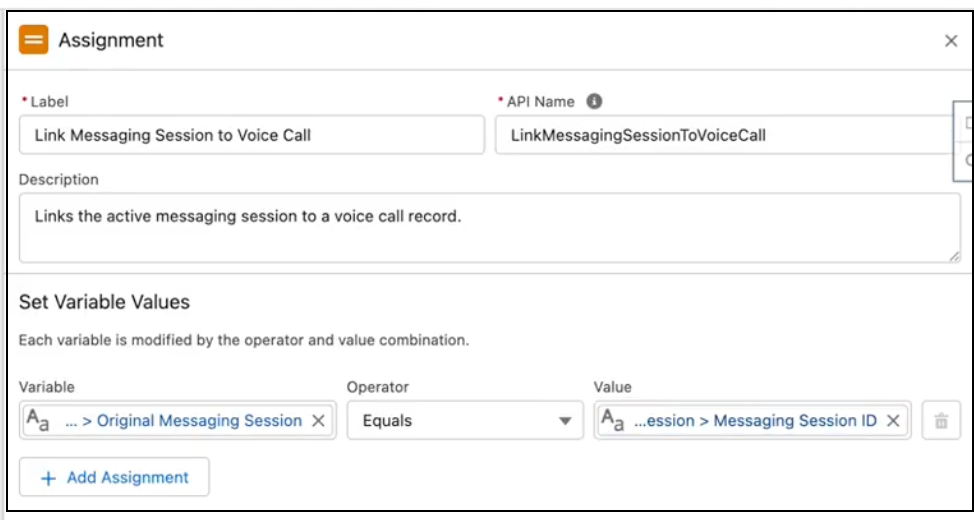
4. To link voice and messaging objects, from the Link Messaging Session to Voice Call assignment element, use the variable to link the messaging session with the voice call record.
5. Save your changes as a new flow and then activate it.
## Step 6: Update Page Layout for Reps
Add a messaging session component to the voice call page so that reps can easily navigate to see the messaging session details.
1. From the Object Manager, open **Voice Call**.
2. Click **Page Layouts**.
3. Click **Voice Call Layout**.
4. Drag the **Messaging Session** field to the Details section.
## Step 7: Update WhatsApp Channel Settings
Update routing for your WhatsApp channel to point to the new Omni-Channel flow.
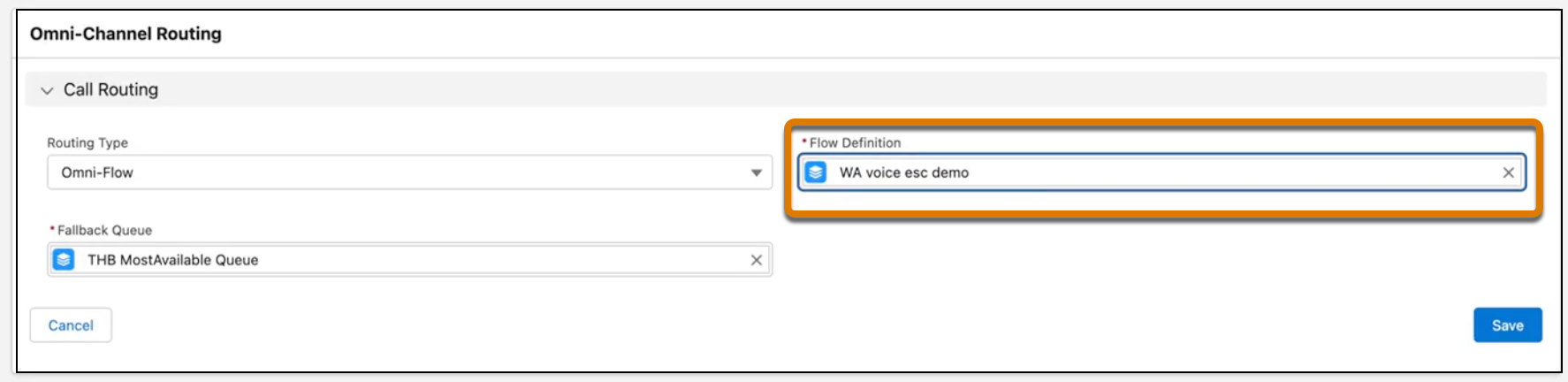
1. From Communications Channels, under **All Channels**, click your WhatsApp voice channel to open it.
2. From the **Voice** tab, in Omni-Channel Routing, update the Flow Definition to point to your new flow.