Calls are recorded in dual-channel mode from the perspective of the participating
representative or AI rep. The rep or AI agent’s speech is on one channel, and the customer’s
speech on the other. Recordings are stored on the Salesforce platform in .wav or mp3 format, with
.wav format as the default. Call recordings consume your org’s file storage allotment.
Required Editions
This article applies to:
Salesforce Voice (Native Telephony)
| User Permissions Needed |
| To use the call recording player: |
Agentforce Contact Center Supervisor (Salesforce Voice) permission set
OR
Agentforce Contact Center Rep (Salesforce Voice) permission set
Learn how to view permissions in this permission set.
|
-
To view the Voice Calls list, open the Voice
Calls tab.
-
Alternatively, open the App Launcher, enter Voice, and select Voice
Calls.
-
Click the Voice Call record for the call that you want to listen
to.
-
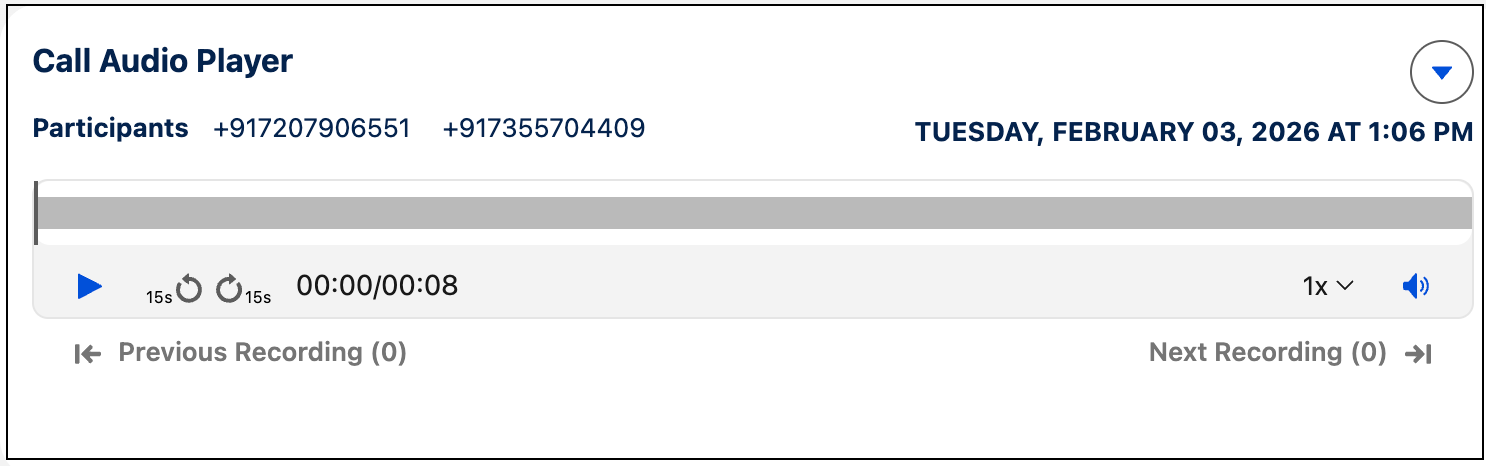
To listen to the recording, click the Play icon on the Call Audio
Player.
-
To fast forward or rewind by 15 seconds, click the circular
arrows.
-
To change the playback speed, click 1x .
-
To skip to a different part of the call recording, click the audio indicator.
-
The recording for the transfer is stored in the same voice record. To navigate between
transferred calls, use Next Recording and Previous Recording.