---
schema_version: "1"
id: 70bc1b307c574b3f230f73720813d33c88acc96e4b7bba471db7a52919418f5b
title: Wrap Up After a Call in Salesforce Voice
collection: admin
version: current
locale: en-us
portal_url: https://docs.salesforce.com/admin/current/en-us/service/264-0-0/afcc_sv_after_convo_work.md
canonical_url: https://help.salesforce.com/s/articleView?id=service.afcc_sv_after_convo_work.htm&release=264.0.0&type=5
source_site: help.salesforce.com
content_type: documentation
content_hash: e0ab7f1955bfeabed26096ad9bada887422740b56a86099e3ff082e270a55540
description: Most customer service calls require closing work after they end. For example, you can send an email, update a case, or finalize your notes. When a conversation ends, you have a set amount of time specified by your admin to wrap up your work before you move on to the next customer. The After Conversation Work (ACW) component on a call or messaging record shows a countdown to help you manage your time.
products:
- Service Cloud
- Digital Engagement
release: "264"
---
# Wrap Up After a Call in Salesforce Voice
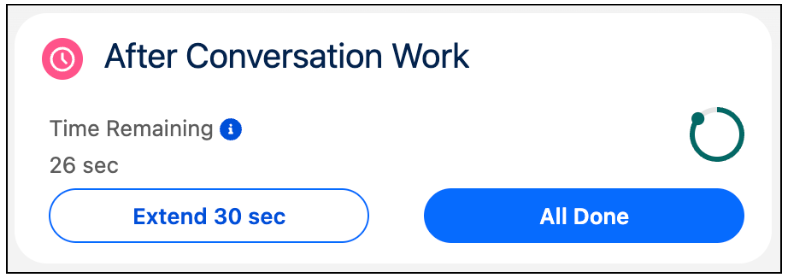
Most customer service calls require closing work after they end. For example, you can send an email, update a case, or finalize your notes. When a conversation ends, you have a set amount of time specified by your admin to wrap up your work before you move on to the next customer. The After Conversation Work (ACW) component on a call or messaging record shows a countdown to help you manage your time.
### Required Editions
This article applies to:
Salesforce Voice (Native Telephony)
## How It Works
You have a set number of seconds to complete wrap-up tasks before you’re available for a new conversation. When time is up, your work is considered complete whether you close the record.
## If You’re Done Early
If you finish your wrap-up work before an ACW period runs out, click **All Done** or close the record tab in the console to show that you’re ready to help the next customer. Making an outbound call or changing your status during the ACW period also ends the countdown and closes the agent work. If you log out of Salesforce during an ACW period without marking it done, the ACW period continues for a little over a minute.
## Extend Wrap-Up Time
If you need more time to finish your wrap-up work, click **Extend**. Your admin sets the extension time and how many extensions you can make on your work. An extension pauses the ACW timer to prevent you from being put back into available status before completing after conversation work.
## If a Call is Transferred
When a call is transferred from one rep to another, each rep’s ACW period begins the moment they exit the call. This behavior applies to when you complete both warm and cold transfers.
## If an Inbound or Outbound Call is Canceled
When a caller cancels an inbound call that hasn’t been connected to a rep or you cancel an outbound call, you don’t enter the After Conversation Work flow. Although the Voice Call tab can still be open and lower your rep capacity, the ACW component doesn’t appear.
## Don’t see the ACW component, Extend button, or timer on a call or messaging record?
If you don’t see the ACW component or Extend button on a call or messaging record, your admin likely hasn’t set up the features. In this case, there’s no wrap-up work time limit or extend wrap-up work option. Keep the call record open in the console until you complete your work for the call. Then close the record so you’re available for another customer.
If you don’t see the timer, your org might have Omni-Channel Fallback Mode enabled. In this mode, ACW isn’t supported. To free up your capacity after a call or messaging session completes, click **All Done**.