---
schema_version: "1"
id: a96c2f9d6258cbb92ce9d97cb7567083bd150981167e5f49df30f7e0aa024b67
title: Edit Splits Layouts
collection: admin
version: current
locale: en-us
portal_url: https://docs.salesforce.com/admin/current/en-us/sales/264-0-0/teamselling_opp_splits_edit_mle.md
canonical_url: https://help.salesforce.com/s/articleView?id=sales.teamselling_opp_splits_edit_mle.htm&release=264.0.0&type=5
source_site: help.salesforce.com
content_type: documentation
content_hash: 9e43848fc26dabc4fbf60696a90202420ab2f3290f22b02265bc4770600fb386
description: Choose the fields for sales reps to use when managing opportunity splits and opportunity product splits.
products:
- Sales Cloud
release: "264"
---
# Edit Splits Layouts
Choose the fields for sales reps to use when managing opportunity splits and opportunity product splits.
Available in: Lightning Experience and Salesforce Classic
Available in: Performance and Developer Editions and Enterprise and Unlimited Editions with the Sales
User Permissions Needed
To edit multiline layouts and page layouts:
Customize Application
1. In the Object Manager, use the Quick Find box to find **Opportunity Split** or **Opportunity Product Split**. Complete these steps for each object.
2. Click **Page Layouts**, and then select a layout to edit.
3. Open the Multi-Line Layout editor.
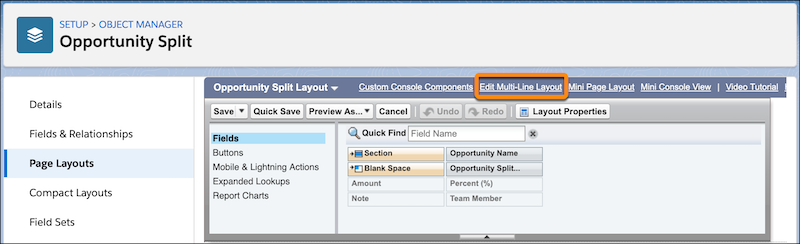
4. In the editor, select fields for sales reps to use when managing splits.

Important The multi-line layout for Opportunity Split and Opportunity Product Split doesn’t support rich text fields, multi-select picklists, time, or formula fields. Users can edit those fields on each team member’s splits pages.
In Lightning Experience, considerations for editing inline in a list view also apply to editing splits in the multi-line view.
5. Save your work.
#### See Also
- [Considerations for Inline Editing in a List View in Lightning Experience](https://help.salesforce.com/s/articleView?id=xcloud.basics_customviews_lv_lex_considerations.htm&language=en_US)