---
schema_version: "1"
id: 7ed2d7ac37f781f2355284a8b5d00bf8031d4045838ac8df56dc29c7dc0b6dca
title: Log Out of the Salesforce App in Teams
collection: admin
version: current
locale: en-us
portal_url: https://docs.salesforce.com/admin/current/en-us/sales/264-0-0/teams_int_use_logout.md
canonical_url: https://help.salesforce.com/s/articleView?id=sales.teams_int_use_logout.htm&release=264.0.0&type=5
source_site: help.salesforce.com
content_type: documentation
content_hash: 98462ec213b705e420fc7b79cce1864fee0ce524311123b0524fdb6e50c0c726
description: To disconnect your Salesforce account from Microsoft Teams, log out of the Salesforce App. You can’t share or view Salesforce records while logged out.
products:
- Sales Cloud
- Cross Cloud
- Service Cloud Voice
release: "264"
---
# Log Out of the Salesforce App in Teams
To disconnect your Salesforce account from Microsoft Teams, log out of the Salesforce App. You can’t share or view Salesforce records while logged out.
### Required Editions
Available in: Lightning Experience
Available with Sales Cloud and Service Cloud in: Enterprise, Performance, and Unlimited Editions
User Permissions Needed
Use the integration for Teams
User for Teams Integration
1. From any version of Microsoft Teams, right-click the Salesforce icon located below the box you use to type messages in chat or in channels.
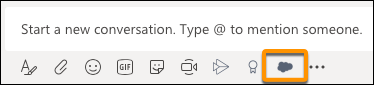
Your Teams administrator maintains the policies for the apps available to you and the apps you can pin to the Teams messaging bar. If you can’t find the Salesforce app, contact your Teams administrator for help.
2. Select **Settings**, and then click **Logout**.
You can log in to the Salesforce app to share and view records again.

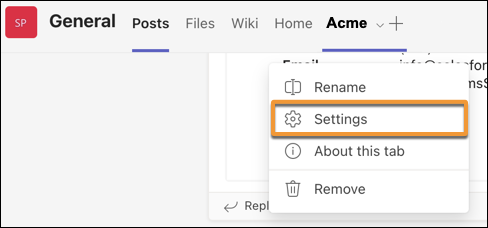
Tip You can also log out from custom record tabs. From the top of any custom Salesforce record tab in Microsoft Teams, click the dropdown menu, and then select **Settings**.