---
schema_version: "1"
id: 592985f5adf2886c3c67917ca48644d5cd2d1f9dfec6abdb8deba421b7bc0fb7
title: Get the Salesforce App for Microsoft Teams
collection: admin
version: current
locale: en-us
portal_url: https://docs.salesforce.com/admin/current/en-us/sales/264-0-0/teams_int_use_get_the_app.md
canonical_url: https://help.salesforce.com/s/articleView?id=sales.teams_int_use_get_the_app.htm&release=264.0.0&type=5
source_site: help.salesforce.com
content_type: documentation
content_hash: 3b2b46e7fb146e8ea613efcfd3ebc72f2b532a9b2fe32a2fcee72e7706a5daee
description: To mention Salesforce records in Microsoft Teams, add the Salesforce app to the messaging area in Teams.
products:
  - Sales Cloud
  - Cross Cloud
  - Service Cloud Voice
release: "264"
---
# Get the Salesforce App for Microsoft Teams

To mention Salesforce records in Microsoft Teams, add the Salesforce app to the messaging area in Teams.

### Required Editions

<table class="slds-table slds-table_bordered slds-max-medium-table_stacked slds-m-bottom_small edition"><colgroup><col></colgroup><tbody><tr class=""><td class="slds-cell-wrap" style="vertical-align:top;">Available in: Lightning Experience</td></tr><tr class=""><td class="slds-cell-wrap" style="vertical-align:top;">Available with Sales Cloud and Service Cloud in: <strong>Enterprise</strong>, <strong>Performance</strong>, and <strong>Unlimited</strong> Editions</td></tr></tbody></table>

<table class="slds-table slds-table_bordered slds-max-medium-table_stacked slds-m-bottom_small permission">
        <colgroup>
          <col style="width:50%">
          <col style="width:50%">
        </colgroup>
        <thead class="slds-text-title_caps ">
          <tr class="">
            <th scope="colgroup" class="slds-cell-wrap" colspan="2" style="text-align:center;vertical-align:top;" id="d47281e72">User Permissions Needed</th>
          </tr>
        </thead>
        <tbody>
          <tr class="">
            <td data-label="User Permissions Needed" class="slds-cell-wrap" style="vertical-align:top;" headers="d47281e72 ">Use the integration for Teams</td>

            <td class="slds-cell-wrap" style="vertical-align:top;" headers="d47281e72 ">User for Teams Integration</td>

          </tr>
        </tbody>
      </table>

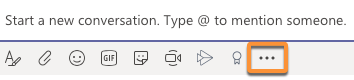
1. From the desktop or web version of Microsoft Teams, select the **More Options** menu located below the box you use to type messages.
    
    ![Tool options in Microsoft Teams with More Options menu highlighted.](https://sf-zdocs-cdn-prod.zoominsoftware.com/tdta-sales-sales_productivity-264-0-0-production-enus/b2f6c36a-fa61-4a3c-9752-032ce1818a69/sales_productivity/images/teams_integration/teams_int_more_options.png)
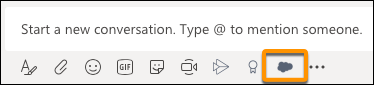
2. Search for Salesforce, and then add the app. After you do, a Salesforce icon is available in the app toolbar.
    
    ![Tool options in Microsoft Teams with the Salesforce icon highlighted.](https://sf-zdocs-cdn-prod.zoominsoftware.com/tdta-sales-sales_productivity-264-0-0-production-enus/b2f6c36a-fa61-4a3c-9752-032ce1818a69/sales_productivity/images/teams_integration/teams_int_salesforce_icon.png)
    
    Your Teams administrator maintains the policies for the apps available to you and the apps you can pin to the Teams messaging bar. If you can’t find the Salesforce app, contact your Teams administrator for help.

![Tip](https://sf-zdocs-cdn-prod.zoominsoftware.com/tdta-sales-sales_productivity-264-0-0-production-enus/b2f6c36a-fa61-4a3c-9752-032ce1818a69/images/icon_tip.png)

Tip After you add the app to the desktop or web version of Teams, the app is available in Teams on your mobile device.