---
schema_version: "1"
id: 6be43544105a8eea3e38dbe0e778da2ce99203ca971fa2d88af0d65b839678a8
title: Configure the Integration with Microsoft Teams in Salesforce
collection: admin
version: current
locale: en-us
portal_url: https://docs.salesforce.com/admin/current/en-us/sales/264-0-0/teams_int_setup_configure_in_salesforce.md
canonical_url: https://help.salesforce.com/s/articleView?id=sales.teams_int_setup_configure_in_salesforce.htm&release=264.0.0&type=5
source_site: help.salesforce.com
content_type: documentation
content_hash: 2fe78ad9f16a581332e99c61ca49ba9f4a6299f2c2db7914f705b1e76b903484
description: Turn on the integration with Teams in Salesforce. Then users with the User for Teams Integration permission can access Salesforce data and mention Salesforce records in their Teams conversations.
products:
  - Sales Cloud
  - Cross Cloud
  - Service Cloud Voice
release: "264"
---
# Configure the Integration with Microsoft Teams in Salesforce

Turn on the integration with Teams in Salesforce. Then users with the User for Teams Integration permission can access Salesforce data and mention Salesforce records in their Teams conversations.

### Required Editions

<table class="slds-table slds-table_bordered slds-max-medium-table_stacked slds-m-bottom_small edition"><colgroup><col></colgroup><tbody><tr class=""><td class="slds-cell-wrap" style="vertical-align:top;">Available in: Lightning Experience</td></tr><tr class=""><td class="slds-cell-wrap" style="vertical-align:top;">Available with Sales Cloud and Service Cloud in: <strong>Enterprise</strong>, <strong>Performance</strong>, and <strong>Unlimited</strong> Editions</td></tr></tbody></table>

<table class="slds-table slds-table_bordered slds-max-medium-table_stacked slds-m-bottom_small permission">
        <colgroup>
          <col style="width:50%">
          <col style="width:50%">
        </colgroup>
        <thead class="slds-text-title_caps ">
          <tr class="">
            <th scope="colgroup" class="slds-cell-wrap" colspan="2" style="text-align:center;vertical-align:top;" id="d95635e72">User Permissions Needed</th>
          </tr>
        </thead>
        <tbody>
          <tr class="">
            <td data-label="User Permissions Needed" class="slds-cell-wrap" style="vertical-align:top;" headers="d95635e72 ">To turn on the app and select data sharing:</td>

            <td class="slds-cell-wrap" style="vertical-align:top;" headers="d95635e72 ">Modify All Data</td>

          </tr>
          <tr class="">
            <td data-label="User Permissions Needed" class="slds-cell-wrap" style="vertical-align:top;" headers="d95635e72 ">To set user permissions:</td>

            <td class="slds-cell-wrap" style="vertical-align:top;" headers="d95635e72 ">Assign Permission Sets</td>

          </tr>
        </tbody>
      </table>

1. From Salesforce Setup, in the Quick Find box, enter Teams, and then select **Teams Integration**.
2. Turn on Let users access Teams Integration features.
3. Read and acknowledge the agreement.
4. Select Assign Permission Set, and assign the User for Teams Integration permission set to users who need access to Salesforce in Teams.
5. Select how much Salesforce data to include when a user shares a Salesforce record anywhere in Teams. <table class="slds-table slds-table_bordered slds-max-medium-table_stacked slds-m-bottom_small ">
          <tbody><tr class="">
            <th style="vertical-align:top;" headers="d95635e138-option" id="d95635e142">Show the object type only</th>

            <td style="vertical-align:top;" headers="d95635e138-desc d95635e142">When a rep mentions a record in a conversation, the conversation shows only
              information about the object type mentioned. Users with Salesforce access can preview more
              record details in Teams. Users without Salesforce access see only that a record was mentioned
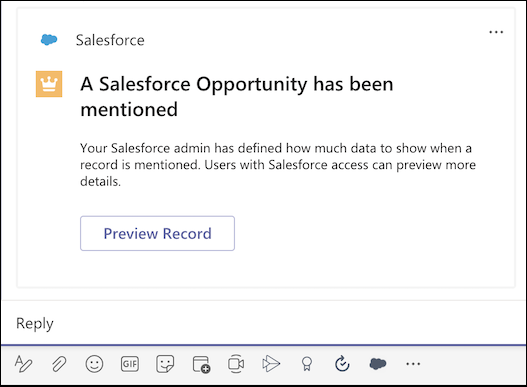
              and its type, such as contact, opportunity, lead, account, or case.<p>Users see a card with
                limited information when they mention a record in a channel.</p>
              <div style="text-align:left;"><img src="https://sf-zdocs-cdn-prod.zoominsoftware.com/tdta-sales-sales_productivity-264-0-0-production-enus/b2f6c36a-fa61-4a3c-9752-032ce1818a69/sales_productivity/images/teams_integration/teams_object_type_only_record_mention.png" alt="Shows an opportunity record with no details in a Teams chat window with the Preview Record button"></div>
            </td>

          </tr>
          <tr class="">
            <th style="vertical-align:top;" headers="d95635e138-option" id="d95635e156">Show the object type only</th>

            <td style="vertical-align:top;" headers="d95635e138-desc d95635e156">When a rep mentions a record in a conversation, the conversation shows only
              information about the object type mentioned. Users with Salesforce access can preview more
              record details in Teams. Users without Salesforce access see only that a record was mentioned
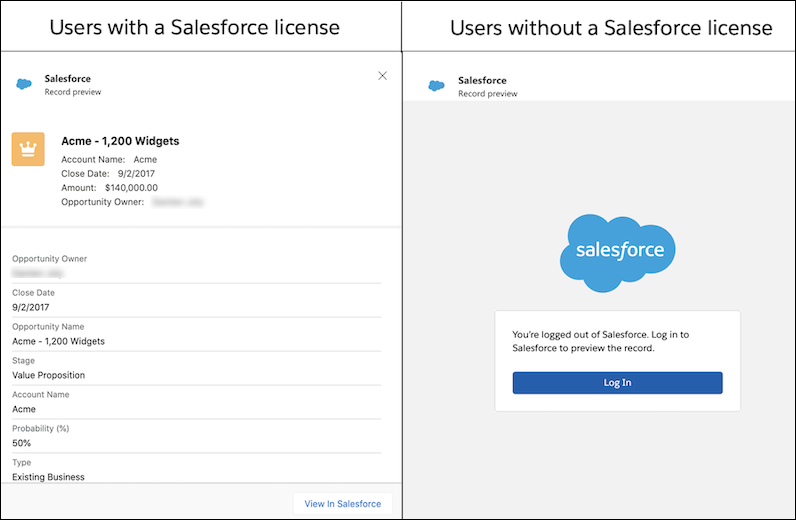
              and its type, such as contact, opportunity, lead, account, or case.<p>After users select
                Preview Record, they see different amounts of information based on their Salesforce
                permissions.</p>
              <div style="text-align:left;"><img src="https://sf-zdocs-cdn-prod.zoominsoftware.com/tdta-sales-sales_productivity-264-0-0-production-enus/b2f6c36a-fa61-4a3c-9752-032ce1818a69/sales_productivity/images/teams_integration/teams_object_type_only_record_preview.png" alt="Shows a record detail for users with a license and a Salesforce login page for useres without a license"></div>
            </td>

          </tr>
          <tr class="">
            <th style="vertical-align:top;" headers="d95635e138-option" id="d95635e170">Show record summary</th>

            <td style="vertical-align:top;" headers="d95635e138-desc d95635e170">When a rep mentions a record, the record’s compact layout shows in the conversation,
              even to users who don’t have Salesforce access. This option provides the most insight into
              the record shown and is best for collaboration within Teams. However, ensure that the
              structure of your compact layouts and the data included are appropriate for all members of a
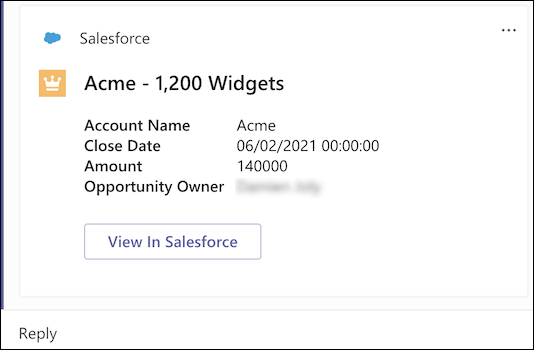
              Teams channel to see.<p>When a user mentions a record, all channel members see an adaptive
                card with record details. Details shown on the adaptive card are stored in your company’s
                Office 365 Teams storage.</p>
              <div style="text-align:left;"><img src="https://sf-zdocs-cdn-prod.zoominsoftware.com/tdta-sales-sales_productivity-264-0-0-production-enus/b2f6c36a-fa61-4a3c-9752-032ce1818a69/sales_productivity/images/teams_integration/teams_object_summary_record_mention.png" alt="Shows an opportunity record with details in a Teams chat window with the option to view the entire record in Salesforce"></div>
            </td>

          </tr>
        </tbody></table>
    
    After users who have a Salesforce license select **View in Salesforce**, they see the record detail page in Salesforce with any information available to them based on their permissions.
    
    ![Shows a record detail page in Salesforce for users with a license](https://sf-zdocs-cdn-prod.zoominsoftware.com/tdta-sales-sales_productivity-264-0-0-production-enus/b2f6c36a-fa61-4a3c-9752-032ce1818a69/sales_productivity/images/teams_integration/teams_view_record_show_summary.png)
    
    After users who don’t have a Salesforce license select **View in Salesforce**, they see a login page. They can’t view any additional Salesforce records’ details without acquiring a login.
    
    ![Shows a Salesforce login page for users without a license](https://sf-zdocs-cdn-prod.zoominsoftware.com/tdta-sales-sales_productivity-264-0-0-production-enus/b2f6c36a-fa61-4a3c-9752-032ce1818a69/sales_productivity/images/teams_integration/teams_view_record_no_license.png)
    
    Some fields aren’t displayed in Teams adaptive cards when the integration is configured for record mentions in a compact layout.
    
    - All empty fields
    - Address and rich text fields in the compact layout
    - The PhotoUrl field on contacts and leads
6. Work with your Teams administrator to provision the integration in the Teams application.

#### See Also

- [Permission Sets](https://help.salesforce.com/s/articleView?id=platform.perm_sets_overview.htm&type=5&language=en_US)
- [Provision the Integration in Microsoft Teams](https://help.salesforce.com/s/articleView?id=sales.teams_int_setup_provision_in_teams.htm&release=264.0.0&type=5 "After the setup is complete in Salesforce, work with your Microsoft Teams administrator to ensure that the Teams environment is set up correctly. The Salesforce app provides the integration features within the Teams interfaces. The app permission policies maintained in the Microsoft Teams admin center determine which apps users can install. Those policies also determine which apps users can pin to the Teams app bar in their desktop and mobile clients can pin within their teams.")